![SWTB_logo_rgb_color_mode-wPadding-2000x961.png]](https://help.softwaretoolbox.com/hs-fs/hubfs/SWTB_General/Images/Press_Kit/SWTB_logo_rgb_color_mode-wPadding-2000x961.png?height=50&name=SWTB_logo_rgb_color_mode-wPadding-2000x961.png)
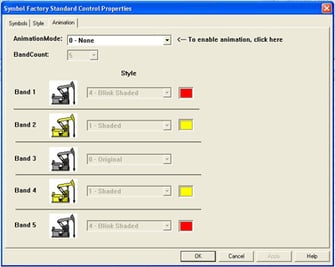
If your Symbol Factory ActiveX or Industrial Gadgets ActiveX property pages do not show the entire list of symbols as shown and fonts on the Style and Animation Tabs are of a different font size than other text, as shown below, this issue has been identified to be caused by the Font DPI setting in Windows and this answer shows how to resolve the issue.
Screenshots showing the symptoms of this issue with Symbol Factory ActiveX on Windows XP are below. We have only seen this issue on Windows XP; however, if you see these symptoms on other Windows operating systems, the root cause and resolution is the same.
 |
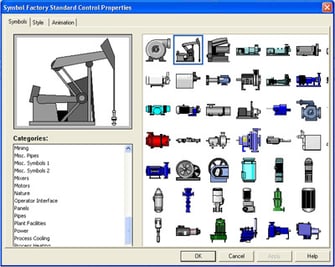 |
| In the dialog above, notice how text on the property page body is in a bold font while the buttons and tab names text are not. This is a symptom of this issue. | In the dialog above, notice how the symbol previews at the right side are clipped. |
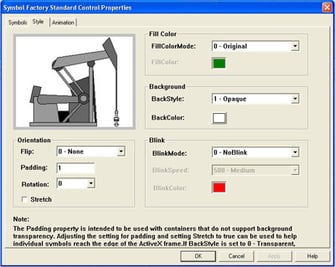 |
In the dialog at the left, notice how text on the property page body is in a bold font while the buttons and tab names text are not. This is a symptom of this issue. |
Symbol Factory ActiveX both in its installation, and operation does not make any changes to these font settings. In the situations where this has been reported, the change was caused when the user hooked up an external monitor to a laptop and the auto-setup routine in the laptop changed the DPI settings but they were not set back to 96 DPI properly. This same issue has been seen to cause issues with many other applications other than Symbol Factory ActiveX. It is standard practice in Activex controls written in VC++ with MFC to allow the operating system to set the fonts - that way the fonts can change if the user changes the style of their computer appearance. Unfortunately, there is a side effect to doing this which occurs in this situation.
This resolution is provided as a courtesy based on what we have found addresses and removes the symptoms in our product and other products we have seen that have shown these symptoms. We cannot provide technical support for operating system issues.
Resolution:
Change the Font DPI to something less than the normal 96 DPI, then change it back to the normal DPI, and the issue will be resolved. This may require that you reboot the system after you change the DPI, and then again after setting it back to 96 DPI.
Steps to implement the resolution:.
Start ⇒ Control Panel ⇒ Display
Go to the Settings Tab and Click Advanced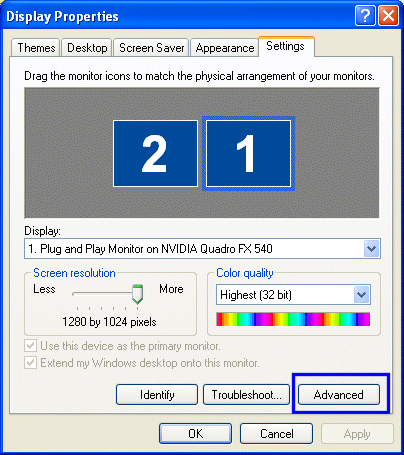
In the DPI Setting, as shown below, you can click on the down arrow and choose "custom"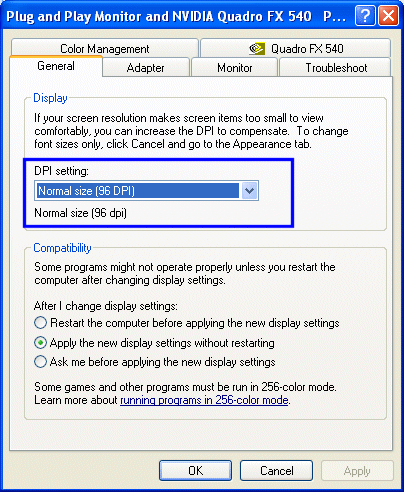
Set the custom DPI setting to something less than 100% (i.e. 90% maybe, but not too low), and click OK.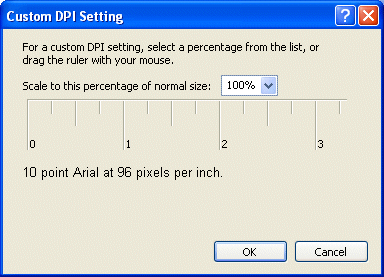
Close the rest of the display dialogs and it's best to reboot.
Then repeat these steps, setting the DPI setting back to normal 96 DPI.