![SWTB_logo_rgb_color_mode-wPadding-2000x961.png]](https://help.softwaretoolbox.com/hs-fs/hubfs/SWTB_General/Images/Press_Kit/SWTB_logo_rgb_color_mode-wPadding-2000x961.png?height=50&name=SWTB_logo_rgb_color_mode-wPadding-2000x961.png)
The PDF was created for TOP Server v4. The below FAQ has been updated for version 6.
Table of Contents
Introduction [Back to top]
Overview
The TOP Server Channel Diagnostics give us the ability to see what is being transmitted to the device in your configuration and what is being returned by the device. If no data is being returned (RX) then first check you comm. settings and cabling as the cause of the problem as the device is not returning any data to the server.
Purpose
This document covers the use of the Channel Diagnostics for the purpose of sending data to Software Toolbox Technical Support. TOP Server has both Channel and OPC Diagnostics. This paper only covers the use of the Channel Diagnostics with the OPC Quick Client to collect basic data to solve communications problems.
Using the TOP Server Channel Diagnostics [Back to top]
- The first step is to enable the diagnostics in the Channel having a problem. Start by going to the TOP Server configuration and highlight the channel being used to communicate to the device your having problems with currently. Now right click on the Channel and choose Properties.
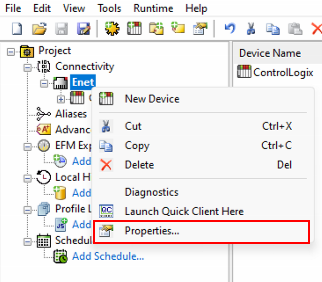
When you click on Properties the Channel Properties window will open and you should go to the General Tab.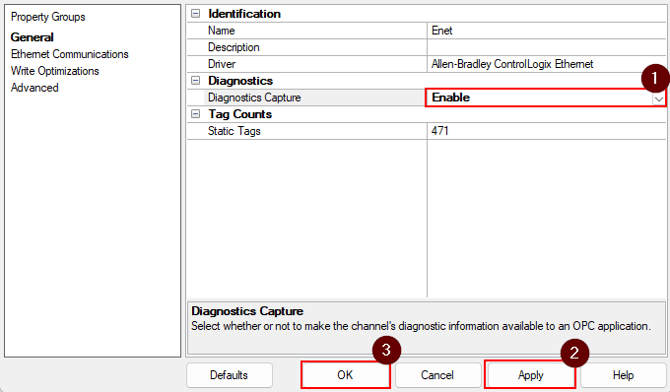
At the General tab you will see the Enable diagnostic box as shown in the picture. If it is already enabled, go to step -2- and continue.
Check this box and click on Apply. Now click on the OK button as shown above in the bottom of the Channel Properties window. - The second step is opening up the OPC Quick Client. Simply go to the TOP Server and click on the ICON with the "QC" as shown. The OPC Quick Client will now open and subscribe to all the tags you have configured in TOP Server.

Once all the tags are subscribed to, you will see folders similar to the ones on the right at the top left of the Quick Client. Click on the folder with your channel name, dot, device name.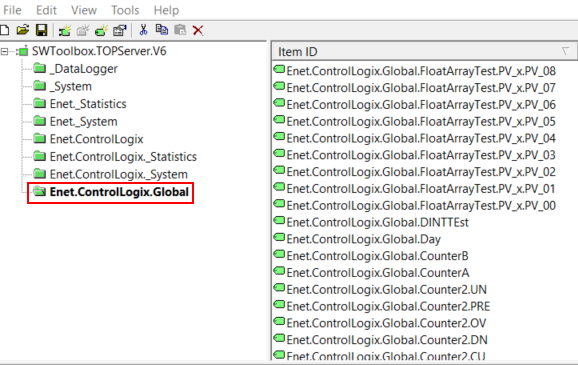
Once you click on this folder you will see your tags in the right window as above. Highlight all these tags. To highlight more then one tag hold down the shift key. Once all the keys are highlighted, right click on the tags and the options window will pop-up.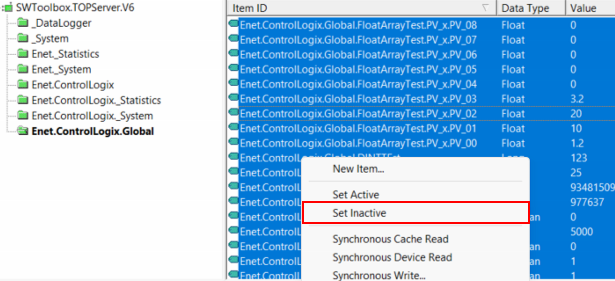
Choose, Set Inactive, in the window. The highlighted tags will all show grey now instead of green, as shown below.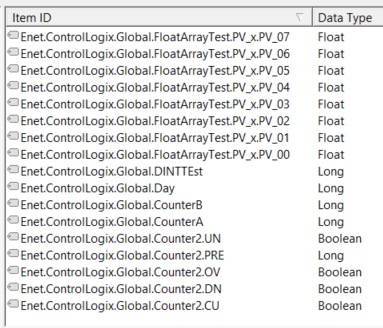
Before moving to the next step, make sure all tags are set inactive. You can also delete groups that won’t be used for testing. It is important that no tags are currently active that are trying to talk to the devices configured. - The third step is to open the channel diagnostics window. Go back to TOP Server and right click on the Channel again and click on Diagnostics. The Diagnostics window will open as shown below.
Note: If using the UCON Driver it can be helpful to change the drop down for Hex Mode to Mixed mode once data is sent. If the errors don’t happen on each read or write, but periodically then click on the Auto pause on failure options and run the client with active tags or the client your using.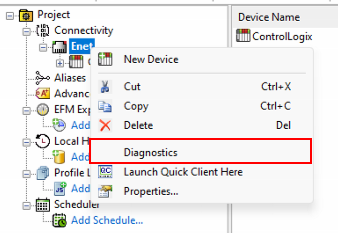
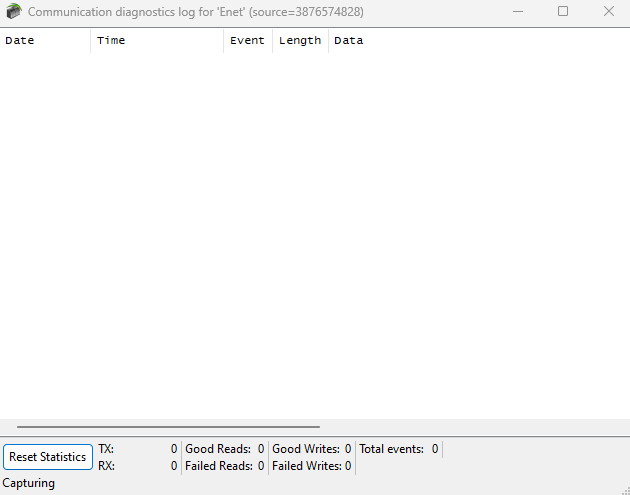
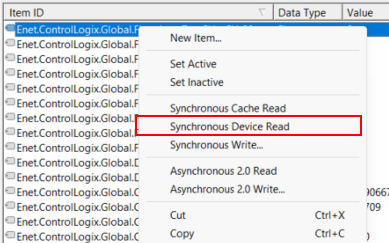
- The fourth step is to force a read or write with the Quick Client while the diagnostic window is open. Start by highlighting one of the tags that is currently set to inactive and right click on it. Then choose Synchronous Device Read while the tag is still set to Inactive (if the problem is with writes do a Synchronous Device Write). If you have some tags that are working and some that are not, repeat step 4 and 5 for both good and bad tags.
- Step 5 is to save the diagnostics from the Diagnostics Window in a text file.This can be done by right clicking in the black area of the Diagnostics Window and choosing "Copy".
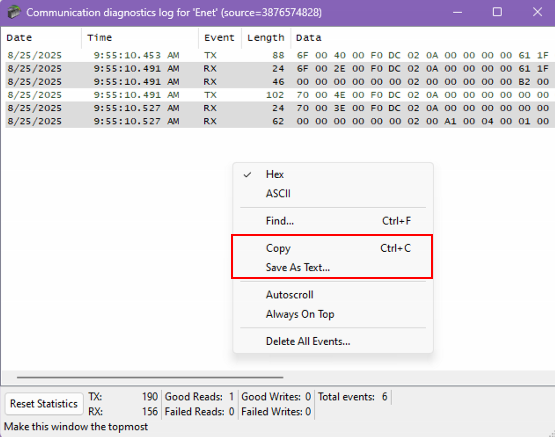
Now open a new Notepad text document and paste the diagnostics. It should look similar to what is shown below. TXs are transmits and RXs are return messages from the device.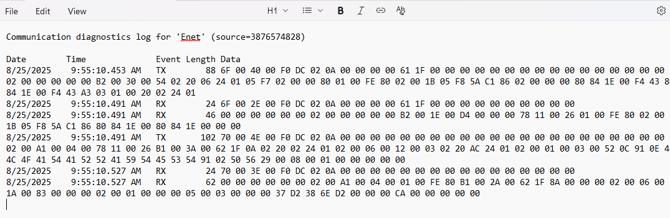
Now save this text and email it to support@softwaretoolbox.com along with your project file that ends in .opf and the TOP Server log file called event.log found under: C:\ProgramData\Software Toolbox\TOP Server\V6.