![SWTB_logo_rgb_color_mode-wPadding-2000x961.png]](https://help.softwaretoolbox.com/hs-fs/hubfs/SWTB_General/Images/Press_Kit/SWTB_logo_rgb_color_mode-wPadding-2000x961.png?height=50&name=SWTB_logo_rgb_color_mode-wPadding-2000x961.png)
The purpose of this paper is to demonstrate how to connect Siemens WinCC V6 to the TOP Server. This example uses the TOP Server connecting to the Simulation Driver, but the same steps are used to connect to devices in the 70+ drivers available for the TOP Server.
The information provided here is not a substitute for your WinCC V6 documentation. We are covering how to do this in order to show a complete connection, not to provide comprehensive training on how to build WinCC V6 screens.
Configuring the TOP Server
Open the OPC Server from the Windows Start menu as shown below.
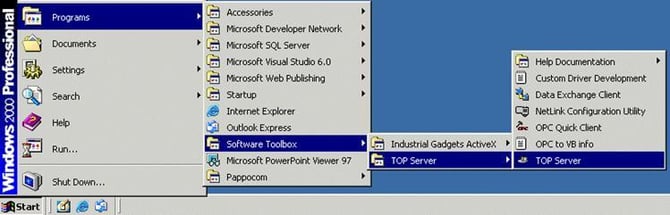
When the TOP Server opens you will see the User-Interface below. For more information on configuring the TOP Server see the Quick Start Guide at the link below:
https://help.softwaretoolbox.com/faq/3575
The TOP Server has a help file for the main server interface and for each driver with configuration details also. Tags don’t have to be entered into the OPC Server as done in this example. Dynamic tags can be added from within WinCC as long as a Channel and Device are configured first in TOP Server. The use of dynamic tags is covered at the end of this document.
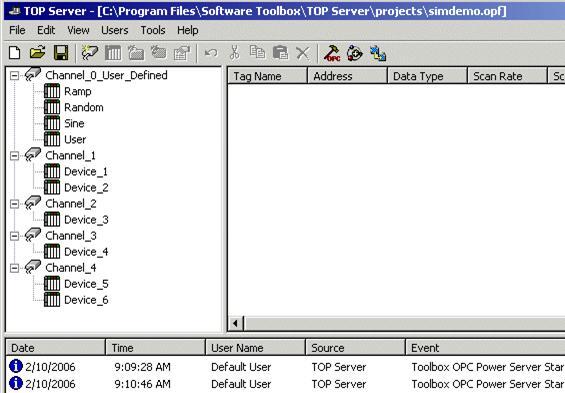
The Simdemo project will open the first time you start the TOP Server. If you need to open this project go to File ⇒ Open or click on the  Icon and browse to Drive:\Program Files\Software Toolbox\TOP Server 5\Projects and select Simdemo.opf. Any file you create will be saved to this location by default also and always ends with the “.opf” extension. You will also want to update if a dialog box pops up and asks if you would like to update or if you would not.
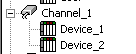 The Simdemo project has a number of Channels and Devices configured as show to the left. A TOP Server configuration requires a minimum of one channel and one device configured. Each channel represents a single network connection or thread of communication. When using an Ethernet connection it is normally best to create only one device under each channel, so that each device has its own connection.
Configuring Tags is done by highlighting the device you created and then right clicking under the Tag Name column as shown below. The simdemo project has tags already created.
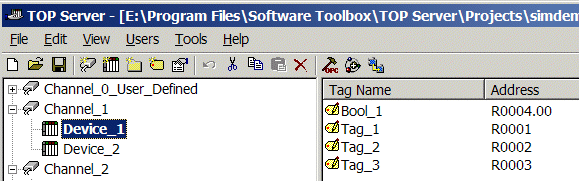
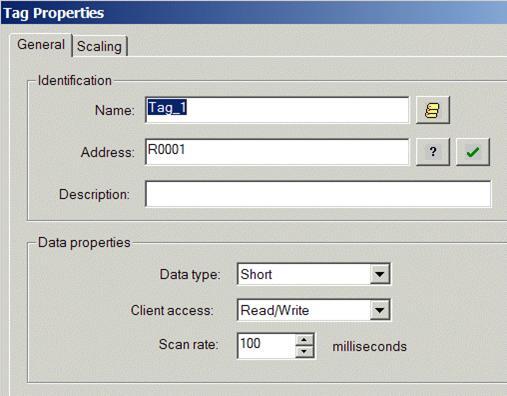
After right clicking the Tag Properties dialog below opens. The Name can be any meaningful name and the Address is the address in the PLC. You can select the data type to use as well as the Read/Write access. The Scan rate is not used with WinCC V6 OPC connections and should be ignored.
Once you are done configuring your tags you are ready to connect with WinCC V6.
Configuring WinCC V6
| Open WinCC V6 and Create a New project (or open an existing one) and click OK. | 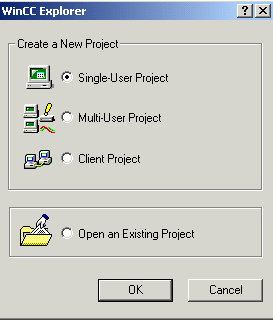 |
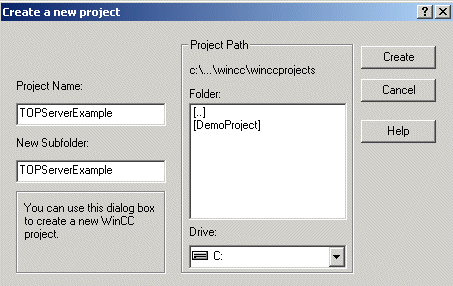 |
Name your project and click Create or select a previous project. |
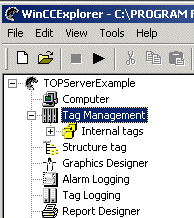 |
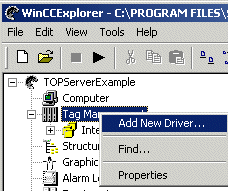
The screen will then return to WinCCExplorer. Right click on Tag Management and choose, Add New Driver as shown below.
|
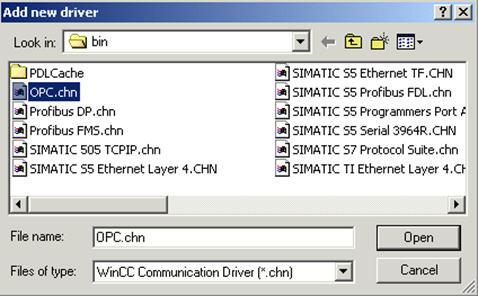 |
Choose OPC.chn from the Add new Driver bin list and click Open as shown to the left. |
Expand the Tag Management tree as seen below and right click on OPC Groups.
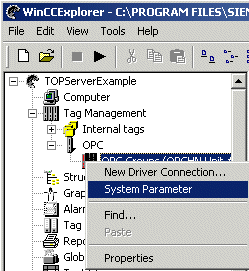 |
Choose System Parameter as shown to the left. |
|
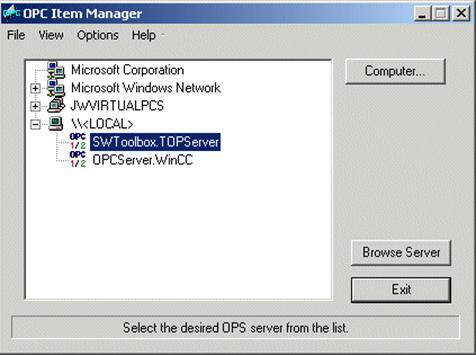
The OPC Item Manager will now open. You should select the ProgID for the TOP Server as show on the right – SWToolbox.TOPServer. Click on Browse Server once the ProgID is selected.
If the TOP Server you are connecting to is on a different computer you will have to Configure DCOM first. See our Tutorials for DCOM at: |
 |
The Filter Criteria dialog will open next.
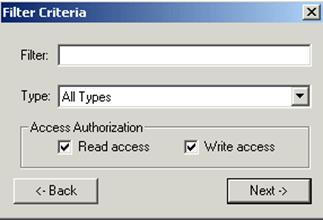 |
Make sure Read access and Write access are checked under the Access Authorization section. Click Next to continue.
The browse window below will open. |
| Expand the tree on the left and go to the Channel and device to see the tags appear in the right pane of the dialog shown to the right. | 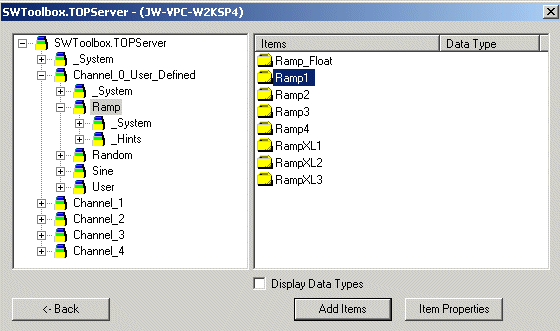 |
This example shows the Ramp device under the Channel: Channel_0_User_Defined highlighted.
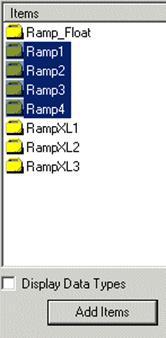 |
To add more then one tag at a time highlight the first tag then hold down the shift key and highlight the last tag you would like to add as shown to the right. Once the tags are highlighted click Add Items |
| If you haven’t created a logical connection yet this warning will open, just click Yes. | 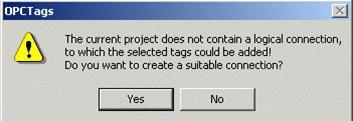 |
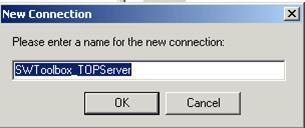 |
Enter a meaning full name for the logical connection and click OK as shown to the left. |
|
The Add Tags dialog will now open as shown to the right. You can add a Prefix or Suffix to all tags. See your WinCC V6 documentation for more information on adding Prefix or Suffix information to tags. Click Finish to add the tags. |
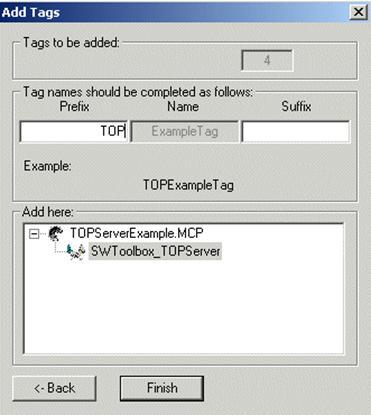 |
| The “Please wait” dialog shown here will appear while the tags are being added. |  |
When complete close all open dialogs and go the WinCCExplorer as shown below
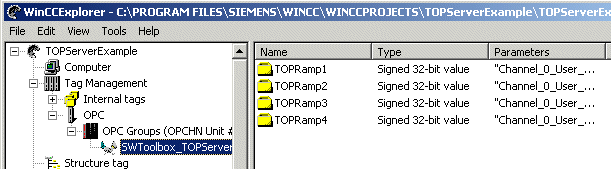
If you highlight the logical group in the tree as shown above, the tags we added can be seen.
We are now done adding tags to WinCC V6. You can follow this same method to add additional tags as needed.
Graphics Designer:
The next step is to open Graphic Designer.
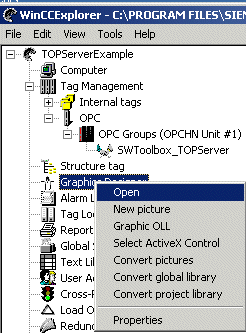 |
Right click on Graphics Designer as shown in the tree to the left and choose Open. |
| When Graphics Designer opens go to the Object Palette as shown to the Right. In this example we will be using the I/O Field object. | 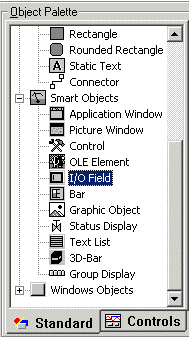 |
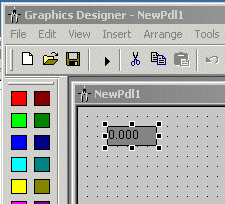 |
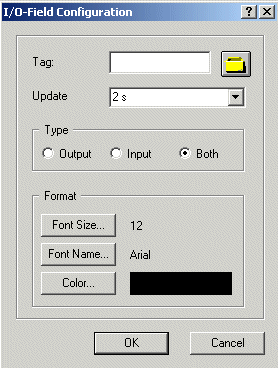
Place the I/O Field object on a Form as shown to the left. The I/O-Field Configuration below will open once the object has been placed on the form |
Click on the  icon to choose a tag to connect to the I/O-Field object. icon to choose a tag to connect to the I/O-Field object. |
 |
When this dialog window below opens, expand the OPC tree until you get to the logical connection to see your tags.
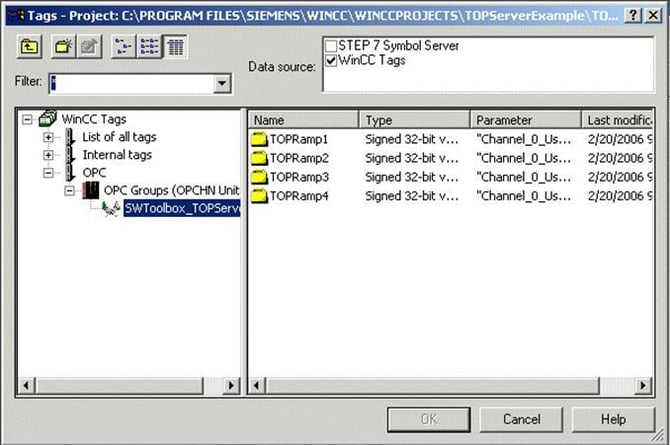
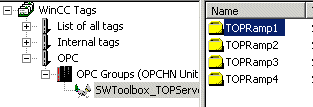
Highlight the tag you want to use. In this case we will use TOPRamp1 which maps to the tag: Channel_0_User_Defined.Ramp.Ramp1 in the TOP Server. Click OK once the tag is selected. |
 |
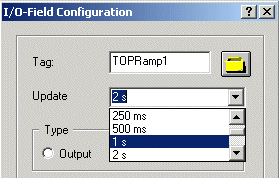 The I/O-Field Configuration will be open and you need to select the Update rate as shown to the left. See your WinCC V6 documentation for information on the additional settings in this dialog.
The Update rate is the rate the TOP Server OPC Server will attempt to poll your device. The update rate is not set in the TOP Server, but by this setting in WinCC V6. The TOP Server drivers attempt to optimize communication based on these update rates by reading blocks of data when possible. This results in the fastest update rate requested being used for all tags in a given block of data. See the driver help files in the TOP Server for specific information on how data is blocked for the specific driver you are using.
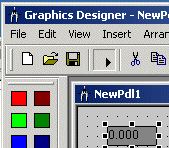 |
Now you can click on the Run Icon in Graphics Designer to start WinCC V6 Runtime. |
| The Activate Dialog to the right will be shown while the project is being started. | 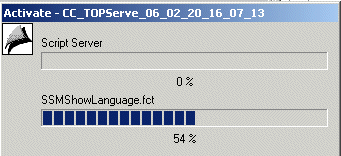 |
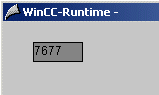 When WinCC V6 Runtime opens we can see the value from our tag changing as show to the right. See your WinCC V6 documentation about setting the format of the I/O field to match the data coming from the TOP Server.
You are now done unless you want to learn about dynamic tag addressing, which eliminates the need to configure any tags in the TOP Server.
Dynamic Tag Configuration:
If tags are not added into the TOP Server OPC Server or you prefer not to browse for tags, you may configure Dynamic tags in WinCC V6 using Channel.Device.PLC addresses. If using Dynamic Tags, at a minimum, a Channel and Device must first be configured in the OPC Server. For more information on configuring the TOP Server see the Quick Start Guide at the link below:
https://help.softwaretoolbox.com/faq/3575
We will start as if we had not made a Connection to the TOP Server already.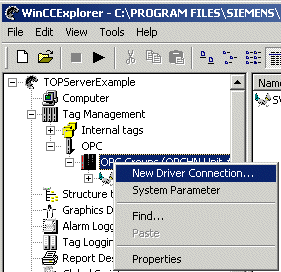 In WinCCExplorer, highlight the OPC Group and right click on New Driver Connection as shown to the left.
| The Connection Properties dialog to the right will open. Enter a meaningful name as shown and click on Properties. | 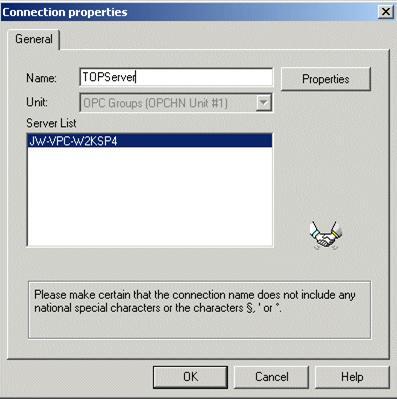 |
|
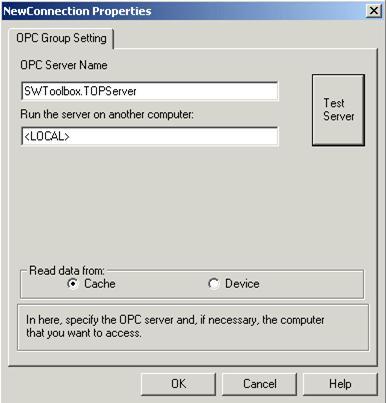
The NewConnection Properties dialog will now open. Under the OPC Server Name you should enter the ProgID for the TOP Server as shown to the right – SWToolbox.TOPServer Once this is done click on Test Server to verify your connection.
If the TOP Server you are connecting to is on a different computer you will have to Configure DCOM first. See our Tutorials on DCOM at: |
 |
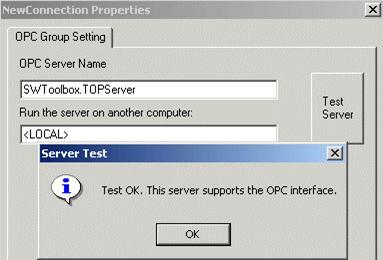 |
Once the Server Test message comes up click OK and then OK on the NewConnection Properties Dialog |
| The new connection can now be seen under your OPC Groups item in WinCCExplorer. | 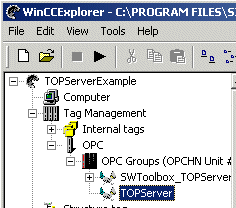 |
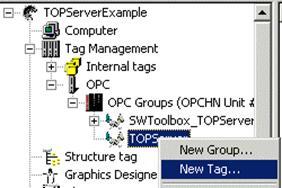 |
Right click on this connection and choose New Tag as shown to the left. You can add a new group first if you want to group tags. |
| When the Tag Properties dialog opens, enter a meaningful name for the tag. | 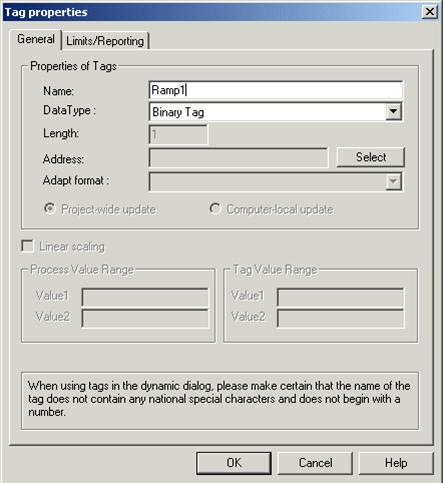 |
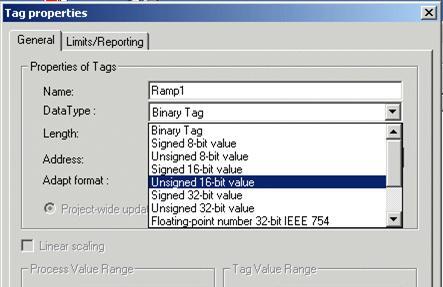 |
The tag we are connecting to in this example is a Unsigned 16-bit value. Once the DataType is selected click Select by the Address field. See the Data Types section of the TOP Server driver you are using to help determine the correct DataType to use in WinCC V6. |
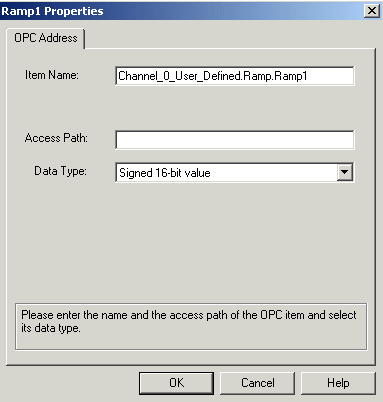 |
The dialog for the specific tag will now open as show to the left. The Item Name field for a dynamic tag must be in the form of Once this is entered click OK. The Access Path is always left blank. The |
| The Address Field will now show the dynamic address as shown to the right. Click OK |
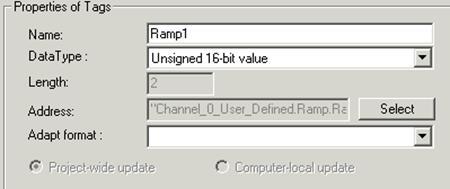 |
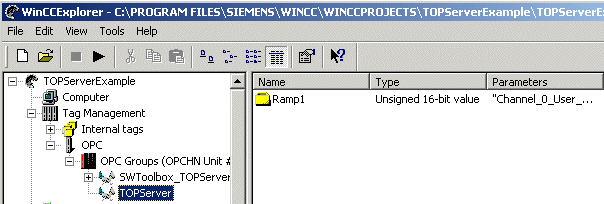
WinCCExplorer will now show the tag added under our new connection. This is all that is required to add dynamic tags. You can now go to Graphics Designer as shown above in this document to bring data into your project.
Dynamic Tag Syntax:
ChannelName.DeviceName.PLCAddress@Datatype
Examples:
Modbus address 40001 read as a float from Device1 under Channel1 in the TOP ServerChannel1.Device1.40001@float
AB PLC5 address N7:0 read as a short (or signed 16-bit value) from a device called PLC5 under a channel called ENet in the TOP ServerENet.PLC5.N7:0@short
Data Types Description
|
TOP Server |
WinCC V6 |
|
Boolean |
Single bit |
|
Word |
Unsigned 16 bit value |
|
Short |
Signed 16 bit value |
|
DWord |
Unsigned 32 bit |
|
Long |
Signed 32 bit value |
|
BCD |
Two byte packed BCD |
|
LBCD |
Four byte packed BCD |
|
Float |
32 bit floating point value. |
|
String |
ASCII characters |