![SWTB_logo_rgb_color_mode-wPadding-2000x961.png]](https://help.softwaretoolbox.com/hs-fs/hubfs/SWTB_General/Images/Press_Kit/SWTB_logo_rgb_color_mode-wPadding-2000x961.png?height=50&name=SWTB_logo_rgb_color_mode-wPadding-2000x961.png)
Introduction
Intended Audience
This document is meant to show how to take an existing project configuration and make it log from 9am to 5pm daily.
Assumptions
This example assumes the following:
- You have at least one Data Collector.
- You have at least one Data Presentation.
- You have at least one Data Storage Component.
- You have at least one Group of items.
- You have at least one Project.
- If you were to do a Test Run data would be successfully logged.
Triggers
Configuring the Triggers
-
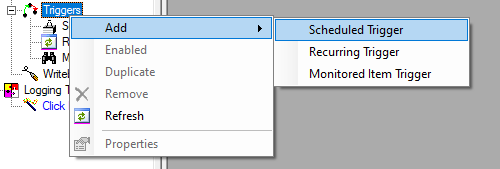
Right click on the triggers icon in the tree view and select Add ⇒ Scheduled Trigger. This will add a Scheduled Trigger called ScheduledTrigger1.
-
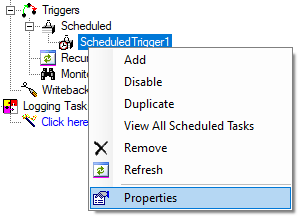
Right click the ScheduledTrigger1 icon in the tree view and select Properties. This will open the property page for the trigger.
-
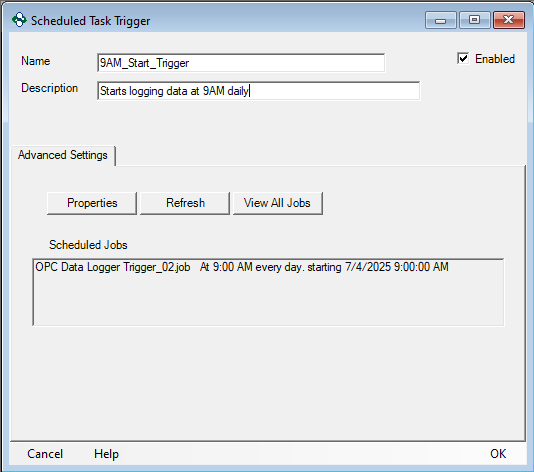
Give your trigger a useful name and description. Enable the Repeat Daily option. Choose the date and time this action will first be observed. For this example we will use July 4, 2007 at 9:00 AM. Click OK when you are finished.
-
Right click on the triggers icon in the tree view and select Add ⇒ Scheduled Trigger. This will add a Scheduled Trigger called ScheduledTrigger2.

-
Right click the ScheduledTrigger2 icon in the tree view and select Properties. This will open the property page for the trigger.
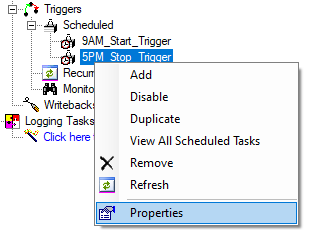
-
Give your trigger a useful name and description. Enable the Repeat Daily option. Choose the date and time this action will first be observed. For this example we will use July 4, 2007 at 5:00 PM. Click OK when you are finished.

Adding the Triggers to the Project
Now we must add the triggers to the project, give them an effect and enable them.
-
Right click your project in the tree view and select Properties. This will display the properties of the project.

-
Click the Triggers tab. Then add both of these triggers to the project. This can be done by clicking Add ⇒ Scheduled and selecting the name of each trigger. Once you have added both triggers ensure they are enabled.
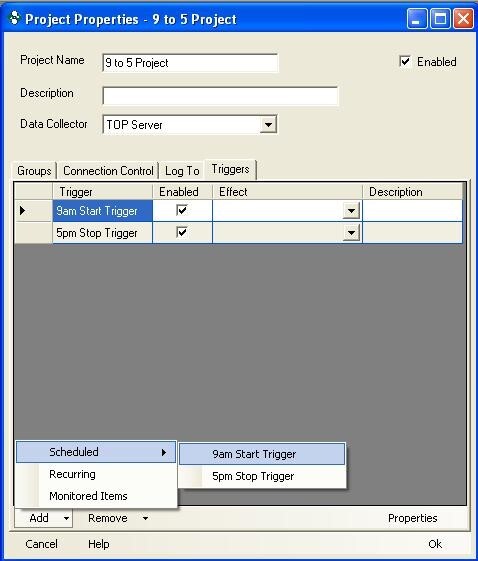
-
Now we must give each trigger an Effect. For the 9am Start Trigger, choose the effect Start Logging Data. For the 5pm Stop Trigger, choose the effect Stop Logging Data. Once configured you can click OK.
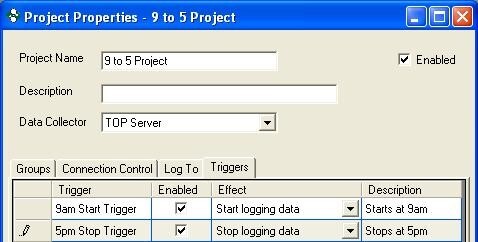
Start the logging
We must now start the logging.
-
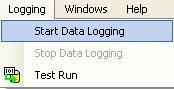
You must then go to the main menu and select Logging ⇒ Start Data Logging. Data Logging must be started for these triggers to be noticed. Data will be logged when the first 9am occurs.