![SWTB_logo_rgb_color_mode-wPadding-2000x961.png]](https://help.softwaretoolbox.com/hs-fs/hubfs/SWTB_General/Images/Press_Kit/SWTB_logo_rgb_color_mode-wPadding-2000x961.png?height=50&name=SWTB_logo_rgb_color_mode-wPadding-2000x961.png)
Introduction
Intended Audience
This document is intended for users of the OPC Data Logger who want to log data from two different OPC Servers and store it in a single text file or database.
Purpose of this Document
This document will describe how to configure the OPC Data Logger to create a connection to two OPC Servers and log the data to a single text file.
Assumptions
This example assumes the following.
- You have set up two Data Collectors. Each collecting data from a different server. These Collectors are named TOP Server and InGear AB Server.
- You have set up a Data Presentation.
- You have set up a single Data Storage Component and associated it with the Data Presentation above. The Data Storage Component is named TextFileLogger.
Configuring Project 1 of 2
Adding the Project
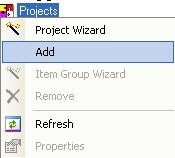
- Right click on the Project icon in the tree view and select Add.
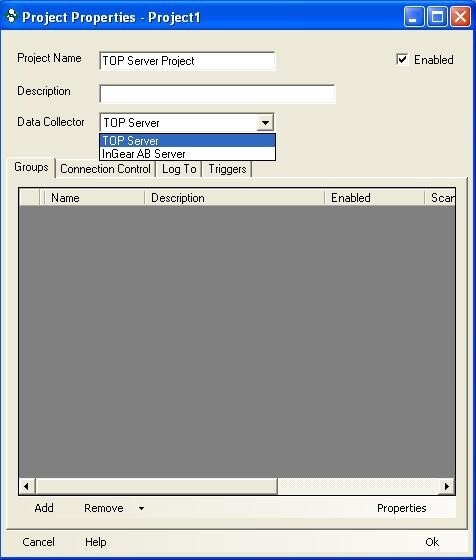
- The project properties page will be displayed. Give your project a meaningful name and select the first Data Collector in the dropdown. For this example the Data Collector should be TOP Server.
Configuring the Group
- Click the Add button in the bottom left. This will add an empty group to your project.

- Right click on the group and select Properties.

- Give your group a meaningful name. The items tab is where you can select the items that will be in the group.

- Add items to the group using your preferred method. Once you have all the items click the Read tab.

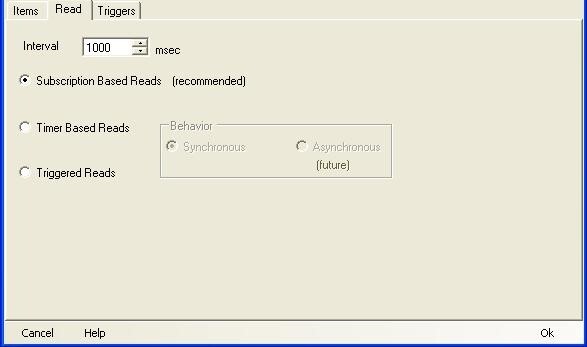
- Select the method used to read the items and set the desired interval. Then click OK out of the Group Properties. The Project Properties page should still be open.
Associating the Data Storage with the Project
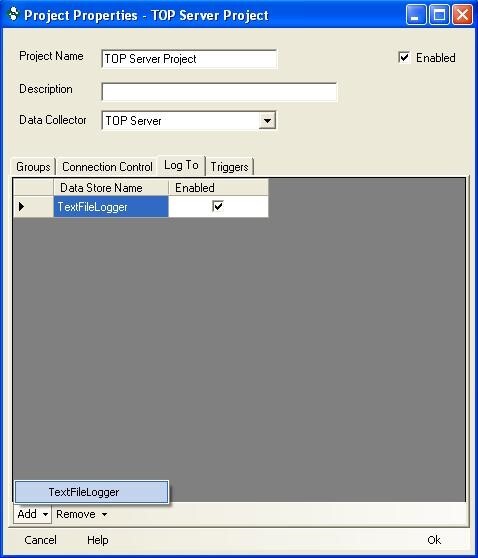
- Click the Log To tab. At the bottom there is an Add button. Add the TextFileLogger to the project and enable it for logging. Click OK to close the Project Properties.
Configuring Project 2 of 2
Adding the Project
- Now we need to add the second project. Right Click on the Project icon in the tree view and select Add. This will display the Properties for the new project.
- Give the project a meaningful name. Select the second Data Collector from the dropdown. For this example the Data Collector should be InGear AB Server.
Configuring the Group
- Click the Add button in the bottom left. This will add an empty group to your project.
- Right click on the group and select Properties.

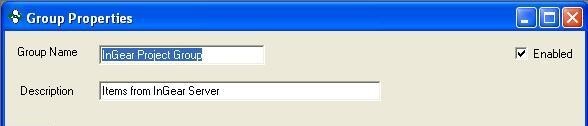
- Give your group a meaningful name. The items tab is where you can select the items that will be in the group.
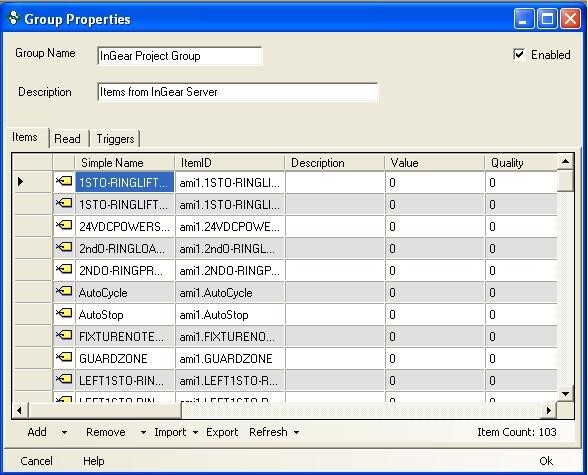
- Add items to the group using your preferred method. Once you have all the items click the Read tab.
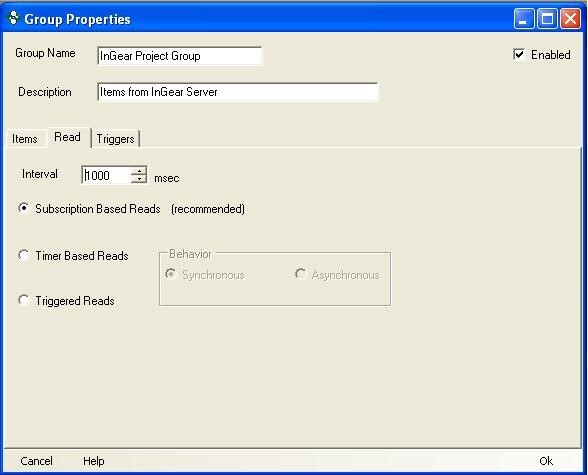
- Select the method used to read the items and set the desired interval. Then click OK out of the Group Properties. The Project Properties page should still be open.
Associating the Data Storage with the Project
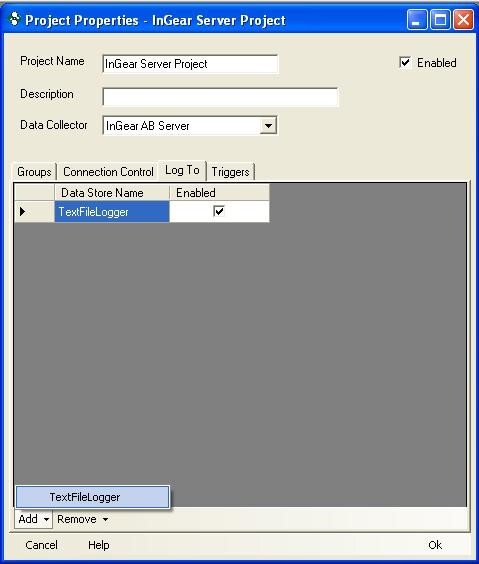
- Click the Log To tab. At the bottom there is an Add button. Add the TextFileLogger to the project and enable it for logging. Click OK to close the Project Properties.
Conclusion
As soon as you start logging you will gather data from both OPC Servers and log it to the single text file storage component we have configured. If you have more than two OPC Servers you can repeat these steps again for each additional OPC Server you need to log data from.