![SWTB_logo_rgb_color_mode-wPadding-2000x961.png]](https://help.softwaretoolbox.com/hs-fs/hubfs/SWTB_General/Images/Press_Kit/SWTB_logo_rgb_color_mode-wPadding-2000x961.png?height=50&name=SWTB_logo_rgb_color_mode-wPadding-2000x961.png)
Introduction
This will show the user how to connect locally to TOP Server using Cimplicity Machine Edition. This document assumes the user is has Cimplicity Version 4.0 or higher and is using a fully configured, licensed install of the current version of TOP Server, Version 4.222.376-U.
For the purposes of this guide, we will be demonstrating this communication by connecting to Toolbox OPC Power Server or TOP Server, which is a product of Software Toolbox, Inc. TOP Server is a robust, feature-rich OPC server providing a simulation driver for testing purposes and has an integrated interface to the OPC Quick Client. You can download the free demo of TOP Server at https://softwaretoolbox.com/top-server/free-trial.
Configuring the TOP Server
Open the OPC Server from the Windows Start menu as shown below.
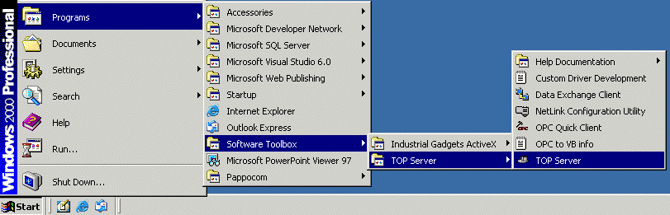
Figure 1: Opening TOP Server
When the TOP Server opens you will see the User-Interface below. For more information on configuring the TOP Server see the Quick Start Guide at the following link: https://help.softwaretoolbox.com/faq/3506
The TOP Server has a help file for the main server interface and for each driver with configuration details also.
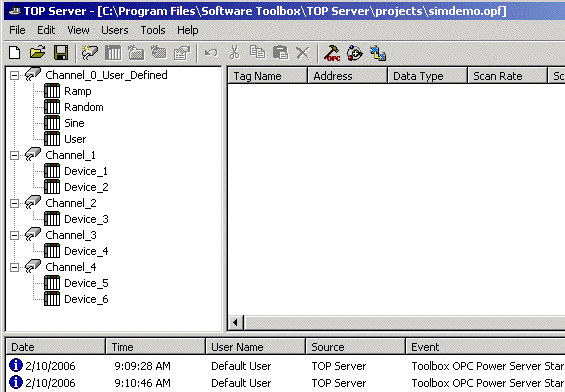
Figure 2: TOP Server Simdemo
The Simdemo project will open the first time you start the TOP Server. We will be using the Simdemo in this example. If you need to open this project go to File | Open and browse to Drive:\Program Files\Software Toolbox\TOP Server\Projects and select Simdemo.opf. Any file you create will be saved to this location by default and always ends with the “.opf” extension. The Simdemo project has a number of pre-configured Channels and Devices. A TOP Server configuration requires a minimum of one channel and one device. Each channel represents a single network connection or thread of communication. When using an Ethernet connection it is normally best to create only one device under each channel, so that each device has its own connection. Configuring tags is done by highlighting the device you created and then right clicking under the Tag Name column as shown below. The Simdemo project has tags already created.
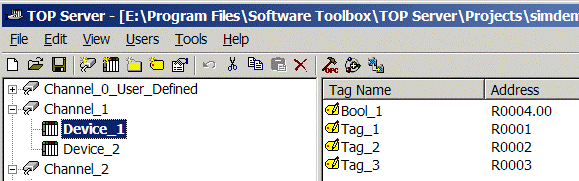
Figure 3: Tag Names
After right clicking the Tag a Properties dialog opens. The Name can be any meaningful name and the Address is the address in the PLC. You can select the data type to use as well as the Read/Write access. Now that we have TOP Server configured we are ready to configure Cimplicity.
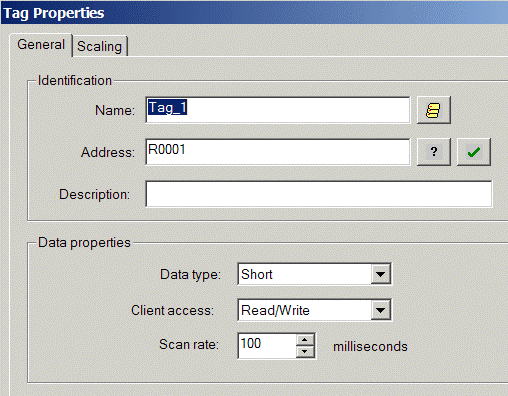
Figure 4: Tag Properties
Configuring Servers and Tags in Cimplicity
Start by creating a new project. In this example the project is call TOPServerConnection. Once you have created a new project go to the Project view tab in the Navigator. The Navigator can be made visible through the Tools option in the main menu.
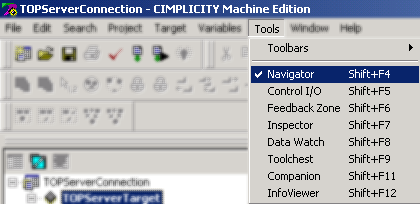
Figure 5: Navigator View
Once you have selected the Navigator view the follow screen will appear.
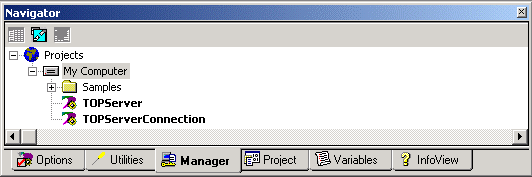
Figure 6: The Navigator
Creating a Target
In the Project tab (Bottom of Navigator Panel), right click on the project you created and select Add Target ⇒ Windows NT ⇒ ControlStation.
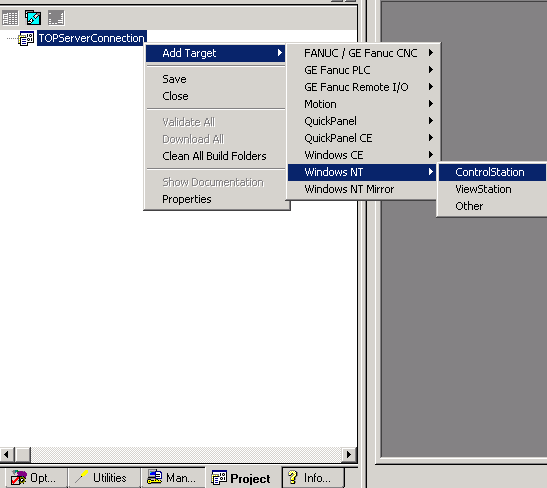
Figure 7: Adding a Target to your Project
This will add a new target with the name Target1. You should rename this target with a meaningful name. In this example we are going to use TOPServerTarget. The next step is to add a component. Right click on your target and select Add Component ⇒ HMI.
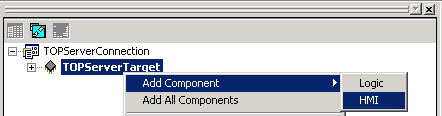
Figure 8: Adding an HMI component
Creating a Server
Within the target there will be an OPC Client icon. Right click on that icon and select New Server Link.
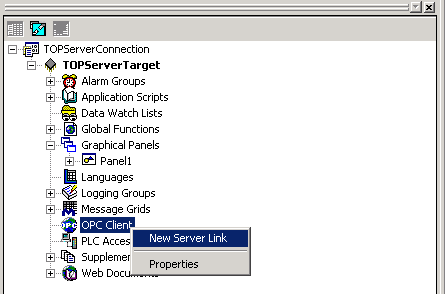
Figure 9: Adding an OPC Server
Server1 will be created for you. You should rename your server something meaningful. This example is going to use TOPServer1. Right click on the server you created and select Properties.
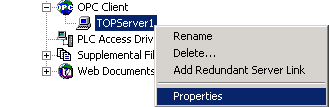
Figure 10: Accessing server properties
The properties will allow you to choose which server you want to use. If you know the server’s ProgID you can type it in the Address field. You may also browse available servers by clicking on the three dots to the right of the Address field.
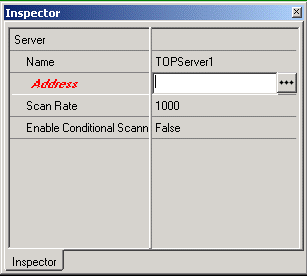
Figure 11: Server property page
You may use a remote server by typing in a computer name in the Server Node field. For this example we are going to use a local server, therefore we can leave the Server Node blank. The available servers will be listed in the listbox. Choose the TOPServer and select OK. Once you have assigned a server in the Address field you can close the server property window.
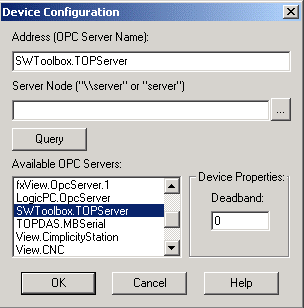
Figure 12: Choosing an available OPC Server
Creating the Tags
Now you must create your Tags. Select the Variables tab in the Navigator. Right click the Variable List and select New Variable. Under the New Variable you can specify what type of variable you are connecting to. In this example we are connecting to a DINT.
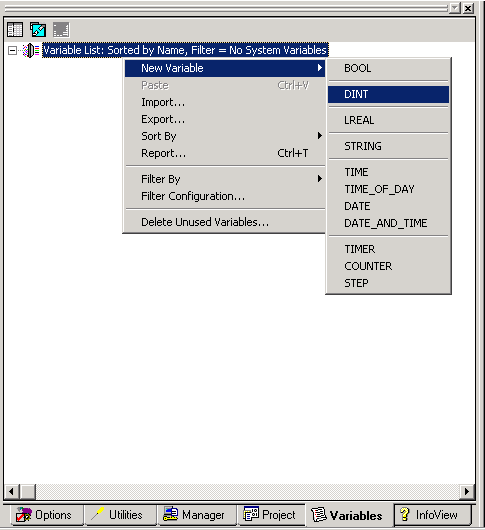
Figure 13: Creating Tags
A tag will be created with a name matching the type. You should change the tag name to something meaningful. We are using Tag_1 for this example. Right click on the tag name and select Properties.
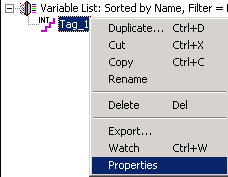
Figure 14: Accessing Tag properties
There are many properties associated with each tag; we are only going to configure the Data Source and the I/O Address. In the Data Source drop-down menu select OPC. This will automatically associate an OPC Server in the Server field. If you have more than one server configured choose the appropriate one.
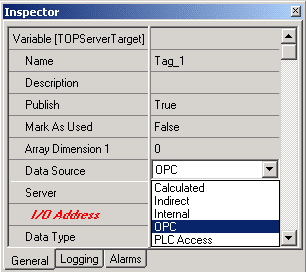
Figure 15: OPC Data Source
In the I/O Address field you may type in the fully qualified address name in the TOP Server. You may also click the three dots to the right and browse the server for available tags. In this example we are going to associate Tag_1 in Cimplicity with Channel_1.Device_1.Tag_1 in the TOP Server. Once you have chosen your tag click OK. You should now close your tag properties window.
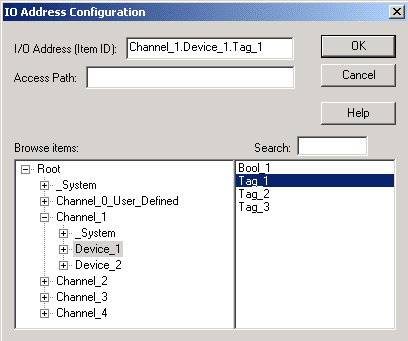
Figure 16: I/O Address Configuration
Creating a simple HMI
This document will only describe how to add and configure one Numeric Data Display. For more information about how to create an HMI refer to the Cimplicity help file.
Click on the Project tab in the Navigator. Within your target there will be a Graphical Panels icon. Double click the Panel1 in the Graphics Panel. This will pull up the panel where you can create the HMI. Right click inside Panel1 and select Dynamic Tools ⇒ Numeric Data Display. Then double click on the panel and the control will appear.
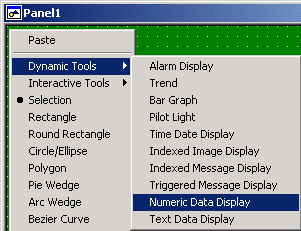
Figure 17: Adding a Numeric Data Display
Right click on the Numeric Data Display control and select Properties. The screen below will appear. Now we must configure the Variable Name. You can type in a variable name or choose a variable from the drop-down list. We are going to use the Tag_1 variable we configured earlier. Once you have specified the Variable Name you can close these properties.
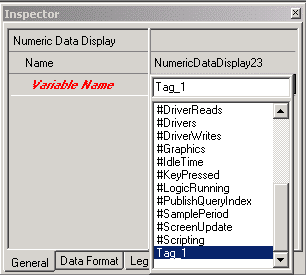
Figure 18: Numeric Data Display Properties
To run and test your project, right click on the target in the Project view and select Download and Start. This can also be done by simply using the F9 key.
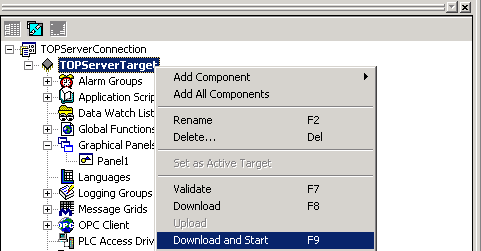
Figure 19: Running the Project
This process usually takes about a minute or so to complete. Once it completes it will open the View Runtime where you should see a value in your Numeric Data Display control.
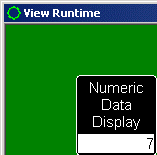
Figure 20: View Runtime