![SWTB_logo_rgb_color_mode-wPadding-2000x961.png]](https://help.softwaretoolbox.com/hs-fs/hubfs/SWTB_General/Images/Press_Kit/SWTB_logo_rgb_color_mode-wPadding-2000x961.png?height=50&name=SWTB_logo_rgb_color_mode-wPadding-2000x961.png)
Introduction
Advanced Tags are an easy-to-configure plug-in to the Software Toolbox TOP Server. They can be used to overcome the limitations of your PLC to synthesize data into information that is useful for monitoring your plant operations. Some common examples would be cycle time, maximum temperature reached by a boiler, or a reason for downtime. This information is often essential for operations analysis. The TOP Server offers a solution with the Advanced Tags plug-in, which can provide you with a variety of analytics and calculated values.
Advanced Tags deliver an array of mathematic and logical operators, enabling the generation of new data, or the aggregation of existing data into information suitable for higher level archival and analytical purposes. Through Advanced Tags, users can measure the duration of operations, totalize events, perform averages over a group of sensors, set trigger conditions for data acquisition, and combine machine conditions to generate an overall machine state- all of which can be valuable for future analytics. Advanced Tags are very similar to I/O tags. Rather than defining I/O data source details, Advanced Tags enable you to create an expression, browsing from existing data tags, and combining them with math and logic operators to generate a new result.
Advanced Tags are used to perform simple analytics on other tags, including math, logic, and evaluation functions. Currently, there are 7 types of advanced tags: Complex, Average, Minimum, Maximum, Link, Derived, and Oracle Cumulative.
The syntax for using one of these tags in a client application is:
<AdvancedTags>.<Advanced Tag Name>
Or
<AdvancedTags>.<TagGroup>.<Advanced Tag Name>.
In this document, we will be using the SimDemo.opf project installed with the TOP Server to demonstrate how to set up each of these Advanced Tag Types. The default location for the project file is: C:\Program Files\Software Toolbox\TOP Server 6\Projects.
Creating Advanced Tags
- To create an Advanced Tag, select the Advanced Tag group tab in the Project tree pane, as shown below.
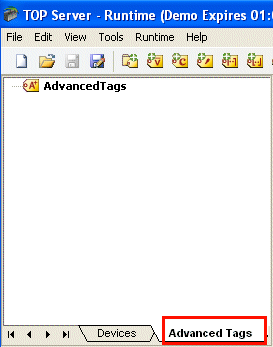
Figure 1: Advanced Tags Plug-in
- Highlight Advanced Tags in the Project tree.
- You can add a tag group by clicking on Edit ⇒ Advanced Tags ⇒ New Tag Group, as shown in Figure 2, or by right-clicking in the Tag pane and select the type of tag from the context menu as shown in Figure 3. Alternatively, you can select the New Tag Group button from the menu bar as shown in Figure 4.
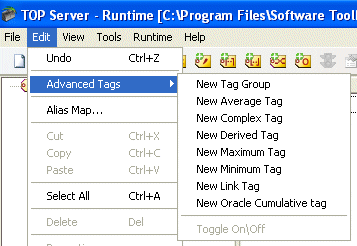
Figure 2: Add New Advanced Tag From Edit Menu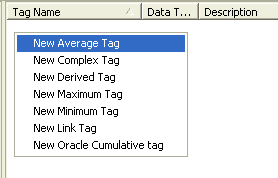 Figure 3: Add New Advanced Tag From Context Menu
 Figure 4: Add New Tag Group
- If you add a new tag group, you will need to give it a name. In this example, we are calling ours Group1. The "Tags assigned to this group" parameter tells you the number of tags assigned to the current tag group. The "Tags assigned to this branch" field, similarly, specifies the number if tags assigned to the current tag group and all descendant tag groups. The enabled button toggles the state of the tag group. When disabled, all tags in the tag group will be disabled. Note that you are not required to create a Tag group.
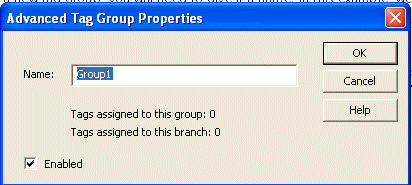
Figure 5: Tag Group Properties
- Click Edit ⇒ Advanced Tags ⇒ New <type of Advanced Tag> or right click in the Tag pane and select the type of tag from the context menu. You can also select one of the shortcut buttons from the menu bar.
- Edit and set the tag parameters as needed. Detailed information for the parameters for each Advanced Tag type can be found in the following sections.
Other Features for Creating and Managing Advanced Tags
The TOP Server includes several other features that make creating new Advanced Tags, and maintaining your Advanced Tag list easy.
- You can view your tag list in the main TOP Server interface, or in the Tags list window. You can launch the tags list by clicking on the Show Tag List button
 displayed to the right of the Name field when you are creating a new tag, or by typing
 Alt+L. The tag list will appear as shown in the figure below.
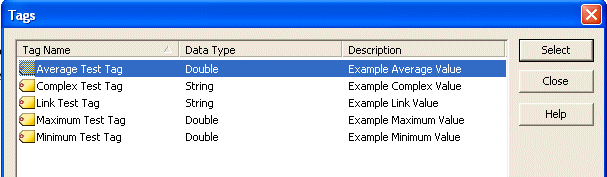
Figure 6: Advanced Tag List
- You can also browse through your tag list by using the Previous Tag
 or Next Tag
  buttons available on the Advanced Tag configuration window.
 - The New button
 allows you to create a new advanced tag. The tag type defaults to whichever tag type you currently have selected, however you can simply change the Tag Type drop-down to the type you need.
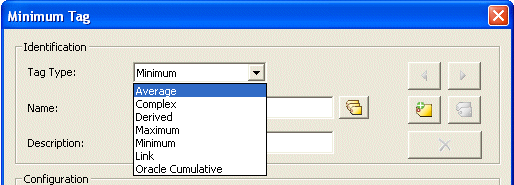
Figure 7: Create New Tag from Advanced Tag Configuration Window
- You can also create a duplicate tag by clicking on the Duplicate button
 . This will create a new tag with a unique name by either:
- appending a number to the tag name if it ends in a letter
- incrementing the number if the tag name already ends with a number
- The Delete button
 will delete the current tag selection.
 - These buttons are common to all of the Advanced Tag types. The figure below displays this with the Average Tag configuration.
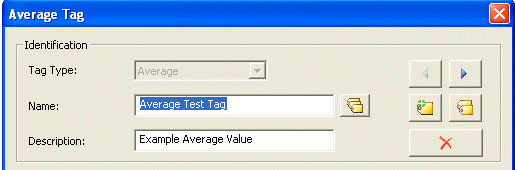
Figure 8: Tag List Navigation Buttons
Note: Advanced Tag calculations do not apply to dynamic, complex, or array tags. Device tags must be configured in the TOP Server to be able to use them with the Advanced Tag features.
Average Value Tags
This tag can be used for calculating a running average of a TOP Server tag's value. Averaging is initiated when the value of a Run tag transitions from a zero to a non-zero value. You can think of the Run tag as a trigger for calculating the average.
The Average Value tag is updated with new values based on the update/scan rate of the device tag we are monitoring in the server. This means that at every scan cycle, we will read the current value of the monitored tag, and add it to the set of values that are used to calculate the average. Therefore, we will add the current value, regardless of whether or not this value has changed from the previous scan cycle. The device tags are configured on the Devices tab in the TOP Server. The default scan rate is 100 msec.
Setting Up the Average Value Tag
- Select the Advanced Tag tab in the TOP Server Project Tree pane as shown in the Creating Advanced Tags section of this document.
- Add a new Average Tag by right-clicking on the Advanced Tags in the left hand pane and selecting New Average Tag, clicking on the Average tag button in the menu bar as shown below, or selecting the New Average Tag option from the Edit menu.

Figure 9: New Average Value Tag
- Give your Average Tag a Name. We will call ours Average Test Tag. The name can be up to 256 characters in length.
- If you would like to, you can provide a description of up to 64 characters in the Description field.
- Click on the ellipse button
 to the right of the Average field to open the tag browser.
 - Browse to a tag in the project tree and highlight the tag you are interested in.
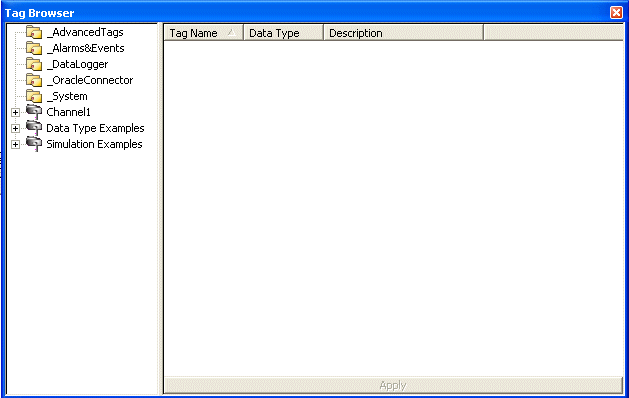
Figure 10: Select Tag From Tag Browser
- You can either double click on the tag or click the Apply button at the bottom of the Tag Browser window to select the tag as your Average tag.
- Select the Data type of the result of the Average Tag calculation.
▹ Note: The only data type option for the Average tag is a double. However, you can select a different data type in the OPC client. The server will be responsible for converting the data to the correct type. Only a double is supported with Native interfaces like SuiteLink, but scaling can be done in the Client itself. - Click on the ellipse button to the right of the Run field to open the Tag Browser window. Browse to the tag you want to set as the trigger to start and stop the calculation of the running average. The calculation is based on the scan rate of the device tag, so intermediate average values will be reported to client applications. A Boolean tag would be a logical choice for this trigger.
- You can disable the new tag by un-checking the Enabled box at the bottom left of the configuration window. When disabled, the Average Tag will not do any work and will have a value of 0. Each new Average Tag is enabled by default.
- When you have completed your configuration click Apply or OK.
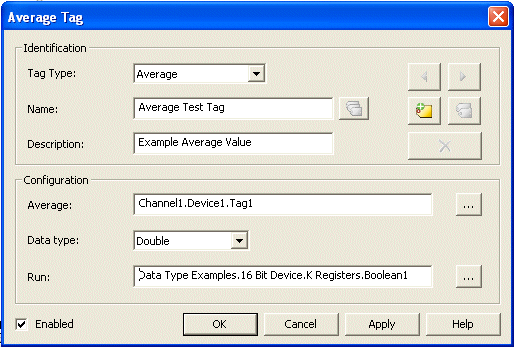
Figure 11: Example Average Tag Configuration
Example
Let's assume we have a tag that measures the temperature at a location with a scan rate of 60000 msec (1 min). The temperature is recorded every minute as shown below.
| Temperature | Timestamp |
|---|---|
| 72.3 | 10:00:00 AM |
| 72.5 | 10:01:00 AM |
| 72.9 | 10:02:00 AM |
| 73.4 | 10:03:00 AM |
| 72.4 | 10:04:00 AM |
| 71.6 | 10:05:00 AM |
| 71.2 | 10:06:00 AM |
| 70.5 | 10:07:00 AM |
If we transition the Run tag from zero to non-zero, the Average Tag would be updated every 60000 msec (1 min) with the following values.
| Average Temperature | Timestamp |
|---|---|
| 72.3 | 10:00:00 AM |
| 72.4 | 10:01:00 AM |
| 72.6 | 10:02:00 AM |
| 72.8 | 10:03:00 AM |
| 72.7 | 10:04:00 AM |
| 72.6 | 10:05:00 AM |
| 72.3 | 10:06:00 AM |
| 72.1 | 10:07:00 AM |
Note: If the quality of the monitored device tag, or the trigger (Run) tag is bad, then the quality of the average value tag will also be bad.
Note: If the quality of the average tag, or the trigger tag goes bad, the averaging will stop. In order for the averaging to restart, both tags must return to Good quality, and the trigger tag must then transition from zero to non-zero.
Complex Tags
Complex tags group multiple tags of varying data types as a single complex item or structure. They are currently supported for the Oracle MOC connection only (from the TOP Server Oracle Connectivity Suite Plug-in). The tags can be of varying data types and can be from multiple devices. The tags return data as an XML string defined by the schema shown below.
<?xml version="1.0" encoding="utf-8"?>
<xs:schema attributeFormDefault="unqualified" elementFormDefault="qualified" xmlns:xs="http://www.w3.org/2001/XMLSchema">
 <xs:element name="ComplexUpdate">
  <xs:complexType>
   <xs:sequence>
    <xs:element name="Item">
     <xs:complexType>
      <xs:sequence>
       <xs:element name="Name" type="xs:string" />
       <xs:element name="Value">
        <xs:complexType>
         <xs:simpleContent>
          <xs:extension base="xs:string">
           <xs:attribute name="DataType" type="xs:unsignedByte" use="required" />
          </xs:extension>
         </xs:simpleContent>
        </xs:complexType>
       </xs:element>
       <xs:element name="Quality" type="xs:int" />
       <xs:element name="TimeStamp" type="xs:string" />
      </xs:sequence>
     </xs:complexType>
    </xs:element>
   </xs:sequence>
  </xs:complexType>
 </xs:element>
</xs:schema>
Note: The updates grouped in a complex update are not atomic, but are aggregated over a time interval. As a result, clients cannot assume that all updates in a complex update occurred at the same time. To get the time of the update, use the item's timestamp.
Setting Up the Complex Tag
-
Select the Advanced Tag tab in the TOP Server Project Tree pane as shown in the Creating Advanced Tags section of this document.
-
Add a new Complex Tag by right-clicking on the Advanced Tags in the left hand pane and selecting New Complex Tag, clicking on the Complex tag button in the menu bar, or by selecting the New Complex Tag option from the Edit menu.
-

Figure 12: Add New Complex Tag
-
-
Give your Complex Tag a Name. We will call ours Complex Test Tag. The name can be up to 256 characters in length.
-
If you would like to, you can provide a description of up to 64 characters in the Description field.
-
Click on the Add Element button
to launch the Complex Element configuration window shown in Figure 13.-
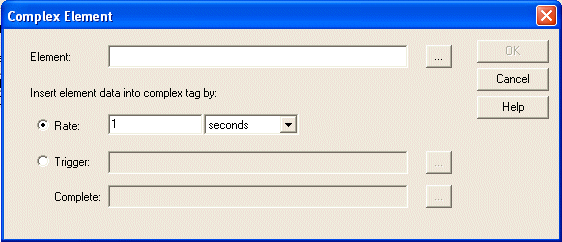
Figure 13: Add New Complex Element Configuration
-
-
Click on the ellipse button
to the right of the Element field to open the Tag Browser. -
Browse to the tag you want to add to your Complex tag. Highlight the tag.
-
You can add the tag by double-clicking or clicking on the Apply button as shown below.
-

Figure 14: Select Tag From Tag Browser
-
-
Select the method for inserting the value of this element into the Complex Tag (Rate or Trigger).
-
The Rate indicates how frequently the Element will be updated in the Complex Tag. The default is one second.
-
The Trigger sets up a tag that is monitored to determine when we enter a new value into the Complex Tag. When the Trigger transitions from zero to a non-zero number the current values of the Element will be inserted into the Complex Tag. No additional updates will occur until the tag's value is reset to zero and another zero to non-zero transition occurs.
This option also requires that you set a Complete tag. When the update to the Complex Tag has completed, the server will write a 1 to the Complete tag to indicate that it is done processing this command. Therefore, Complete Tags must have writable access.
-
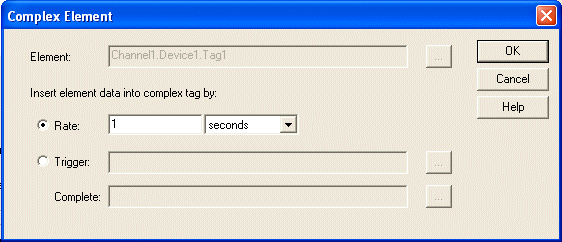
Figure 15: Complex Element Configured for Rate
-
-
-
When you have finished configuring your Complex Element, click OK. You can add more elements to your Complex Tag by following steps 5-9. You can edit existing Elements by highlighting the element and clicking on the Modify Tag button
 . You can delete elements by clicking on the Delete Tags button
  .
. -
Select the method for updating the client (Rate or Trigger)
-
The Rate indicates how frequently the Complex Tag updates will be published to the client. The default is one second.
-
The Trigger sets up a tag that is monitored to determine when the update takes place. When the Trigger transitions from zero to a non-zero number, the current values of the tags in the Complex Tag will be send to the client. No additional updates will occur until the tag's value is reset to zero and another zero to non-zero transition occurs.
This option also requires that you set a Complete tag. When the update to the client has completed, the server will write a 1 to the Complete tag to indicate that it is done processing this command. Therefore, Complete Tags must have writable access.
-
-
You can disable the new tag by unchecking the Enabled box at the bottom left of the configuration window. When disabled, the Complex Tag will do no work and have a string value of
<ComplexUpdate>.</ComplexUpdate>. Each new Complex Tag is enabled by default. -
When you have completed your configuration click Apply or OK.
-
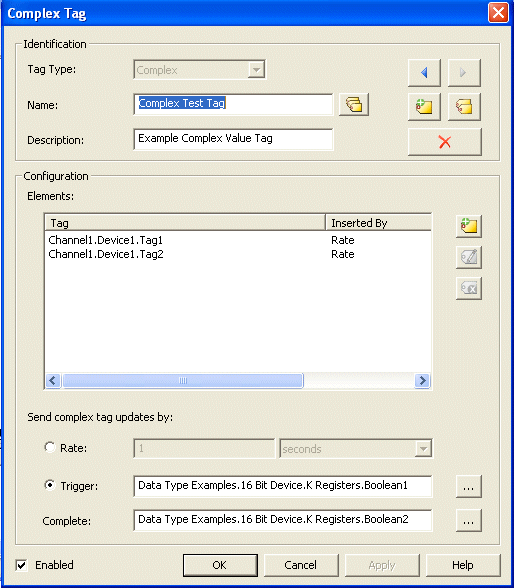
Figure 16: Example Complex Tag Configuration
-
Maximum Value Tags
Maximum Value Tags display the highest value that a tag has reached. The Maximum Value tag begins tracking the highest value when the value of a Run tag transitions from zero to non-zero. It will stop tracking when the value of the Run tag is set back to zero. The rate at which the Maximum Value tag is updated with a new value comes from the update/scan rate on the device tag in the server. The default scan rate is 100 msec.
Setting Up the Maximum Value Tag
- Select the Advanced Tag tab in the TOP Server Project Tree pane as shown in the Creating Advanced Tags section of this document.
- Add a new Maximum Tag by right-clicking on the Advanced Tags in the left hand pane and selecting New Maximum Tag, clicking on the Maximum tag button in the menu bar, as shown below, or selecting New Maximum Tag from the Edit menu.

Figure 17: New Maximum Value Tag
- Give your Maximum Tag a Name. We will call ours Maximum Test Tag. The name can be up to 256 characters in length.
- If you would like to, you can provide a description of up to 64 characters in the Description field.
- Click on the ellipse button to the right of the Maximum field to open the tag browser.
- Browse to a tag in the project tree and highlight the tag you are interested in.
- You can either double click or click the Apply button at the bottom of the Tag Browser window to select the tag as your Maximum tag.
Figure 18: Select Tag From Tag Browser
- Select the data type for the result of the Maximum tag calculation.
▹ Note: The only data type option for the Maximum tag is a double. However, you can select a different data type in the OPC client. The server will be responsible for converting the data to the correct type. Only a double is supported with Native interfaces like SuiteLink, but scaling can be done in the Client itself. - Click on the ellipse button to the right of the Run field to open the Tag Browser window. Browse to the tag you want to set as the trigger to start and stop the tracking of the maximum value. A Boolean tag would be a logical choice for this trigger.
- You can disable the new tag by unchecking the Enabled box at the bottom left of the configuration window. When disabled, the Maximum Tag will do no work and have a value of 0. Each new Maximum Tag is enabled by default.
- When you have completed your configuration click Apply or OK.
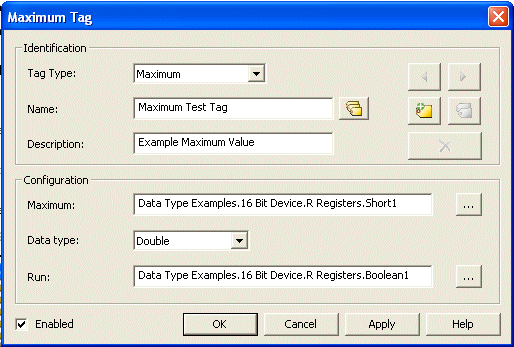
Figure 19: Example Configuration for Maximum Value Tag
Example
Let's assume we have a tag that measures the temperature at a location. Our scan rate is set to 60000 msec (1 min). The tag values, updated every minute, are shown in the table below.
| Temperature | Timestamp |
|---|---|
| 72.3 | 10:00:00 AM |
| 72.5 | 10:01:00 AM |
| 72.9 | 10:02:00 AM |
| 73.4 | 10:03:00 AM |
| 72.4 | 10:04:00 AM |
| 71.6 | 10:05:00 AM |
| 71.2 | 10:06:00 AM |
| 70.5 | 10:07:00 AM |
Based on the values above, the values of our Maximum Tag would appear as shown below.
| Maximum Value | Timestamp |
|---|---|
| 72.3 | 10:00:00 AM |
| 72.5 | 10:01:00 AM |
| 72.9 | 10:02:00 AM |
| 73.4 | 10:03:00 AM |
| 73.4 | 10:04:00 AM |
| 73.4 | 10:05:00 AM |
| 73.4 | 10:06:00 AM |
| 73.4 | 10:07:00 AM |
Note: If the quality of the device tag or the Run tag is bad, the quality of the Maximum value tag will also be bad.
Note: If the quality of the device tag or the Run tag is bad, calculation of the Maximum Value will stop. In order for the calculation of the Maximum Tag to restart, both the device tag and the Trigger Tag must return to good quality and the trigger tag must successfully transition from zero to non-zero.
Minimum Value Tags
Minimum Value Tags calculate the lowest value a tag has reached. Tracking the Minimum Tag value begins when the Run tag transitions from zero to non-zero. The Minimum Tag value stops tracking when the Run tag is set to zero. The rate at which the tag is updated from the server with a new value comes from the update/scan rate on the device tag in the server. The default scan rate is 100 msec.
Setting up the Minimum Value Tag
- Select the Advanced Tag tab in the TOP Server Project Tree pane as shown in the Creating Advanced Tags section of this document.
- Add a new Minimum Tag by right-clicking on the Advanced Tags in the left hand pane and selecting New Minimum Tag, clicking on the Minimum tag button in the menu bar, as shown below, or selecting the New Minimum Tag option from the Edit menu.

Figure 20: New Minimum Value Tag
- Give your Minimum Tag a Name. We will call ours Minimum Test Tag. The name can be up to 256 characters in length.
- If you would like to, you can provide a description of up to 64 characters in the Description field.
- Click on the ellipse button to the right of the Minimum field to open the tag browser.
- Browse to a tag in the project tree and highlight the tag you are interested in.
- You can either double click or click the Apply button at the bottom of the Tag Browser window to select the tag as your Minimum tag.
Figure 21: Select Tag From Tag Browser
- Select the data type of the result of the Minimum tag calculation.
▹ Note: The only data type option for the Minimum tag is a double. However, you can select a different data type in the OPC client. The server will be responsible for converting the data to the correct type. Only a double is supported with Native interfaces like SuiteLink, but scaling can be done in the Client itself. - Click on the ellipse button to the right of the Run field to open the Tag Browser window. Browse to the tag you want to set as the trigger to start and stop the tracking of the minimum value. A Boolean tag would be a logical choice for this trigger.
- You can disable the new tag by unchecking the Enabled box at the bottom left of the configuration window. When disabled, the Minimum Tag will do no work and have a value of 0. Each new Minimum Tag is enabled by default.
- When you have completed your configuration click Apply or OK.
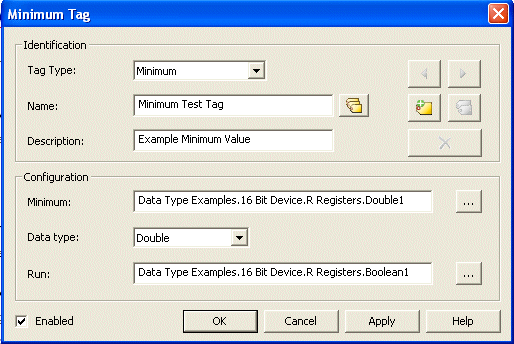
Figure 22: Example Minimum Tag Configuration
Example
Let's assume we have a tag that measures the temperature at a location, with a scan rate of 60000 msec (1 min). The values of the device tag at each polling are shown in the table below.
| Temperature | Timestamp |
|---|---|
| 72.3 | 10:00:00 AM |
| 72.5 | 10:01:00 AM |
| 72.9 | 10:02:00 AM |
| 73.4 | 10:03:00 AM |
| 72.4 | 10:04:00 AM |
| 71.6 | 10:05:00 AM |
| 71.2 | 10:06:00 AM |
| 70.5 | 10:07:00 AM |
If the run tag successfully transitions from zero to a non-zero number, the Minimum Tag would show the value in the following table.
| Temperature | Timestamp |
|---|---|
| 72.3 | 10:00:00 AM |
| 72.3 | 10:01:00 AM |
| 72.3 | 10:02:00 AM |
| 72.3 | 10:03:00 AM |
| 72.3 | 10:04:00 AM |
| 71.6 | 10:05:00 AM |
| 71.2 | 10:06:00 AM |
| 70.5 | 10:07:00 AM |
Note: If the quality of the device tag or the trigger tag is bad, the quality of the Minimum Value tag will also be bad
Note: If the quality of the device tag or the Run tag is bad, calculation of the minimum value will stop. In order for calculation of the minimum to restart, both tags must return to good quality and the Run tag must successfully transition from zero to non-zero.
Link Tags
New in version 5.3!
Link Tags are used to link two device tags. For example, this allows Tag A from Device A to be linked to Tag B from Device B, without requiring a third-party client connection. When enabled, a Link Tag writes the value of an Input Tag to an Output Tag. It also has a string value of:
<input tag> == <output tag>.
When disabled, a Link Tags does not bridge the value between the Input Tag and the Output Tag and its value is:
<input tag> != <output tag>.
Setting up the Link Tag
- Select the Advanced Tag tab in the TOP Server Project Tree pane as shown in the Creating Advanced Tags section of this document.
- Add a new Link Tag by right-clicking on the Advanced Tags in the left hand pane and selecting New Link Tag, clicking on the Link tag button in the menu bar, as shown below, or selecting the New Link Tag option from the Edit menu.

Figure 23: New Link Tag
- Give your Link Tag a Name. We will call ours Link Test Tag. The name can be up to 256 characters in length.
- If you would like to, you can provide a description of up to 64 characters in the Description field.
- Click on the ellipse button to the right of the Input field to open the tag browser. The Input field will be the source of the link. Its value will be written to the Output tag.
- Browse to a tag in the project tree and highlight the tag you are interested in.
- You can either double click or click the Apply button at the bottom of the Tag Browser window to select the tag as your Input tag.
Figure 24: Select Tag From Tag Browser
- Click on the ellipse button to the right of the Output field to open the Tag Browser. The Output tag will be the destination of the link. Its value will be written to, based on the value of the Input tag. Therefore, the Output tag must be writable.
▹ Note: The Input and Output tags can not be the same. - Enter a value in the Dead Value field. This field specifies the value the will be written to the Output tag is the Input tag is of bad quality. The data type of this value is the data type of the Output tag.
▹ Note: If the Output is an array tag, each array element is set equal to the Dead Value. -
Select the Trigger Mode of the Link Tag. This parameter specifies the type of trigger used to initiate the link.
-
On Input Value Change: The Input tag is linked to the Output anytime that the input value changes
-
On Timer: The Input tag is linked to the Output tag at the rate specified by the Update Rate (ms).
-
On Value: The Input tag is linked to the Output tag each time the Trigger Tag satisfies the logic determined by the Value and Comparison fields.
-
The Comparison field specifies the logical comparison between the Trigger tag and the Value parameter
-
The Value specifies the value compared to the trigger tag. The data type of this value if equal to the data type of the Trigger Tag.
-
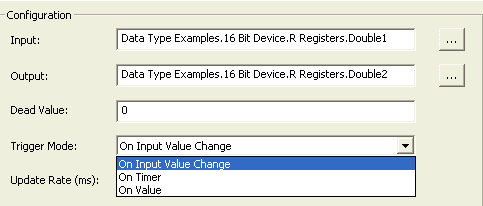
Figure 25: Select the Trigger Mode
-
-
-
Set the Update Rate of the Link tag. The meaning of this value varies slightly depending on the trigger method selected.
-
On Input Value Change: The scan rate of the Input Tag. This is the fastest rate at which a change in the Input value may be detected.
-
On Timer: The link rate
-
On Value: The scan rate of the Trigger Tag. This is the fastest rate at which a change in the trigger value may be detected.
-
-
You can disable the new tag by unchecking the Enabled box at the bottom left of the configuration window. When disabled, the Link Tag will do no work and have a value of
<input tag> != <output tag>. Each new Link Tag is enabled by default. -
When you have completed your configuration click OK.
-
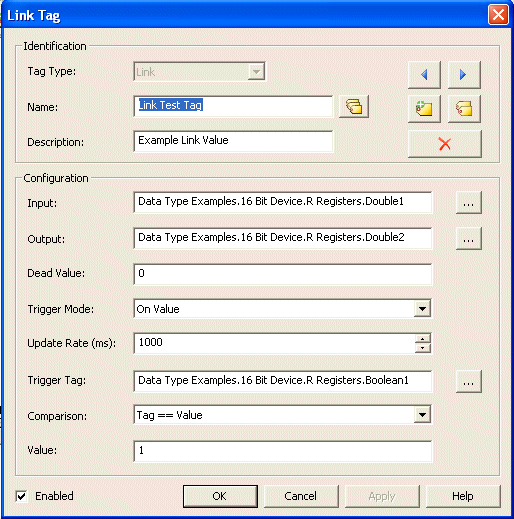
Figure 26: Example Link Tag Configuration
-
Oracle Cumulative Tags
Oracle Cumulative Tags are specifically designed for Oracle requirements. They work by returning the delta (change) between the last value polled and the current value polled from a specific tag.
On the first update, the raw value will be sent to the client. Each successive value will take the cumulative value and send it to the client. Values that can not be read and that are considered bad quality will be skipped and the next good value will be used. To account for rollover, enter the maximum raw value that can be read in order to calculate the cumulative value appropriately. The maximum accepted value for the Maximum Value field is 65535, which is also the default.
Setting up the Oracle Cumulative Tag
- Select the Advanced Tag tab in the TOP Server Project Tree pane as shown in the Creating Advanced Tags section of this document.
- Add a new Oracle Cumulative Tag by right-clicking on the Advanced Tags in the left hand pane and selecting New Oracle Cumulative Tag, or click on the Oracle Cumulative tag button in the menu bar, as shown below. You can also select New Oracle Cumulative Tag from the Edit menu.

Figure 27: New Oracle Cumulative Tag
- Give your Oracle Cumulative Tag a Name. We will call ours Oracle Cumulative Test Tag. The name can be up to 256 characters in length.
- If you would like to, you can provide a description of up to 64 characters in the Description field.
- Click on the ellipse button to the right of the Cumulative field to open the tag browser.
- Browse to a tag in the project tree and highlight the tag you are interested in.
- You can either double click or click the Apply button at the bottom of the Tag Browser window to select the tag as your Cumulative tag.
Figure 28: Select Tag From Tag Browser
- Select the data type of the result of the Cumulative tag calculation
▹ Note: The only data type options for the Cumulative tag are Byte, Word, and DWord. However, you can select a different data type in the OPC client. The server will be responsible for converting the data to the correct type. - Set the Maximum Value that your Oracle Cumulative Tag can reach. For example, if the tag is a counter with a max value of 1000, the Cumulative Tag Maximum Value property should be set to 1000.
- You can disable the new tag by unchecking the Enabled box at the bottom left of the configuration window. When disabled, the Cumulative Tag will do no work and have a value of 0. Each new Cumulative Tag is enabled by default.
- When you have completed your configuration click Apply or OK.
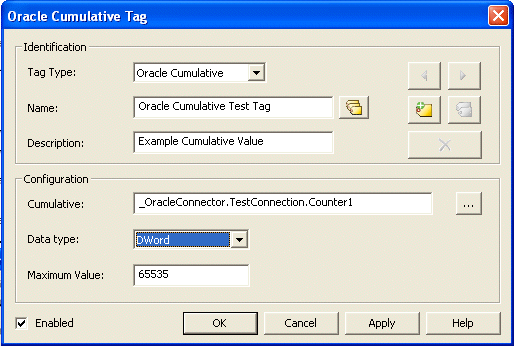
Figure 29: Example Oracle Cumulative Tag Configuration
Example
Let's assume that we have a counter that ranges from 0 to 100. We will set the Maximum parameter to equal to 100. The table below shows the values of our device tag every minute.
| Count | Timestamp |
|---|---|
| 5 | 10:00:00 AM |
| 45 | 10:01:00 AM |
| 95 | 10:02:00 AM |
| 4 | 10:03:00 AM |
The Cumulative Tag would display the values as shown in the table below.
| Cumulative | Timestamp | Calculation[1] |
|---|---|---|
| 5 | 10:00:00 AM | The first value is the raw value |
| 40 | 10:01:00 AM | 45-5 |
| 50 | 10:02:00 AM | 95-45 |
| 9 | 10:03:00 AM | 100-95+4 |
[1]: For demonstration purposes only. Not shown in server
Derived Value Tags
Derived Value Tags are used to provide math and/or logic operations on one of more tag values. These functions can be combined to perform complex math routines and evaluations. The execution of the string follows standard arithmetic rules.
Setting Up a Derived Value Tag
- Select the Advanced Tag tab in the TOP Server Project Tree pane as shown in the Creating Advanced Tags section of this document.
- Add a new Derived Value Tag by right-clicking on the Advanced Tags in the left hand pane and selecting New Derived Tag, or click on the Derived tag button in the menu bar.

Figure 30: New Derived Value Tag
- Give your Derived Value Tag a Name. We will call ours Derived Value Test Tag. The name can be up to 256 characters in length.
- If you would like to, you can provide a description of up to 64 characters in the Description field.
- Set the data type of the Derived Value tag. This will be the final data type of the calculated expression. For instance, if you select Word, but your calculated value is 123.45 the value will be truncated to 123.
- Click on the ellipse button to the right of the Expression field to open the tag browser.
- Browse to a tag in the project tree and highlight the tag you are interested in. Array, Advanced and user-defined tags cannot be used in an expression.
- You can either double click or click the Apply button at the bottom of the Tag Browser window to select the tag as an element in your mathematical Expression.
Figure 31: Select Tag From Tag Browser
- Insert any mathematical or logical operator you need in the expression. Please refer to Appendix A for a full list of accepted expression operators, including Arithmetic, Functions, and Logic expressions.
-
To add additional tags to your expression, repeat steps 6-9. When you have completed your expression, click on the Check Expression button (or you can type
Alt+K). If there are no syntax errors in your expression an "Expression valid" message will be displayed. Otherwise, an error message should be displayed to help determine where the error is.-
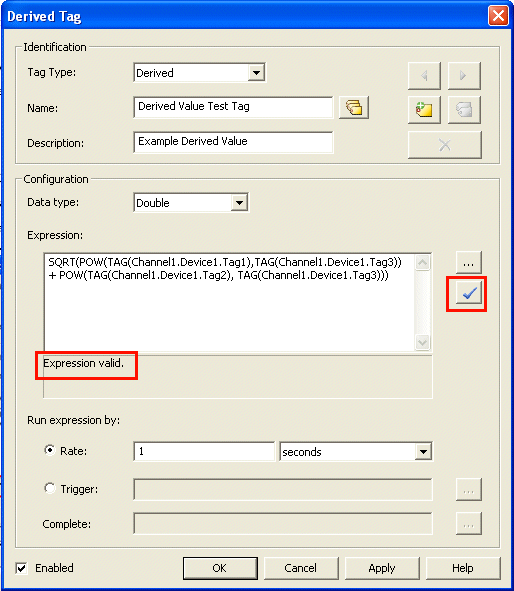
Figure 32: Validate the Expression of the Derived Tag -
▹ Note: When referencing tags in the Expression string, the fully qualified item name by will be preceded by the keyword "TAG" and enclosed in parentheses.
Example 1:
TAG(Channel1.Device1.Tag1)▹ Note: Comments are also supported in Expression strings. Anything after a pound sign (#) will be ignored.
Example 2:
TAG(x) + TAG(y) # Add Tag x and Tag y
-
-
Select the method for running the Expression (Rate or Trigger)
-
The Rate indicates how frequently the Derived Tag will be calculated. The default is one second.
-
The Trigger sets up a tag that is monitored to determine when the calculation is run. When the Trigger transitions from zero to a non-zero number the current values of the tags in the Expression will be used to evaluate the expression. No additional updates will occur until the trigger tag's value is reset to zero and another zero to non-zero transition occurs.
This option also requires that you set a Complete tag. When the expression has been evaluated, the server will write a 1 to the Complete tag to indicate that it is done processing this command. Therefore, Complete Tags must have writable access.
-
-
You can disable the new tag by unchecking the Enabled box at the bottom left of the configuration window. When disabled, the Cumulative Tag will do no work and have a value of 0. Each new Cumulative Tag is enabled by default.
-
When you have completed your configuration click Apply or OK.
-
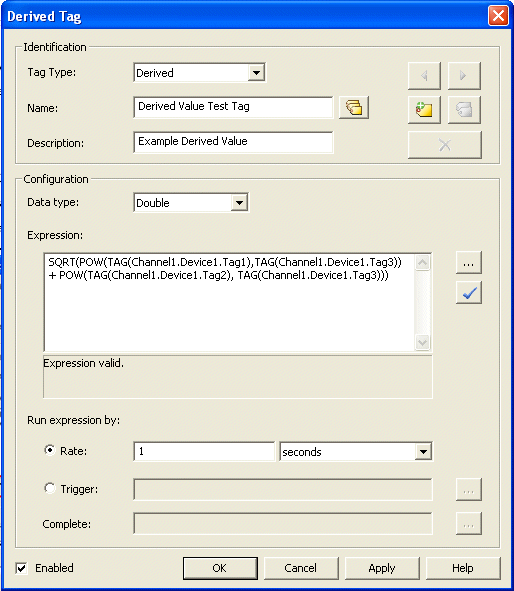
Figure 33: Example Derived Value Tag Configuration
-
Appendix A
Arithmetic Operators
Arithmetic operators perform a math process. The result of that process if returned as the value of the Derived Tag.
Important: Arithmetic Operators are specific to Derived Tags.
| Operator | Formula | Result |
|---|---|---|
| Add | TAG(<Tag_Name>) + TAG(<Tag_Name>) |
Returns the sum of the tag values in the expression |
| Subtract | TAG(<Tag_Name>) - TAG(<Tag_Name>) |
Returns the different of the tag values in the expression |
| Multiply | TAG(<Tag_Name>) * TAG(<Tag_Name>) |
Returns the product of the tag values in the expression |
| Divide | TAG(<Tag_Name>) / TAG(<Tag_Name>) |
Returns the divisor of the tag values in the expression |
| Modulo | TAG(<Tag_Name>) % TAG(<Tag_Name>) |
Returns the remainder after division |
Example
These operators can be combined to produce more complex mathematical expressions. For example, take the expression:
(TAG(Channel1.Device1.Tag1) * TAG(Channel1.Device1.Tag2) * TAG(Channel1.Device1.Tag2)) + (TAG(Channel1.Device1.Tag3) * TAG(Channel1.Device1.Tag2)) = TAG(Channel1.Device1.Tag4)
Where:
- Channel1.Device1.Tag1 = 6
- Channel1.Device1.Tag2 = 10
- Channel1.Device1.Tag3 = 4
- Channel1.Device1.Tag4 = 2
To evaluate the equation we get:
This expression, therefore, evaluates to 40.
Functions
Functions are used to perform a specific calculation on a tag value or an expression. The result of the process if returned as the value of the Derived Tag
Important: All Functions are specific to Derived Tags.
| Function | Formula | Result | Equivalent Equation[2] |
|---|---|---|---|
| Absolute Value | ABS(TAG(<Tag_Name>)) |
Returns the absolute value of the tag value or expression within the expression | |
| Arc Cosine | ACOS(TAG(<Tag_Name>)) |
This function is the inverse of the Cosine function and returns the result as a number with a value range of 0 to 180. Input value range is -1.0 to +1.0 | |
| Arc Sine | ASIN(TAG(<Tag_Name>)) |
This function is the inverse of the Sine function and returns the result as a number with a value range of 0 to 180. The input value range is -1.0 to +1.0 | |
| Arc Tangent | ATAN(TAG(<Tag_Name>)) |
This function is the inverse of the Tangent function and returns the result as a number with the range =90.0 to + 90.0. There is no input range limit. | |
| Cosine | COS(TAG(<Tag_Name>)) |
This function calculates the Cosine of the tag value. The result is a number with the range -1.0 to 1.0. Although there is no true input limit, the Sine input is an angle. The assumed range is 0.0 to 360.0 or -180.0 to +180.0 |
|
| Power | POW(TAG(<Tag_Name>)),TAG(<Tag_Name>))i.e. POW(Base,Exponent) |
This function calculates the result as the base raised to the exponent | |
| Sine | SIN(TAG(<Tag_Name>)) |
This function calculates the Sine of the tag value. The result is a number with the range of -1.0 to +1.0. Although there is no true input limit, the Sine input is an angle. The assumed range is 0.0 to 360.0 or -180.0 to +180.0. | |
| Square Root | SQRT(TAG(<Tag_Name>)) |
This function returns the Square Root of the tag value as the result. | |
| Tangent | TAN(TAG(<Tag_Name>)) |
This function calculates the Tangent of the tag value and outputs a number ranging from negative to positive infinity. The input range is any derivative of -90.0 to 90.0 |
<Tag_Name> is x and/or y
Example
Let's assume we need to find the resultant for two vectors whose values are equal to the value of Channel1.Device1.Tag1 and Channel1.Device1.Tag2, respectively. We can calculate the magnitude of the vector by the following expression:
SQRT(POW(TAG(Channel1.Device1.Tag1),TAG(Channel1.Device1.Tag3)) + POW(TAG(Channel1.Device1.Tag2),TAG(Channel1.Device1.Tag3)) )
Where:
- Channel1.Device1.Tag1 = 5,
- Channel1.Deivce1.Tag2 = 4, and
- Channel1.Device1.Tag3 = 2.
The expression evaluates as:
The direction of the resultant vector can be calculated by:
ATAN(TAG(Channel1.Device1.Tag2)/TAG(Channel1.Device1.Tag1))
The expression evaluates to:
Logic Tags
Logic tags are used to evaluate an expression to be either True or False and return that result as the value of the tag. All Logic Derived tags will be a Boolean data type. A Boolean True can be a 1 or -1 depending upon the client application. A Boolean False will be 0.
| Logic Operator | Formula | Result | Equivalent Equation[3] |
|---|---|---|---|
| And | TAG(<Tag Name>) AND Tag(<Tag Name>) |
This function evaluates each tag to see if its value is greater than 0, returning the result as True or False | |
| Equal To | Tag(<Tag Name>) == Tag(<Tag Name>) |
This function compared the 2 values to see if they are the same | |
| Greater Than | TAG(<Tag Name>) > TAG(<Tag Name>) |
This function tests to see if on value is greater than the other | |
| Less Than | TAG(<Tag Name>) < TAG(<Tag Name>) |
This function tests to see if one value is less than the other | |
| Not | NOT(TAG(<Tag Name>)) |
This function tests to see if the Tag value of Expression is not True. If at least one of the Expressions is not True (False), then the result is True. | |
| Or | TAG(<Tag Name>) OR TAG(<Tag Name>) |
This function tests to see if any of the values in the expression are True. If at least one expression is True, the result is True. |
[3]:where <Tag_Name> is x and/or y
Example
These logical operators can be combined to create more complex expressions. For example:
TAG(Channel1.Device1.Tag1)>=TAG(Channel1.Device1.Tag2)
Where:
- Channel1.Device1.Tag1 = 3, and
- Channel1.Device1.Tag2 = 2,
the expression will evaluate to:
Contact Us
This guide has demonstrated the basic steps for configuring Advanced Tags in the TOP Server. The Advanced Tags can be used in conjunction with any of the TOP Server drivers.
If you do not have TOP Server but would like to evaluate what TOP Server can offer in terms of robust, reliable device data acquisition, you can download a free two hour demonstration of TOP Server at https://softwaretoolbox.com/top-server/free-trial. This demonstration version is fully functional, only requiring that you restart it at the end of the two hour demonstration period.
If you have further questions or need assistance, our experienced staff is here to assist you. We can be contacted in the methods outlined below.
If you have any questions or are seeking further information and help: