![SWTB_logo_rgb_color_mode-wPadding-2000x961.png]](https://help.softwaretoolbox.com/hs-fs/hubfs/SWTB_General/Images/Press_Kit/SWTB_logo_rgb_color_mode-wPadding-2000x961.png?height=50&name=SWTB_logo_rgb_color_mode-wPadding-2000x961.png)
1) Back up your KEPServerEX project file (.opf) before moving forward
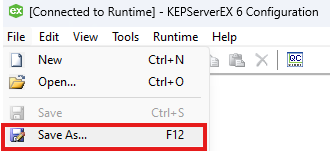
Navigate to the KEPServerEX Configuration window. Locate File ⇒ Save As to save a backup of your current runtime project.
2) Install the TOP Server V6
See our TOP Server V6 Getting Started Guide for a step by step guide that shows how to install TOP Server.
3) Opening existing projects
Once installed, the TOP Server will open loaded with a sample simulation project.
To open your KEPServerEX project, open on the TOP Server Configuration Window and navigate to File ⇒ Open.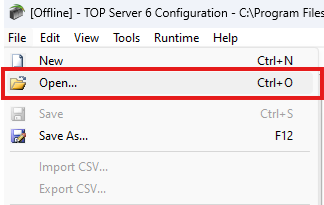
A TOP Server window will open asking if you would like to replace the runtime project with your project. If ready to restart the TOP Server Runtime, click Yes, Update. If you are not prepared to restart the TOP Server Runtime at this time, click No, Edit Offline.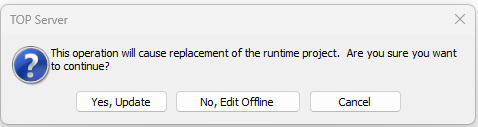
4) Changing your OPC DA Client ProgID, OPC UA Endpoint, or SuiteLink Application name
OPC DA ProgID
If you have an OPC DA Connection in your current project, you can either change the ProgID you are connecting to on your client side or redirect the TOP Server admin settings to use the KEPServerEX ProgID.
The new TOP Server ProgID will be:
- Version 5 ProgID:
SWToolbox.TOPServer.V5 - Version 6 ProgID:
SWToolbox.TOPServer.V6
Launch the TOP Server Administrator found in: C:\ProgramData\Microsoft\Windows\Start Menu\Programs\Software Toolbox\TOP Server 6
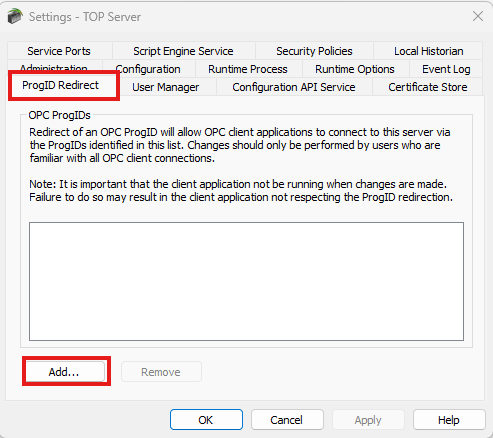
- Right-click on the Administration Icon in the System Tray and select Settings
- Select the ProgID Redirect tab and click select "Add"
- Manually enter the appropriate ProgID:
- Version 5 ProgID:
KEPware.KEPServerEX.V5 - Version 6 ProgID:
KEPware.KEPServerEX.V6
- Version 5 ProgID:
OPC UA Endpoint
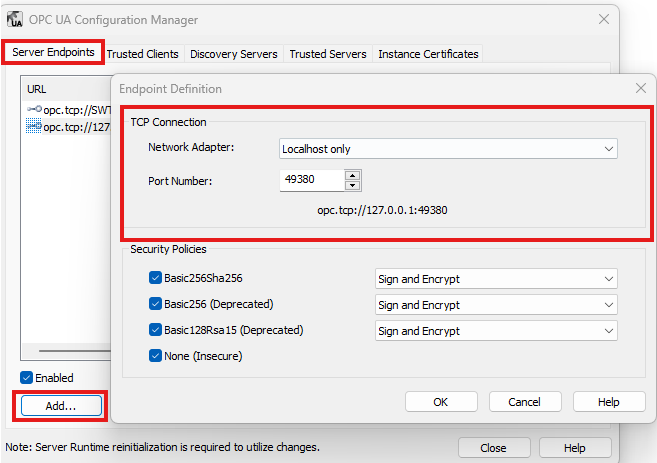
If you have an OPC UA Connection in your current project you can either change the OPC UA Endpoint you are connecting to on your client side or add your current Endpoint to the TOP Server admin settings to use the KEPServerEX Endpoint.
By default, the local OPC UA Endpoint for TOP Server and KEPServerEX are as follows:
- KEPServerEX:
opc.tcp://127.0.0.1:49320 - TOP Server:
opc.tcp://127.0.0.1:49380
Launch the TOP Server Administrator found in: C:\ProgramData\Microsoft\Windows\Start Menu\Programs\Software Toolbox\TOP Server 6
- Right-click on the Administration Icon in the System Tray and select OPC UA Configuration
- Select the Server Endpoint tab and click select "Add"
- Choose the desired Network Adapter and update the Port Number to match the port used by your client
SuiteLink
If you have a SuiteLink connection to the KEPServer for Wonderware in your current project you will need to change the Application name to server_runtime.
5) License your new TOP Server
The documents and Video below will show you how to license your new TOP Server