![SWTB_logo_rgb_color_mode-wPadding-2000x961.png]](https://help.softwaretoolbox.com/hs-fs/hubfs/SWTB_General/Images/Press_Kit/SWTB_logo_rgb_color_mode-wPadding-2000x961.png?height=50&name=SWTB_logo_rgb_color_mode-wPadding-2000x961.png)
Introduction
The TOP Server Siemens TCP/IP Ethernet Driver is easily configured to provide reliable communications to several families of S7 PLCs. The driver supports communication via Industrial Ethernet TCP/IP interface communication processors, the Hilscher NetLink adapter, and only requires a standard Ethernet Card available on the machine running TOP Server. This document gives a brief overview of how to configure a connection between TOP Server and a S7 PLC, and provides some further detail on a few key features of the Siemens TCP/IP Ethernet driver; the ability for client controlled (programmable) redundancy, communication optimization, and automatic tag generation warrant special attention. This document does not server as a comprehensive guide to the driver however, and the driver Help File should be used for a more inclusive description of all the features the Siemens Ethernet driver offers. The Help File can be accessed from within TOP Server at Help ⇒ Driver Help … ⇒ Siemens TCP/IP Ethernet.
Device Setup
The Siemens TCP/IP Ethernet driver supports communication with seven families of S7 Devices. The supported series of devices are:
- S7-200s
- S7-300s
- S7-400s
- S7-1200s
- S7-1500s
- S7-300s via NetLink converter
- S7-400s via NetLink converter
Connections to S7-300 and 400 devices are supported via a NetLink adapted. Supported NetLink cables/gateways are the NT 50-MPI, NL 50-MPI, and NL-MPI
The Device ID – The driver supports up to 1024 devices per channel, and supports IP Addresses in the format of 0-255.0-255.0-255.0-255, or the UNC/DNS name.
Scan Mode – Specify the scan rate at which devices will be polled, it is recommended that this be left at the default “Respect client specified scan rate”
Timing – The device’s timeout settings can be configured.
Auto-Demotion – Allows configuration of auto-demotion settings, to prevent communications with other devices on a channel to be affected in case of a communications problem.
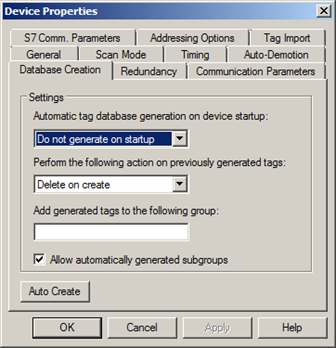
Database Creation – Configures a device’s behavior when automatically generating a tag database.
Communications Parameters – Configures the TCP/IP port that the device is set to use. For CP Connections the default port is set to 102, and for NetLink connections the default port is 1099. For NetLink connections the MPI ID must also be set.
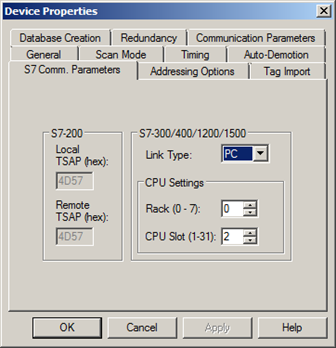
S7. Comm. Parameters – These settings must match what was configured in Micro/WIN (S7-200s), STEP7 (S7-300s/400s), TIA Portal (S7-1200), or S7 AI Portal (S7-1500).
For the S7-200s the local and device transport service access points (TSAP) must be configured and match what exists in Micro/WIN.
For the S7-300s, 400s, 1200s, and 1500s the connection link type and CPU settings must be configured and match what exists in the configuration software corresponding to the PLC family.
Addressing Options – Sets the word order for multiple word data types.
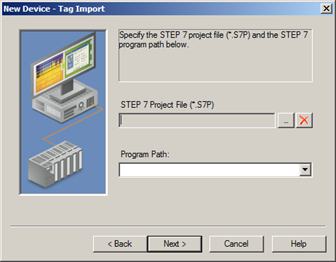
Tag Import – Sets the S7 Project File and Program path, this will be the location that TOP Server imports tags from.
Addressing
This section will give a brief overview of the proper addressing syntax for S7 devices, and the supported memory types. For an extensive overview, please refer to the driver’s help file.
Addressing Syntax
The Siemens TCP/IP Ethernet driver supports the standard S7 addressing syntax. The general syntax for addressing Inputs, Outputs, Peripheral, or flag memory in S7 PLCs is shown below:
<memory type><data type><address><memory type><data type><address>.<bit><memory type><data type><address>.<string length><memory type><data type><address><[row]><[col]>
In order to address timer or counter memory types, the syntax will simply be:
<memory type><address>
The syntax for addressing data blocks is also slightly different, and takes on the form of:
DB<num>,<data type><address>DB<num>,<data type><address>.<bit>DB<num>,<data type><address>.<string length>DB<num>,<data type><address><[row]><[col]>
For Data Types that support arrays, the array can be addressed via:
<address>[rows][cols]<address>.rows.cols<address>,rows,cols<address>_rows_cols
Supported Memory Locations
The following tables give an oversight of what memory types are supported through the Siemens Ethernet driver.
| Memory Types | Description | Default Data type |
| I | Discrete Inputs (IEC) | Boolean, Byte, Word, Dword |
| E | Discrete Inputs (SIMATIC) | Boolean, Byte, Word, Dword |
| Q | Discrete Outputs (IEC) | Boolean, Byte, Word, Dword |
| A | Discrete Outputs (SIMATIC) | Boolean, Byte, Word, Dword |
| AI | Analog Inputs (IEC) | Word |
| AE | Analog Inputs (SIMATIC) | Word |
| AQ | Analog Outputs (IEC) | Word |
| AA | Analog Outputs (SIMATIC) | Word |
| M | Internal Memory | Boolean, Byte, Word, Dword |
| SM | Special Memory | Boolean, Byte, Word, Dword |
| S | Sequence Control Relay (SCR) | Boolean, Byte, Word, Dword |
| V | Variable Memory | Boolean, Byte, Word, Dword |
| T | Timer Current Values | Long |
| C | Counter Current Values (IEC) | Word |
| Z | Counter Current Values (SIMATIC) | Word |
| HC | High-Speed Counter | Long |
| Memory Types | Description | Default Data type |
| I | Discrete Inputs | Depends on S7 Data type, see help file for listing |
| E | ||
| Q | Discrete Outputs | Depends on S7 Data type, see help file for listing |
| A | ||
| PI | Peripheral Inputs | Depends on S7 Data type, see help file for listing |
| PE | ||
| PQ | Peripheral Outputs | Depends on S7 Data type, see help file for listing |
| PA | ||
| M | Flag Memory | Depends on S7 Data type, see help file for listing |
| F | ||
| DB | Data Blocks | Depends on S7 Data type, see help file for listing |
| T | Timers | Long |
| C | Counters | Word |
| Z |
For a detailed description of each memory type, and more specific addressing conventions, please refer to the driver help file.
Dynamic Tag Addressing
The TOP Server Siemens TCP/IP Ethernet driver also supports dynamic tag addressing from a client application. The format for a dynamic tag is:
<Channel>.<Device>.<TagName>@<Data Type>
The Data Type designation will match the default data type listed in the Supported Addresses Section above. These can also be found in the corresponding sections of the help file.
Automatic Tag Import
It is possible to automatically generate a tag database from a compatible Step7 project. Tag import for S7-300 and S7-400 devices is available for projects that have been created in Siemens Simatic STEP7 versions 5.2, 5.4, and 5.5.
During the device creation, the STEP7 project file, and the specific program path can be selected:
The tag database can then be generated straight from the STEP7 program file by navigating to the Device Properties, navigating to the Database Creation tab, and selecting Auto Create once all settings have been confirmed to be correct.
Redundancy
The Siemens TCP/IP Ethernet driver supports several methods to configure redundant controllers; the two most common methods are programmatically, and utilizing TOP Server’s Media Level Redundancy Plug-in. If you are interested in Server Redundancy please contact us about the Redundancy Master which is used to switch from one OPC Server to another.
Changing to fail-over device from Client Application
The Siemens TCP/IP Ethernet Driver also allows for Client controlled fail-over at runtime. For this configuration, the client application monitors the _Error system tag and, upon detecting an error condition, would update the following device and/or system tags:
_Rack(Device Tag) – Would be changed to fail-over to a different rack number._Slot(Device Tag) – Would be changed to fail-over to a different slot number._DeviceID(System Tag) – Would be changed to fail-over to a different IP Address.

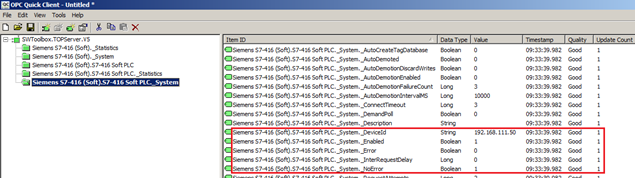
Updating any, or all, of the tags listed above will switch to the corresponding controller. This method of redundancy does not allow for automatic return to the primary device. The client application will have to continue monitoring the primary device for re-established communications, and write to the tags above to return them to the original values. (Alternatively, the _NoError tag can be used to determine the presence of an error. This tag is 1 when there is no error presence, and 0 if there is an error present.)
Media Level Redundancy
The TOP Server’s Media Level Redundancy Plug-in can also be used to automatically switch to a secondary PLC, in case of a communications disruption, and switch back to the primary device once the connection has been re-established. To configure a redundant device two devices must be configured under separate channels; both devices should have unique Network IDs/IP Addresses, and Rack Numbers.
- Navigate to the S7 Comm. Parameters tab under the Device Properties, and verify that the Rack and CPU Slot settings are correct for both devices.
- For the primary device/CPU navigate to the Redundancy Tab of the Device Properties, and select the Secondary device – the device that should be switched to in case of communications failure
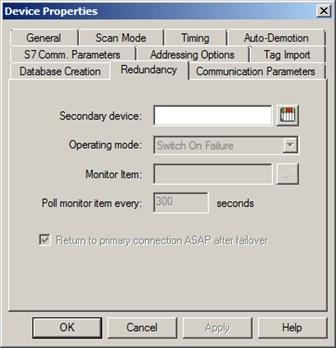
The option Return to primary connection ASAP after failover will assure that the TOP Server switches back to the primary device as soon as communications can be re-established, as long as the Operating mode is set to Switch on Failure.
Optimizing TOP Server Communications
TOP Server Ethernet drivers are extremely efficient in communicating with configured devices, with minimal impact on the overall system and network performance, but several steps can be taken to optimize this process even further. While smaller projects – i.e. pulling a small number of tags from just a few devices –will probably not notice huge performance improvements, the following steps are nonetheless good practices to follow, and will minimize the work that will go into increasing the size your automated system.
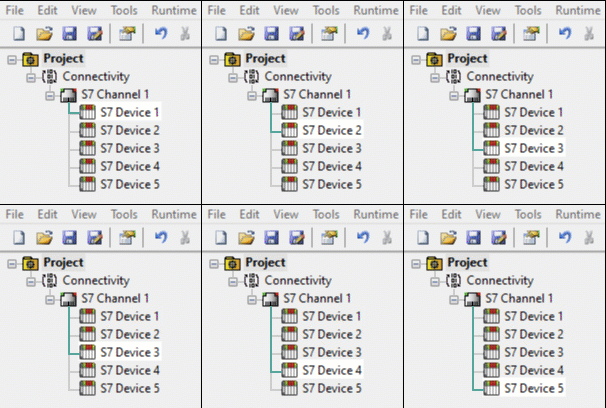 When a channel is created in TOP Server a separate path of execution is configured in the server, and every device configured for a channel will be polled sequentially in the order they appear in the configuration window.
In this configuration, S7 Device 5 will be polled only after Devices 1-4 have been polled. Depending on the number of tags that are configured for each device this could create a delay until the information from Device 5 is collected. With up to 1024 devices supported per channel, communication rates would be adversely affected as the number of devices grew, or if more tags were requested for any single device.
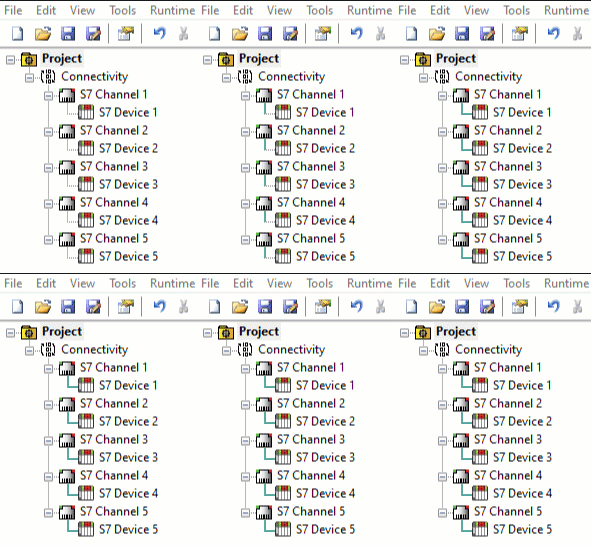 Since the Siemens TCP/IP Driver supports up to 256 channels, ideally, devices will be evenly divided between channels. This would create multiple channels of communication that could gather information simultaneously. If an automated system has more than 256 devices, multiple devices will have to be configured per channel, but should be spread evenly between them. In addition to creating multiple channels, an additional method of optimization is available for S7-300, S7-400, S7-1200, and S7-1500 PLCS, (Excluding those connected via the NetLink adapter) that is unique to the Siemens TCP/IP Ethernet driver. The link type that is selected during the Device creation process (Pictured below), or later configured through the Device properties dialogue, determines how many simultaneous requests the device will allow.
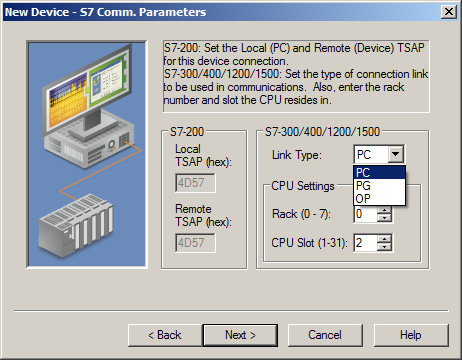
Since each Channel.Device pair, configured in TOP Server, constitutes a single communications processor (CP) connection, and only allows a single outstanding request at a time, Communications can be further optimized by configuring multiple connections to the same device. The table below displays the number of connections supported by each process type:
| Number of connections supported | ||||
| Link Type | S7-300 CPU 314, 315 |
S7-400 CPU 412, 413 |
S7-400 CPU 414 |
S7-400 CPU 416 |
| Applications (PC) | 2 | 14 | 30 | 62 |
| Operator Panel (OP) | 1 | 1 | 1 | 1 |
| Programming Device (PG) | 1 | 1 | 1 | 1 |
Using the S7-400 CPU 416 as an example; the device allows for 62 PC connections, and an additional OP and PG connection, for a total of 64 separate connections to the device. Any tags configured for the device should, ideally, be evenly spread between 64 identical devices each under a separate channel, to allow for 64 simultaneous requests.
It is important to note that the 64 connections are shared between all applications that communicate with the S7 PLC, so if another application such as STEP7 is configured to also use a TCP/IP connection with the device, one or more connections must be left open. If the Programming software is configured to use the PG port and the Operator Panel (if used) is configured to use the OP port, the Application connections (PC) should be available.
In most situations only one connection is needed for the TOP Server. If you are doing batch writes, it can be useful to make a separate connection for these, which will minimize the impact these writes have on read requests and speed of the write operations.
Conclusion
This document has been provided to assist an end-user in the basic configuration of a connection between TOP Server and S7 family of PLCs. From this guide, we hope that you have gained a basic understanding of how TOP Server can be easily and efficiently configured, how redundancy can be used to create an extra layer of security to your automated system, and how the configuration can be optimized to take full advantage of the efficiency with which TOP Server is capable of communicating.
If you have further questions or need assistance our experienced staff is more than happy to help, we can be reached by: