![SWTB_logo_rgb_color_mode-wPadding-2000x961.png]](https://help.softwaretoolbox.com/hs-fs/hubfs/SWTB_General/Images/Press_Kit/SWTB_logo_rgb_color_mode-wPadding-2000x961.png?height=50&name=SWTB_logo_rgb_color_mode-wPadding-2000x961.png)
Introduction
The IBH S7++ Link Adapter provides a versatile means of connecting to S7 PLCs; be it for control purposes or programming. The adapter allows for MPI/PPI and Profibus connections to S7 PLCs PG interface via Ethernet. This document describes how to configure the adapter, and gives a brief overview of how to connect to a PLC using a few of our software packages; namely the S7 for Windows Programming Software, and TOP Server’s Siemens TCP/IP Ethernet Driver. This document is not intended to provide a comprehensive guide to configuring these additional programs, and will focus primarily on settings and utilization specific to the S7++ Link Adapter. This guide assumes that the configuration software, IBHNet, required for the S7++ Link Adapter Configuration has been installed. In case IBHNet is not available, or for a comprehensive configuration guide for either the S7 for Windows programming software, or the TOP Server Siemens TCP/IP Ethernet Driver, please see our list of application notes.
Configuring the Adapter
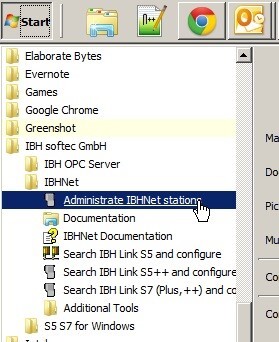
The configuration process of the S7++ Link Adapter is relatively easy, but can be facilitated by observing a few details during the initial setup. Ideally the computer running IBHNet will be connected, directly, to the same router that the adapter is connected to. Once the initial setup is complete the adapter can be moved. There are several ways to start the configuration software, the easiest; navigate to the IBH softec GmbH folder via the Start Menu, and select Administrate IBHNet stations.
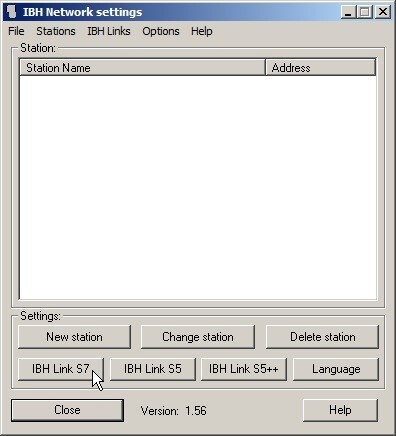
With the IBH Network Settings Dialog open, navigate to the IBH S7 Link button in the bottom left.
Please note: the configuration settings at this point are almost identical for the S5++ Link Adapter.
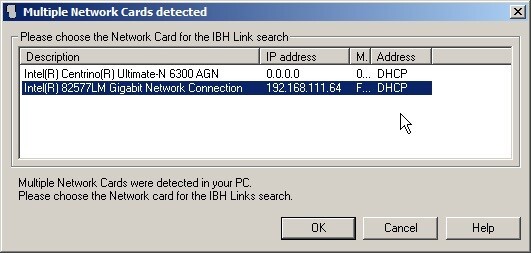
If there are multiple Network Interface Cards available on the machine, please verify that the appropriate connection is selected.
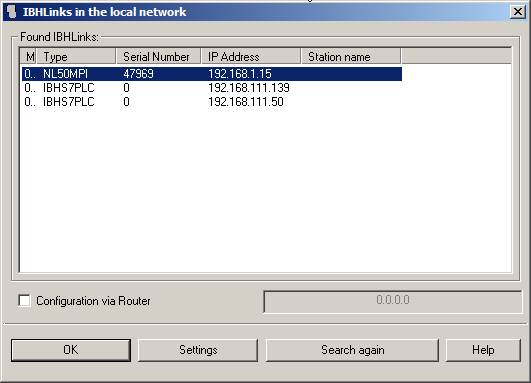
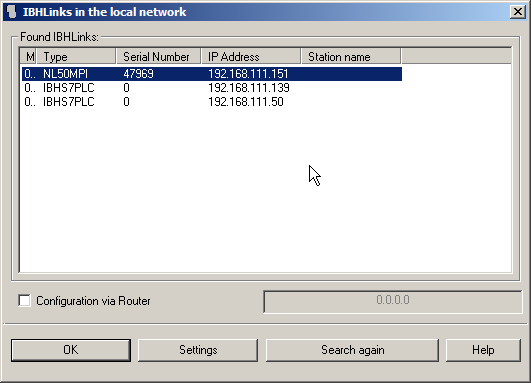
IBHLinks will scan the local network for any adapters. When shipping, the default IP address for a new adapter is:
| S7++ Link Adapter | 192.168.1.15 |
| S5++ Link Adapter | 192.168.1.13 |
In this case two Soft PLCs were found, and the new S7++ Adapter is also present. In situations where the adapter is not found, the Search Again button can be used to scan the network a second time, a dialog will prompt you to cycle power on the adapter. If the adapter is still not located, the Configuration via Router option will allow for a search via the default IP address of the adapter.
For a first-time configuration, a Set IP-Address dialog will present, and allow for temporary changing of the adapter’s IP Address. An important note is that the IP address is NOT yet set permanently.
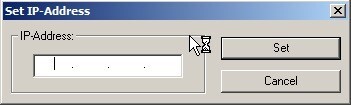
The adapter will appear with the new IP Address - select the adapter and navigate to the Settings dialog.
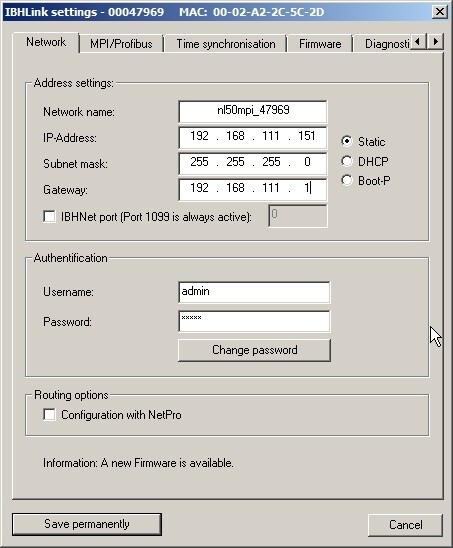
The adapter’s settings dialog will present, and allow for permanent configuration settings. The Network tab allows configuration of the:
- Network Name sets the adapter’s network name this option can be left on the default
- IP-Address sets the adapter’s IP Address
- Subnet mask sets the subnet mask
- Gateway sets the default gateway address
- IBHNet port IBHNet communications are, by default, done via TCP port 1099. If port 1099 is not available an alternate port can be set here
- Authentication allows a password to be set, preventing unauthorized configuration changes (this can be left at the default settings)
The MPI/Profibus tab allows for configuration of the bus configuration:
- Communication speed sets the baud rate for the link. If the baud rate is unknown, “Automatic” can be set here for automated baud rate detection. Connection time is slower when in Automatic.
- Own device-address sets the MPI address of the adapter, caution must be used here that the set address does not conflict with another MPI address on the bus. This value is set to 0 by default, and can be left there unless this creates a conflict.
- Maximum device address sets the maximum bus address.
⚠️ Caution should be used that this number is large enough to capture all devices on the bus, but setting the maximum address too large will waste unnecessary time scanning higher ranges. - Bus profile sets the bus profile – MPI/PPI, or Profibus
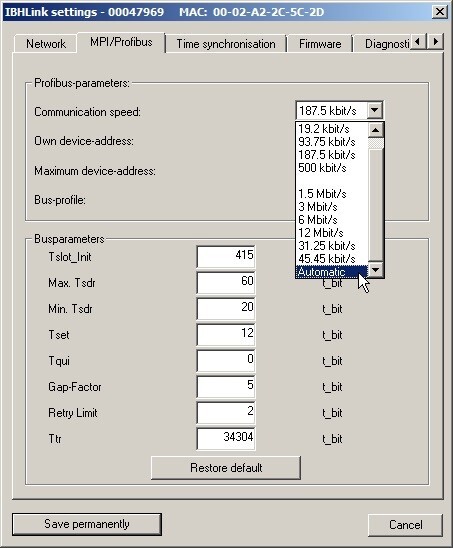
The MPI/Profibus bus parameters will generally be appropriate for most networks. If these parameters are different from configured values, they can be updated.
The Firmware tab can be used to update the adapter’s firmware if a newer version is available. With the adapter configuration finished, Save permanently will permanently upload the configuration to the adapter. A dialog will prompt to restart the adapter to permanently assign parameters. This is required, or the settings will be lost upon closing the settings window.
You can re-scan the network to verify the IP address, before moving it to its final location.
Connecting to PLC using S7 for Windows
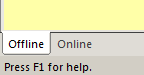
In order to access a PLC connected to the S7++ Adapter using S7 for Windows Programming software, the software was started, and the Online tab was selected.
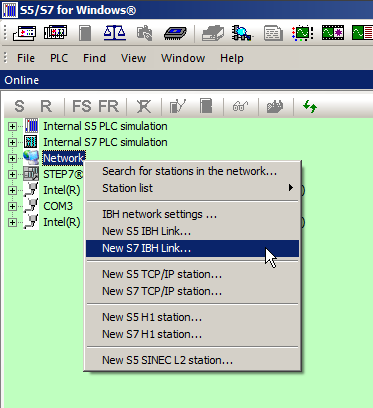
Since a new Network connection will be configured, right clicking on Network, and creating a New S7 IBH Link will allow for configuration of the connection.
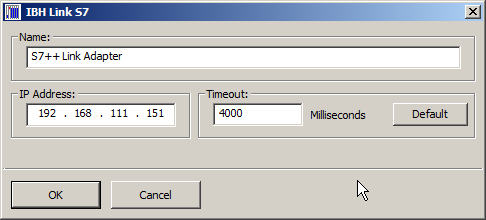
A user friendly name can be given to the connection, and the appropriate IP address of the adapter should be entered. For most applications the 4000ms timeout setting will be sufficient.
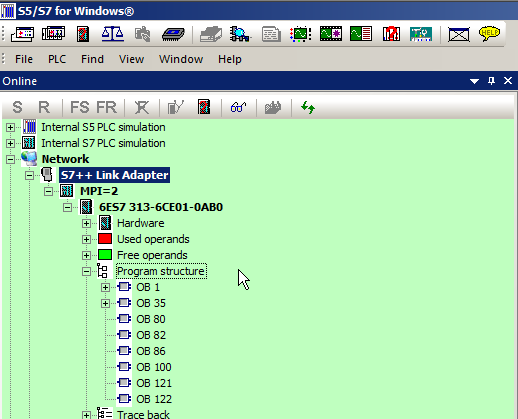
Double-clicking the new connection will scan the bus for devices. With any devices found the existing program can now be downloaded, or a new program uploaded.
Connecting to PLC using TOP Server
This section will discuss the proper connection procedure to a PLC from TOP Server, via the S7++ Link Adapter. The focus will be to settings that are unique to using a NetLink adapter, for general configuration help please see the TOP Server support information: https://help.softwaretoolbox.com/faq/top-server, or reference the TOP Server Help Files.
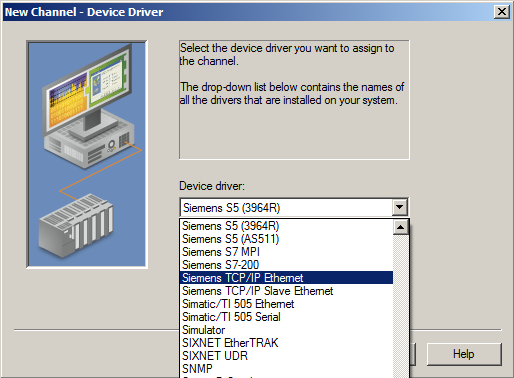
When a new channel is created the Siemens TCP/IP Ethernet driver is selected, this will allow for connection to S7-300, and S7-400 series PLCs.
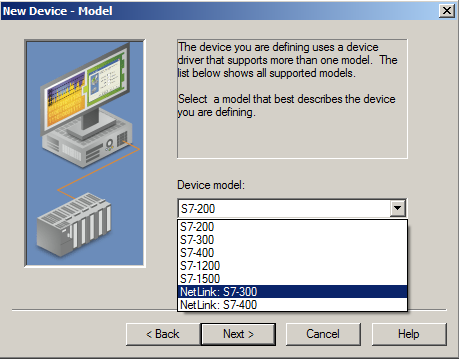
When creating the new device, the appropriate Device model must be selected, NetLink: S7-300 or NetLink: S7-400, based on your PLC family.
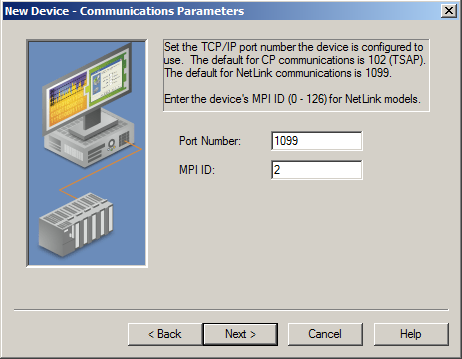
Following the entering of the adapters IP address, the Port Number and MPI ID will be requested. The MPI ID must match the ID of the Device, NOT the adapter. The Port number will be the Adapter’s.
Conclusion
In summary, the S7++ Link Adapter provides a flexible, easy to configure, reliable, means of connecting to S7 PLC families via MPI/PPI, or Profibus. In no means is this guide meant as a comprehensive “how-to”, but rather to allow users to quickly configure the adapter - to connect to PLCs with Programming and Control Applications.
TOP Server Siemens Suite specific help can be found here:
https://help.softwaretoolbox.com/faq/kb-search-results?q=siemens
For further questions, or assistance, our experienced team is more than happy to help. We can be reached by: