![SWTB_logo_rgb_color_mode-wPadding-2000x961.png]](https://help.softwaretoolbox.com/hs-fs/hubfs/SWTB_General/Images/Press_Kit/SWTB_logo_rgb_color_mode-wPadding-2000x961.png?height=50&name=SWTB_logo_rgb_color_mode-wPadding-2000x961.png)
Introduction
This document serves as a guide on how to configure your System Platform ArchestrA $DDESuiteLink DI Object to automatically reconnect to the data source, following a disconnect. As it currently stands, System Platform ArchestrA 2014 does not offer a way to automatically reconnect to an I/O Server after the connection to the server is lost. This is particularly important in systems where the connection between System Platform ArchestrA and the I/O Server is remote – where anything from network issues, to a physical disconnect could cause a connection issue – but also affects systems where the connection is local. Manually having to re-establish connections after a server shutdown, or connection problem, is not only inefficient, but can quickly become a nuisance for any system engineers tasked with re-establishing the communications.
This document makes the assumption that the necessary System and Application Objects are already created and deployed, and will focus solely on the configuration of the DDESuiteLinkClient object. It is in no way intended as a comprehensive guide to either TOP Server, or System Platform ArchestrA, and the appropriate documentation for either software package should be consulted for a more detailed understanding of any mentioned features. It should also be noted that this document offers one of many possible solutions to this problem; given the nature of scripting, there are an almost unlimited number of approaches that could be taken, and this is in no way the only solution.
Configuring System Platform
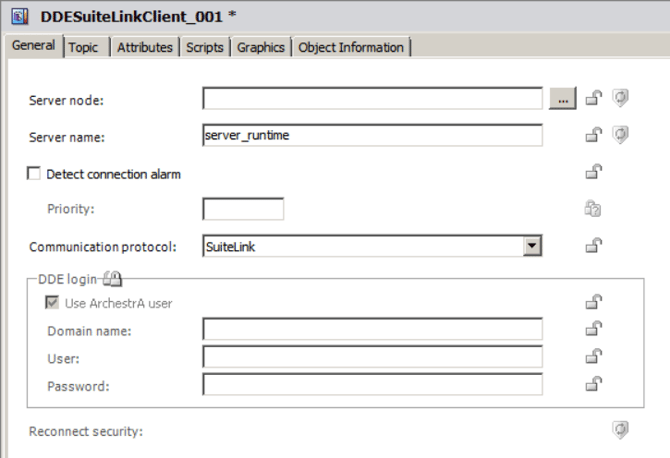
The reconnect script that this application note focuses on will be configured in the DDESuiteLinkClient object instance. Open the existing object, or create a new one, and navigate to the General Tab. The Server node will be the host name, or IP Address, of the machine hosting the I/O Server – for a local connection, as with this example, the node can be left blank. For TOP Server 5 the default server name is server_runtime
Navigate to the Topic tab; the Topic name here will be the Alias that is configured in TOP Server – for more information on configuring TOP Server for a SuiteLink connection please refer to our how-to video, available here.
The topic name for this example will be Channel1_Device1, and the associated attribute will refer to the TOP Server tag name. For more information on how to dynamically address tags using TOP Server, please refer to the TOP Server help file. In this example the tag will be a static tag – Tag1.
Finally, the script will be configured; navigate to the Scripts tab, and create a new script:
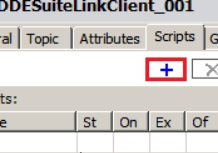
Name the script, and press Enter to begin the configuration. The Execution type for this script will be Execute; the Expression will determine when the script should be run:
me.ConnectionStatus.value<>”Connected”
The expression above will evaluate to true when the connection status reads anything but Connected, and with a Trigger Type of “WhileTrue” will continue to run the script until the status returns to “Connected”.
The script itself should be set to:
Me.Reconnect=true;
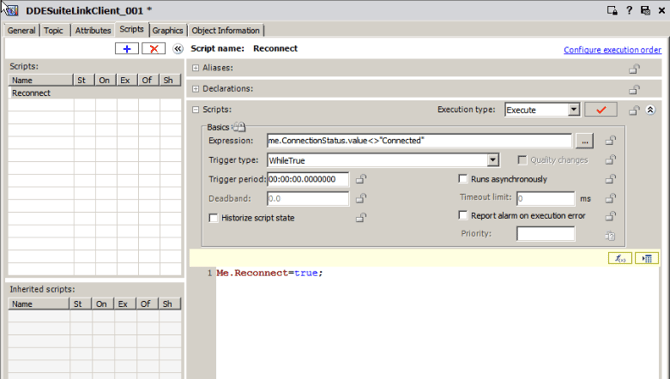
After saving and redeploying the DDESuiteLinkClient DI object instance, the new script can be tested. By reinitializing the TOP Server Runtime, the connection between System Platform and TOP Server will be interrupted – with this script the connection should be re-established, automatically, immediately after the connection disconnects.
Conclusion
In an automation system where network problems are not unheard of, where the machine hosting the I/O Server can be restarted, or where the I/O Server can be reinitialized, having to manually re-establish the connection to System Platform ArchestrA can become a nuisance, and inefficient. This document provides a simple method of configuring a System Platform ArchestrA application to automatically re-establish a lost SuiteLink or DDE Connection.
For more information on TOP Server, or configuring a SuiteLink connection to InTouch or System Platform, please refer to our collection of application notes, accessible through our support page.
Our experienced support team is also always happy to help: