![SWTB_logo_rgb_color_mode-wPadding-2000x961.png]](https://help.softwaretoolbox.com/hs-fs/hubfs/SWTB_General/Images/Press_Kit/SWTB_logo_rgb_color_mode-wPadding-2000x961.png?height=50&name=SWTB_logo_rgb_color_mode-wPadding-2000x961.png)
Introduction
The IBH USB-S7 Adapter provides an easily configurable USB interface for connecting to S7 PLCs via MPI, PPI, or Profibus DP. The cable plugs into the computer using a type B USB socket, and can be directly connected to the programming port on the CPU. This document will provide a detailed description on how to configure the cable, a brief insight into how to use the cable to connect to a PLC using the S7 for Windows Programming software, and finally how to use the built in LCD display to troubleshoot possible communication problems. This document is not intended as a comprehensive guide, but rather to facilitate the out-of-box setup of the cable, and get you communicating with your devices as fast as possible. For comprehensive guides on the various pieces of software and hardware, please reference the appropriate user manuals, or check our collection of application notes available on our website.
This document references several pieces of software that are downloadable below, please note that out of these only the first two, the USB Driver and PLC-VCOM, are required to make the configuration possible.
- USB-S7 USB Driver (Required) – download the USB Driver here
- PLC-VCOM (Required) – download PLC-VCOM here
- Totally Integrated Communication (Optional but recommended) – download TIC here
- S7 for Windows (Required for programming) – download the demo here
Please note that the demo of S7 for Windows does not allow for communication with external PLCs, but a 14 Day temporary license can be requested if desired.
Configuring the Cable
The first step in using the USB-S7 Adapter is to connect the USB end to one of the USB ports on your computer (USB 3.0 ports are supported, but do not provide any obvious benefits over USB 2.0), and installing the USB-S7 driver – downloadable above. With the driver successfully installed, the cable should be visible under the Universal Serial Bus controllers section of the Device Manager.
There are two ways that the cable can be configured; via the buttons on the LCD display of the cable, or via the TIC (configuration) software – both methods are described below. There is no significant difference, although we suggest using the software approach (via TIC) as it simplifies the process by laying all configurable settings out on one interface, and allowing more flexibility as to where the computer is located during configuration. The Software also allows for updates to the Adapter Firmware. Please note that if the software method fails for whatever reason, the LCD Display buttons can be used as a backup, as they are guaranteed to work.
LCD Display Buttons
The buttons used to manually configure the cable are located on the backside of the LCD display, and are laid out as displayed:
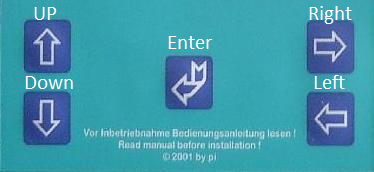
For the first configuration; connect the cable to the PLC and PC, and follow these steps:
| Button | Display | Instruction |
 |
#01P?(More information on these codes below) |
Viewing the cable, press the Enter button |
 |
MENU ⇒ Config |
Press the Up Button until the Config menu is visible and press Enter |
 |
Config ⇒ MPI-BUS |
Press the Down Button until the MPI-BUS option is found in the Config Menu and press Enter |
|
MPI/PPI ⇒ Baudrate |
Find the Baudrate option and press Enter |
|
MPI-Baud ⇒ Auto |
Press Up until the Auto option is selected and press Enter |
 |
Config ⇒ PG/PC |
Press Left to navigate back to the Config menu. Press Down until the PG/PC option is selected, press Enter |
|
PG/PC ⇒ Baudrate |
Find the Baudrate option and press Enter |
|
PG-Baud ⇒ From PC |
Press Up until the From PC option is selected, press Enter |
This completes the basic setup of the adapter, and the adapter can now be used to connect to the controller. The default LCD Display is of two lines of ASCII characters; these indicate the status of the connection, as well as giving valuable insight into the current settings on the adapter. Please see the troubleshooting section at the end of this document for more information.
Totally Integrated Communication (TIC) Software
In order to configure the adapter using the Totally Integrated Communication (TIC) Software, the software must be installed from the link above (see Introduction). With the software open, the search button will browse for any adapters connected to the PC, as long as:
- The USB driver has been successfully installed
- The Adapter Display does not show one of the special conditions described in the last table of the previous section.
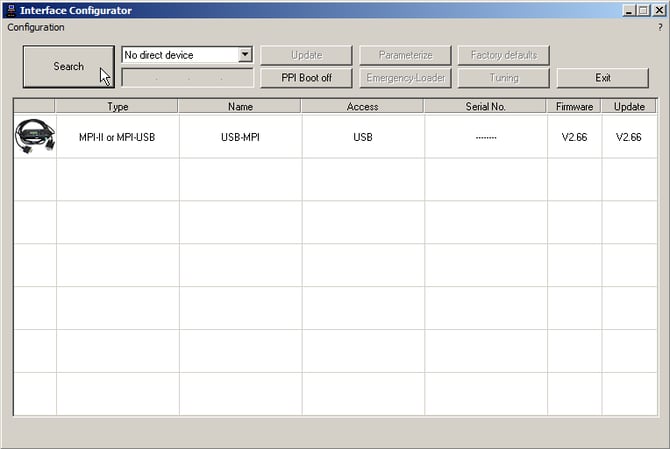
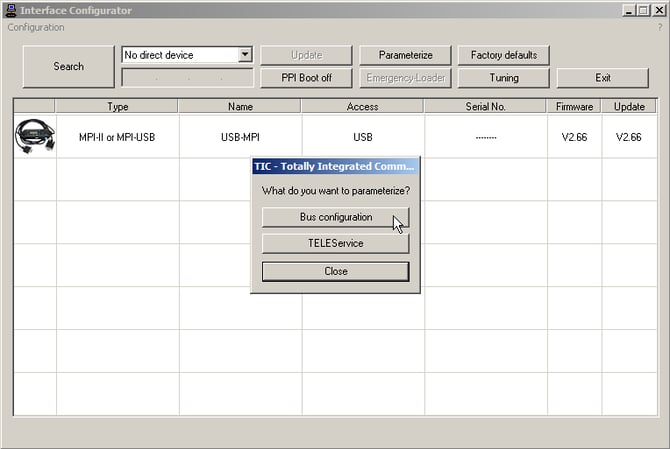
Once the adapter is found; select it, press the Parameterize button, and select the Bus Configuration option from the subsequent dialog.
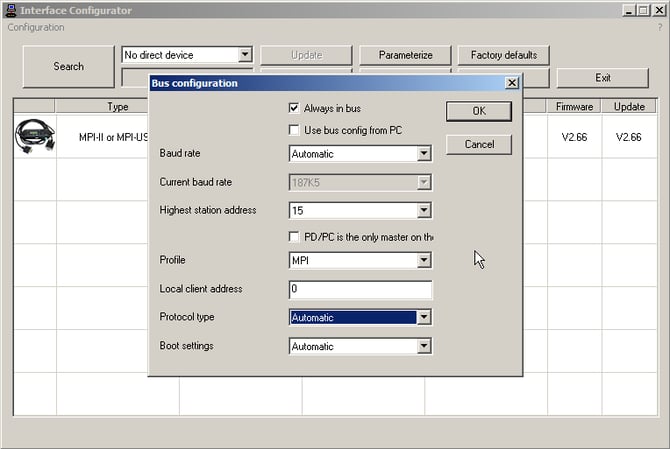
Please verify that the following settings are configured. If any settings are known to be different, make sure to set those to the appropriate values. The Highest station address has been set here for a small MPI Bus, if there are more than 15 stations; verify that this setting is increased.
Once the bus settings have been set, select OK, and select the Tuning option in the TIC Interface configurator application. Verify that the following settings are matched, unless they are known – with certainty – to be different.
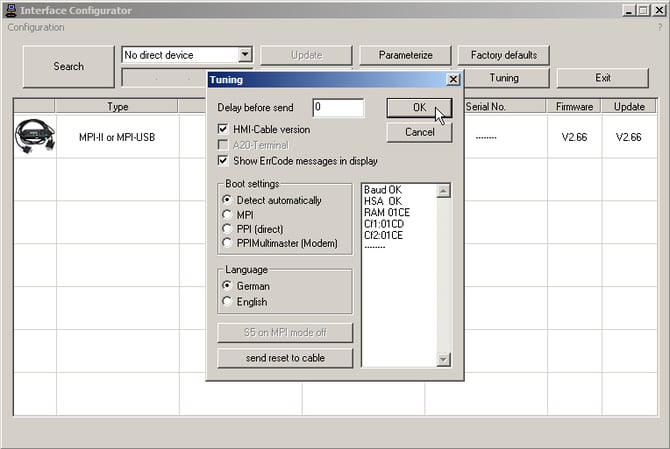
Once these have been set, the TIC Application can be closed down, as the adapter configuration is now complete.
Connecting via S7 for Windows Programming Software
In order for S7 for Windows to be able to access the adapter, the adapter must appear as a COM port to the programming software. PLCVCOM is used as the virtualization software, and must be configured prior to opening the programming software, or the COM port will not appear in the online tree.
Configuring PLCVCOM
When installing PLCVCOM it is absolutely vital that a virtual port below 9 (i.e. 1-8) is selected, as the programming software is unable to access ports above 8.
Opening up the software, the adapter will not automatically be configured.
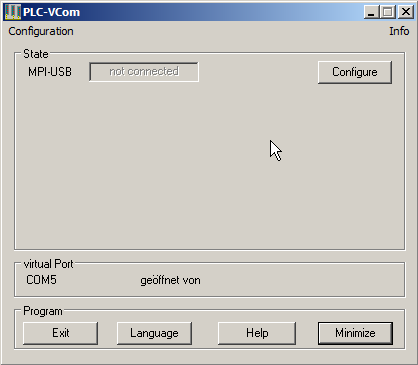
Select Configuration in the top Left corner, and select the PLC-VCOM option from the drop down menu.
The subsequent dialog will scan for the appropriate adapter – trusting that the driver has been successfully installed, and the adapter is in an appropriate state, the adapter will appear in the list.
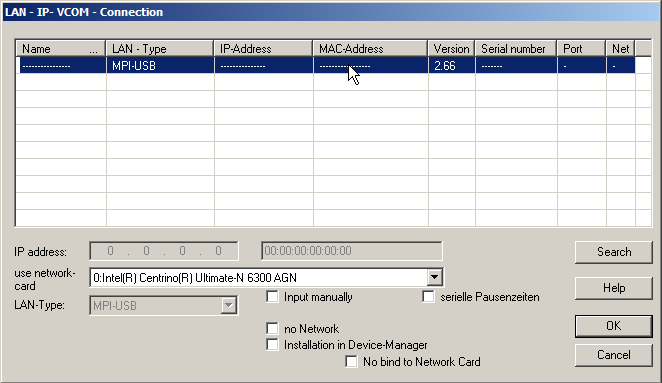
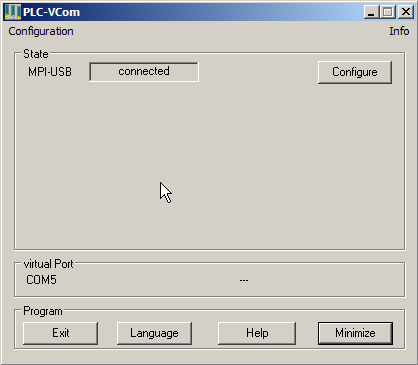
Double click the appropriate adapter, and verify that the state now appears as Connected:
Connecting with S7 For Windows
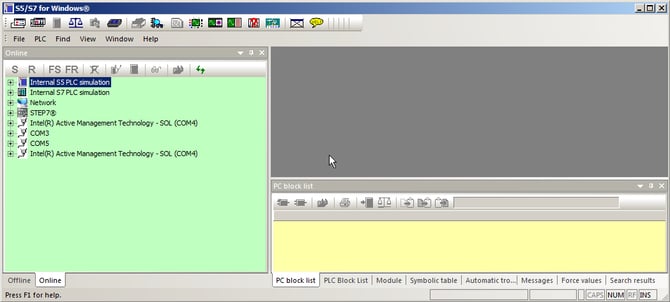
With the USB Adapter now appearing as a COM Port, start the S7 for Windows Programming Software. Please note that if the software was running during the PLCVCOM configuration, it has to be restarted before recognizing the new COM port. Navigate to the online tree view, and verify that the new COM port is present. In our system PLCVCOM was configured for port 5
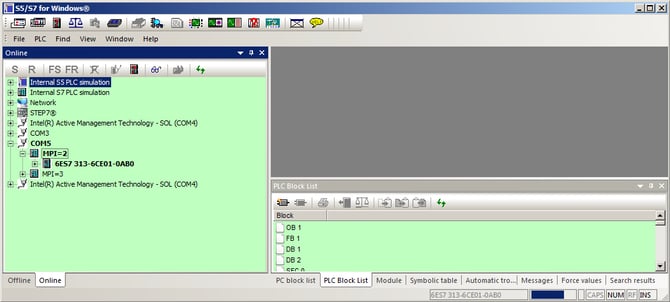
Expanding the appropriate port the MPI Bus will be scanned, and all stations will appear – in this case two stations were found.
Troubleshooting Communications
The status indication – the default view on the display – is an excellent way to troubleshoot potential communication problems, and summarize the conditions on the MPI bus with which the adapter is communicating.
For example:
#01P?00 ̅ |
#01 – The number of active stations on the MPI Bus, there is one active station in this example
P? – PC Baud Rate Status
| Display | Descriptions |
PD |
115.2K or Baud Rate detection is active |
PU |
USB Connection |
P? |
Baud Rate detection and access way is active |
TD |
115.2K or Baud Rate detection is active (Cable is configured as TS-Adapter) |
PG |
19.2K |
TS |
19.2K (Cable is configured as TS-Adapter) |
Pg |
38.4K |
Ts |
38.4K (Cable is configured as TS-Adapter) |
pG |
57.6K |
tS |
57.6K (Cable is configured as TS-Adapter) |
PM |
PPIMulti (187.5K) |
00 – The MPI Station number of the adapter (The default station number is 0)
̅ – This is indicative of active communications with the adapter. If it appears in the top line it means that there is communication between the adapter and the PLC, in the bottom line of the display it means that communications are happening between the adapter and the PC.
! – Specifies the connection type to the PLC
| Display | Descriptions |
! |
Directly connected to the PLC |
? |
Not directly connected to the PLC |
! but inverse colors |
Directed connected to a passive unit of the PLC |
? but inverse colors |
Not directly connected to a passive unit of the PLC |
02 – Every 750 ms this will cycle through all the active stations on the MPI Bus
AG – The protocol version used between the adapter and the PC
| Display | Descriptions |
AG |
Unknown i.e. An version before 5.0 is being used |
Ag |
V5.0 or V5.1 Protocol |
04 – Number of Active stations on the MPI Bus
There are also some special adapter configurations which will result in “non-standard” display values:
| Display | Adapter Baud Rate Configuration |
PPISER96 |
PPI 9.6K |
PPISER19 |
PPI 19.2K |
???PM? |
PPI 187.5K |
PPILAN |
PPILAN |
PPIUSB |
PPIUSB |
SONDSER |
SONDSER |
SONDUSB |
SONDUSB |
Conclusion
In summary, the IBH USB-S7 Adapter provides an easily configurable USB interface for connecting to S7 PLCs via MPI, PPI, or Profibus DP. This document is meant as a quick “how to” guide detailing the out-of-box configuration, as a USB-MPI adapter, getting you talking to your devices as quickly as possible. For further information please see our archive of online videos and application notes, found on our support website.
For further questions, or assistance, our experienced team is more than happy to help. We can be reached by: