![SWTB_logo_rgb_color_mode-wPadding-2000x961.png]](https://help.softwaretoolbox.com/hs-fs/hubfs/SWTB_General/Images/Press_Kit/SWTB_logo_rgb_color_mode-wPadding-2000x961.png?height=50&name=SWTB_logo_rgb_color_mode-wPadding-2000x961.png)
Introduction
OSIsofts OSI PI OPC Clients offer a flexible, yet reliable way of accessing data from OPC Servers. In conjunction with Software Toolbox’s TOP Server, they offer a reliable way to get plant floor data into various PI OPC Clients. This document discusses the basic connection procedure for connecting an OSI PI OPC Client to TOP Server. This guide is not intended as a comprehensive “how-to” for either piece of software, and the appropriate manuals should be referred to if more information is desired. For connection procedures between TOP Server and specific devices; please refer to our collection of application notes, available at:
https://help.softwaretoolbox.com/faq/top-server#application-notes
And our Quick Start Guide, available at:
https://help.softwaretoolbox.com/faq/3575
This document uses OSI PI3; for older versions, please refer to the OSI PI documentation.
Connecting to TOP Server from OSI PI
To begin, start the PI Process Services.
Please note: Users should create a shortcut in the Startup folder that points to the PISRVSTART.BAT file located in C:\PI\ADM. This file must run from the ADM folder.
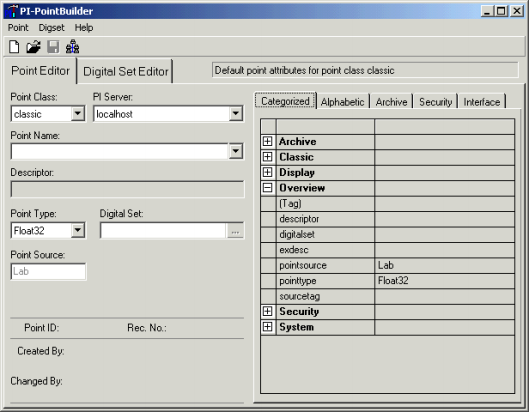
Open the PI System Start folder, and the PI-Pointbuilder:
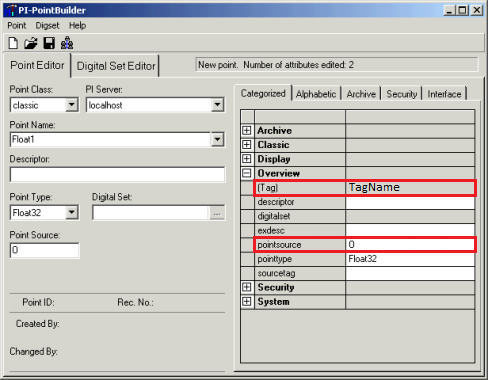
Assign the point a name in the (Tag) field, and the Pointsource should be changed to “O” to designate this as an OPC Connection. All tags defined in the PI Database that will be used by the OPC Interface must share a common point source.
Please verify that the pointtype matches what is configured for the appropriate tag in TOP Server, then navigate to the Alphabetic tab.
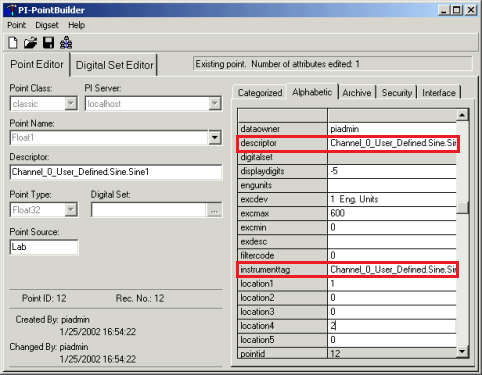
Locate the instrumenttag, and enter the exact pathway to the tag in TOP Server that you wish to connect to. The tag path will follow the following syntax:
<Channel>.<Device>.<Tag>
In this example the simdemo.opf – which is the default project when TOP Server is first installed and started – is used; specifically the Channel_0_User_Defined.Sine.Sine1 tag. Copy the value from the instrumenttag and paste it in the Descriptor box.
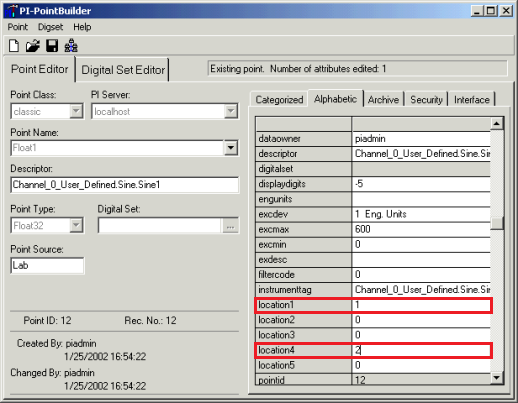
In location1 enter any number, for the interface instance number – make note of this number, as it will be required later. If the number in location1 does not match the number configured (later) in the OPCint.bat file, then the tag will be ignored.
In location4 enter “2” to specify the scan class number. The scan class defines the update period at which TOP Server will update the OSI PI Client. These values are defined in the interface startup file. This example uses “2” to specify the second scan class period.
This concludes the tag configuration; save the PI point to the database.
Modifying the OPCint.bat File
The default location of the OPCint.bat file is in the C:\Program Files\PIPC\Interfaces\OPCint directory. This file must be modified to allow for connection to TOP Server; the following changes should be made:
/SERVER– Specifies the OPC Server, should be set asSWToolbox.TOP Server.V5 ^/f– Specifies the scan period for the appropriate scan class, the first /f specifies for class 1, the second for class 2, etc. Since we entered “2” in location4 the second /f should be set to00:00:00.1 ^to specify a 100ms update rate/host– specifies the machine on which TOP Server is running this was a local connection, so it was set tolocalhost:5450 ^in this example
Please note: For a connection to a remote TOP Server, DCOM must be configured for both machines. Please reference our DCOM tutorial for more information: https://www.softwaretoolbox.com/dcom/
rem
rem Startup file for the OPC interface to PI
rem   The ^ marks are continuation characters, they allow
rem   you to have a command be split between multiple lines.
rem   There must not be ANYTHING after the ^ on each line.
rem   This is only a sample of the options available, the user
rem   manual has the list and descriptions for them all.
rem
rem /ps=O                The pointsource -- this should match the pointsource for your tags
rem /ec=10               The event counter number for IORATES
rem /er=00:00:03         The requested update rate for event triggered tags
rem /id=1                The identifier string used in the pipc.log file for messages
rem                        from this interface. It must match Location1 on the tags.
rem
rem /SERVER=SWToolbox.TOP Server.V5 The OPC server name; format
rem                        hostname::servername or just server name if it is local
rem /host=mabel:5450     The PI server name and port
rem /MA=Y                Should we try to add tags in large batches rather than
rem                        singly?
rem /ts=a                Where do we get timestamps? (Y/N/A/U)
rem /stopstat            Write a status to PI tags when the OPC server goes away?
rem /f=00:00:01          Scan classes. The first one is for Read On Change tags...
opcint^
/ps=O^
/ec=10^
/er=00:00:03^
/id=1^
/SERVER=SWToolbox.TOP Server.V5^
/host=localhost:5450^
/MA=Y^
/ts=Y^
/OPCstopstat^
/f=00:00:01^
/f=00:00:00.1^
/f=00:00:01^
/f=00:00:02
Once the modifications to the batch file have been made; save the edited file, and run it. More information can be found in the OPCinc.doc document provided by OSI PI.
Configuring OSI PI
Creating a Display
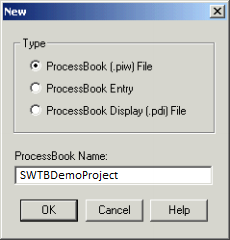
In the PI Systems start folder, double click on the PI ProcessBook, close the default demo ProcessBook file, and click File ⇒ New to create a new project.
The type should be set to ProcessBook (.piw) File, and a name should be specified:
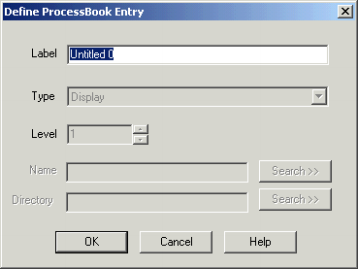
Select OK, and – in the new ProcessBook – navigate to Insert ⇒ Display to show show the new display dialog. In Define ProcessBook Entry, give the display a name, and select OK to finish – “Trend_Example” is used in this example:
Creating a Trend Object
In the new display, click the Trend icon and use the mouse to draw a rectangle – of the desired size – in the display area. Releasing the mouse button will automatically display the Define Trend dialog.
Select the Tag Search option, and enter a “O” in the Pt Source field – to match what was configured earlier in the PI-PointBuilder – and select Search.
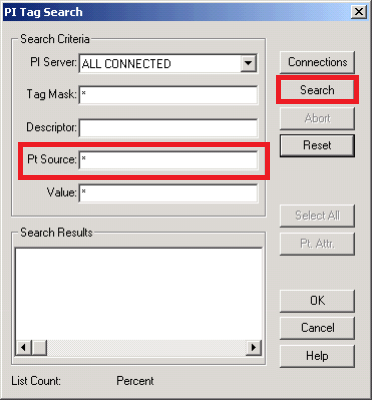
Locate and select the previously created “TagName” tag, and click OK to add it to the Trend properties. The Define Trend dialog should no display TagName under the Tags in Plot field.
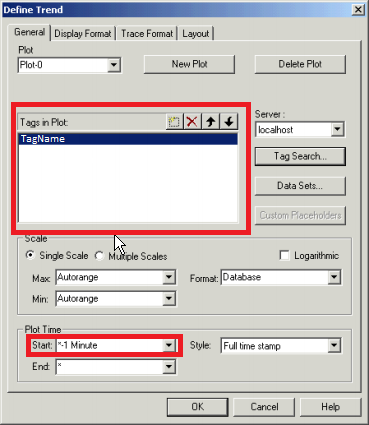
Clicking OK will display the TagName data in the display:
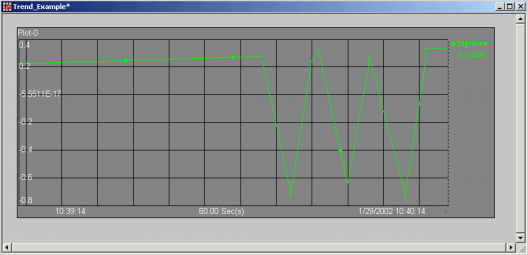
The project can now be saved and closed. This concludes the configuration.
Conclusion
To summarize, this document describes the basic configuration requirements to establish connection between TOP Server, and an OSI PI. The document is not intended as a comprehensive guide of either software package. The appropriate manuals and help files should be references for specific inquiries.
For help configuring TOP Server, please reference our archive of application notes, available at:
https://help.softwaretoolbox.com/faq/top-server#application-notes
For further questions, or assistance, our experienced team is more than happy to help. We can be reached by: