![SWTB_logo_rgb_color_mode-wPadding-2000x961.png]](https://help.softwaretoolbox.com/hs-fs/hubfs/SWTB_General/Images/Press_Kit/SWTB_logo_rgb_color_mode-wPadding-2000x961.png?height=50&name=SWTB_logo_rgb_color_mode-wPadding-2000x961.png)
We have recently upgraded to new server machines (Server 2008 or newer including 2012, 2016, and 2019) and are no longer getting data from our devices. This same project was working on an older Operating System or is working on a desktop OS but now fails to connect to the device - how can I fix this?
Users with systems with ECN enabled at the OS level may experience unexpected communications issues.
We assume in this answer that you know the software configuration of whatever product of ours you are using has not changed, is the same on the working system, and you've checked the basic common troubleshooting steps for that product. This FAQ describes a more advanced issue that we have seen users encounter that can result in communications problems.
We have seen this problem where devices you are communicating to (PLC, RTU or other Ethernet device) not properly supporting Explicit Congestion Notification (ECN) which is a networking technology found in network hardware, devices, operating systems that is used to help manage network congestion, particularly on Server operating systems. ECN adds information to the Ethernet packet header that allows properly-equipped network gear to reduce network traffic speed when needed. Older devices, or devices with less-than-perfect Ethernet interfaces will drop or reject the packets with the manipulated header. If ECN is enabled on a Windows Server, every device in the communications path needs to either be able to use the added information in the packet or ignore it without error. (here's an article we found where you can learn more about ECN if you want)
The Explicit Congestion Notification (ECN) setting has always been available in Windows Operating systems, but it appears that Microsoft started enabling the feature on all network adapters with Windows Server 2008 and newer (including but not limited to Server 2012, 2016 and 2019). We do not see this issue often, but older devices, devices with less-than-perfect Ethernet interfaces or devices where ECN is supported but disabled will potentially drop or reject the packets with the ECN manipulated header information, vs ignoring the extra information, resulting in failed communications.
Steps to determine ECN status and change it if required
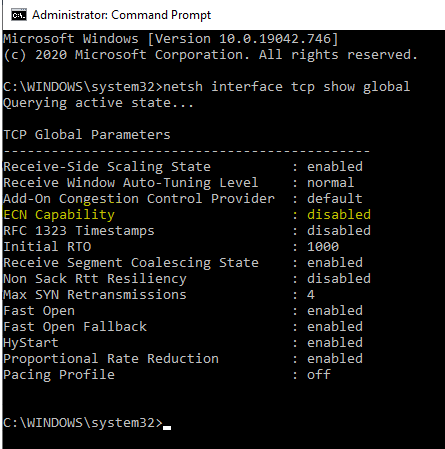
- Open an elevated permission command prompt (i.e. run the Command Prompt applet as Administrator) and query whether ECN is enabled using the following command:
netsh interface tcp show global
- If ECN Capability is enabled and you want to change it:
- First, consult with your IT department, as they may have good reasons they need ECN enabled and your changing it could affect other systems. Good change-management practices always apply.
- If you decide to or are approved to change the ECN setting status, then run the following command from the same elevated permission command prompt:
netsh interface tcp set global ecncapability=disabled
- Reboot the computer to have the setting changes take effect.