![SWTB_logo_rgb_color_mode-wPadding-2000x961.png]](https://help.softwaretoolbox.com/hs-fs/hubfs/SWTB_General/Images/Press_Kit/SWTB_logo_rgb_color_mode-wPadding-2000x961.png?height=50&name=SWTB_logo_rgb_color_mode-wPadding-2000x961.png)
Introduction
This document will show customers how to register an OmniServer serial number. Please follow each step in this guide. To register a license you will use our registration website: https://registration.softwaretoolbox.com.
Computer ID Information
To access the Computer ID information needed to register the OmniServer serial number follow the steps below.
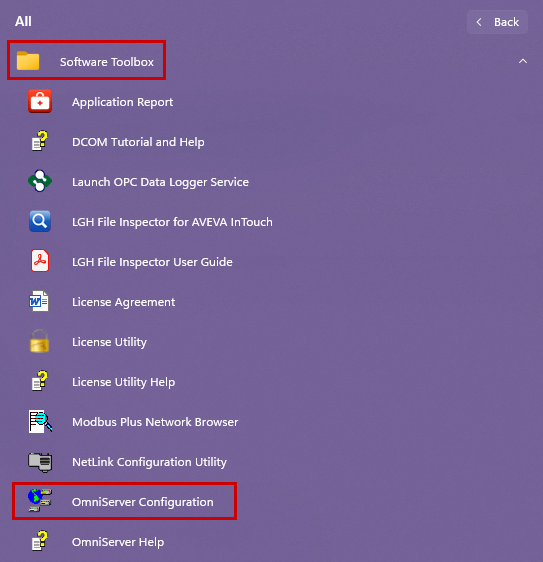
- Go to the Start Menu
- Click on All Programs
- Click on Software Toolbox
- Click on OmniServer Configuration
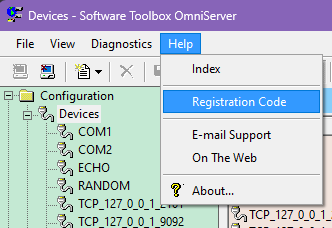
Once the Configuration window opens click on Help ⇒ Registration Code.
The License menu of OmniServer will open and you will find your Computer ID. This ID is different on each computer so you will need this unique code for each OmniServer serial number that you register. This window will also let you know if OmniServer is currently licensed or in Demo (as shown below).
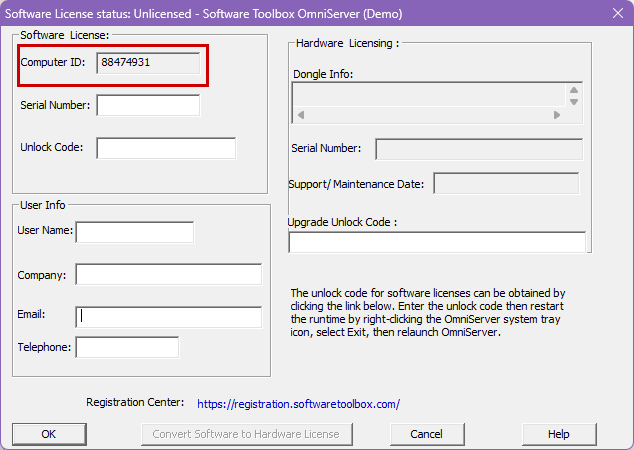
Record this Computer ID as this will be needed for the online registration steps.
Online Registration Process
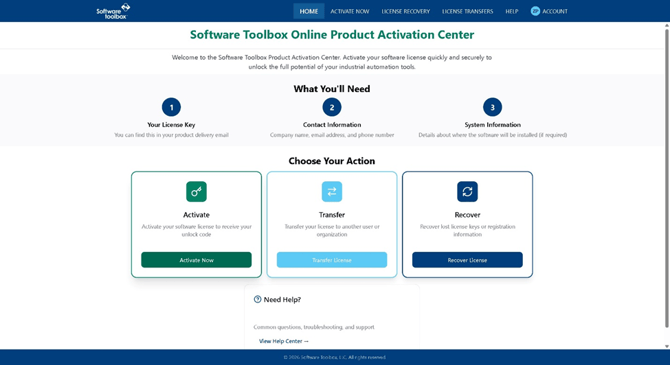
The first step is to open a Web browser and go to https://activation.softwaretoolbox.com
Ensure that you are logged in, then click on “Activate Now.”
This can be done from any machine with Internet access.
Please Select OmniServer from the list and click Next.

Select “I am the End User” or “Registering for Someone Else” when asked who you’re registering this serial number for. You will then need to fill out the appropriate information and click Next.
Step 2 of the registration process will require the Serial Number and Computer ID from before.
Please note, the OmniServer version in the drop down MUST match the version that you are running.
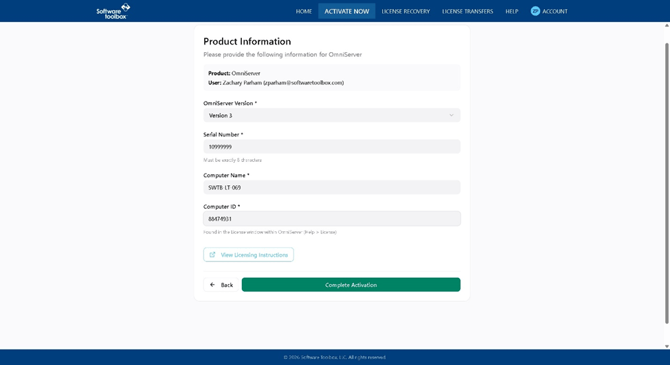
Once all the information has been entered click Next.
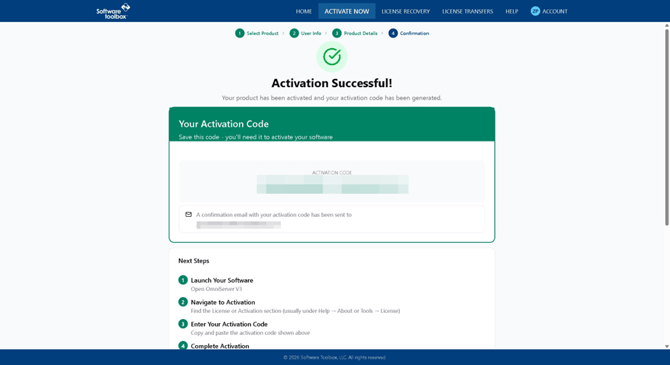
Your Unlock/Activation Code will appear if the registration was successful. If there was a problem, you will instead see an error message with instructions on next steps.
Finalizing the Registration
The last step in the registration process is to enter in the Unlock Code in the OmniServer license window. Please return to the OmniServer configuration window. If you closed down the License window, please reopen it by clicking Help ⇒ Registration Code. Make sure the Serial and Unlock Code information is entered and click OK at the bottom. OmniServer will notify you if the registration was successful. You will need to close down OmniServer before the license information is shown.
To check that OmniServer is licensed you can go back into the License Window and it should say “Fully licensed” with no (Demo) in the title.

Conclusion
If after reading this document, there are any further questions on registering OmniServer, or any assistance is required, our experienced staff is more than happy to help.