![SWTB_logo_rgb_color_mode-wPadding-2000x961.png]](https://help.softwaretoolbox.com/hs-fs/hubfs/SWTB_General/Images/Press_Kit/SWTB_logo_rgb_color_mode-wPadding-2000x961.png?height=50&name=SWTB_logo_rgb_color_mode-wPadding-2000x961.png)
Introduction
This document is intended to provide an easy to use reference guide on configuring a custom polling schedule using the TOP Server Scheduler Plug-In. It is not intended to be a comprehensive manual, and the help file should be referenced for any additional information – if needed. This document will describe the Schedule and Poll Group setup, give a summary of the settings that will be encountered and give insight when it is appropriate to change them from the default values
Adding a Schedule
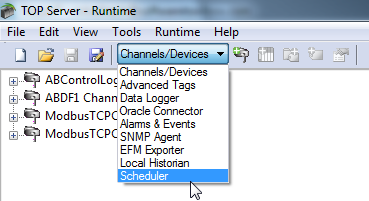
- In order to access the Scheduler Plug-In, the TOP server view should be changed from Channels/Devices to Scheduler.
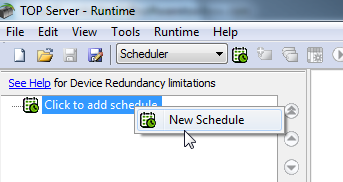
- Click to add a new schedule.
- Specify a user configurable name for the Schedule – this will be how the Schedule appears in the Scheduler tree view.
- A new Schedule is always assigned the lowest priority by default – this cannot be changed at this time, however after creating the schedule the order of schedules in the Scheduler project view can be changed to determine the priority.
- The Real-Time Schedule Override setting specifies the time period that the device should be excluded from the polling schedule whenever placed into Override mode. A device can be placed into Override mode when a Client application writes to the Override System tag. When a device is in override mode, the schedule’s recurrence and exception settings are ignored and the device is polled as the highest priority for the duration of the specified period.
- This setting can be used to poll a device that requires service or faster polling, but it is not recommended to keep devices in this mode for extended periods. If this mode is used frequently it is more efficient to re-assign the device to a more frequent schedule.
- Daylight Saving Time Transition Behavior is used to control a schedule’s behavior when the system time clock is adjusted during Daylight Saving Time (DST).
- Synchronize with Poll Interval – The Schedule’s intervals will be adjusted to insure that data is never older than the configured poll interval.
- Synchronize with Clock – The Scheduler adjusts the poll interval to ensure that the poll times are synchronized with the recurrence Start Time.
- Polling
- The Recurrences box contains all repeating events currently configured for a schedule. These events are given a start time and frequency, and multiple recurrence patterns can be configured for the same schedule to allow for a variety of poll patterns. Recurrence types are:
- Interval w/Start Time – Specifies a start time, and the interval (Seconds, Minutes, or Hours) at which the polls should occur.
- Specific Time – Specifies a time of day that the poll will occur
- The Exceptions box shows all time periods where the configured schedule will not occur and no data will be polled. Like recurrences, multiple exceptions may be configured to allow for a variety of black-out periods.
- Period – Specifies a start and end time during which the scheduled polls should not occur.
- Day of Week – Specifies an entire day of the week that the scheduled polls should not occur.
- The Recurrences box contains all repeating events currently configured for a schedule. These events are given a start time and frequency, and multiple recurrence patterns can be configured for the same schedule to allow for a variety of poll patterns. Recurrence types are:
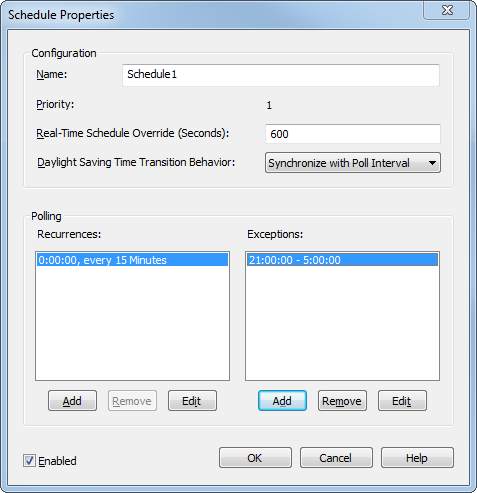
The Schedule in the screenshot above will poll ‘children’ devices every 15 minutes starting at midnight, and stop polling them from 21:00:00 to 5:00:00 every day.
Clicking OK will create the Schedule with the configured polling recurrences and exceptions.
Adding devices to Schedules
- Once a Schedule is configured devices and tags can be added to the schedule.
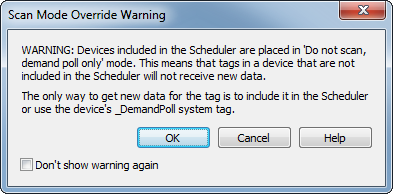
- When a device is added to a Schedule, the Scheduler Plug-In will ‘lock’ the device’s Scan Mode to “Do not scan, demand poll only” and does not allow it to be modified. The warning can be acknowledged (dismissed) indefinitely by checking “Don’t show warning again.”
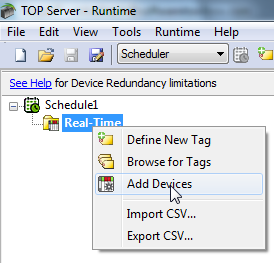
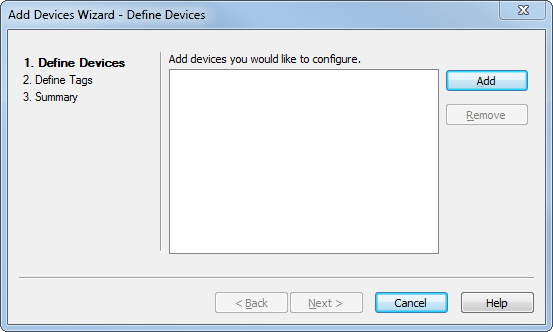
- The Add Device Wizard can be used to add devices to the selected Schedule by selecting the Add button.
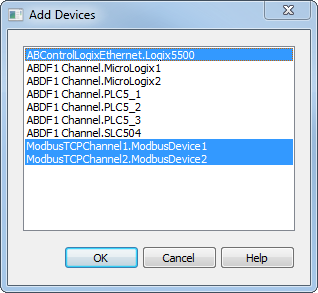
- Devices must be configured in the TOP Server before they can be added to the Scheduler. A single, or multiple, device(s) can be highlighted on the list. Clicking ‘OK” will advance to the Tag selection portion of the Wizard.
- Tags can be added to the schedule in one of three ways:
- Define Address – Can be used to add a single, unqualified, tag name or address to the schedule.
- Browse Tags – Can be used to browse tree of static tags defined in the server to specify unqualified tag names.
- CSV Import – Can be used to import an existing tag-set defined in a CSV File
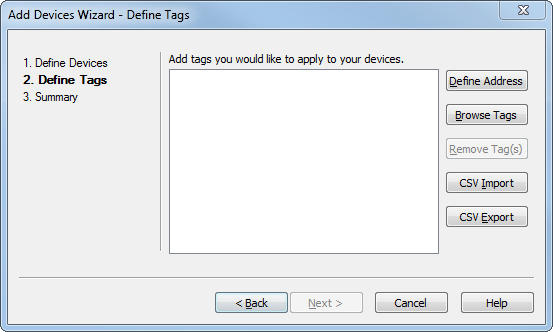
- This example will browse for tags. Selecting the Browse Tags button opens a selection window where static tags can be added from the current project.
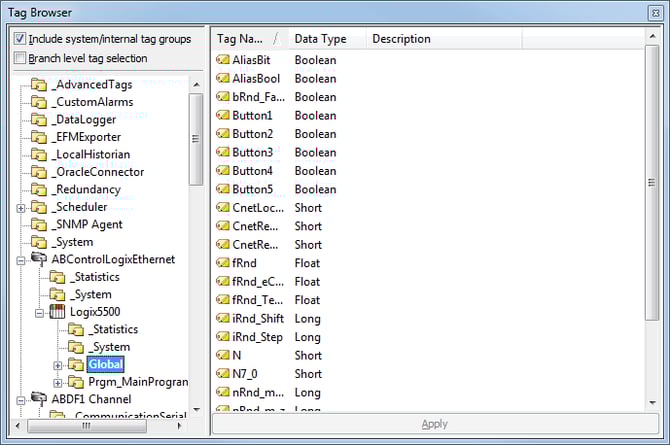
Note: Any tags, for devices added to a schedule, that are not selected to be added to the Schedule will no longer be polled by the TOP Server since the device was placed into “Do not scan, demand poll only” Scan mode.
Once tags are selected from the browse dialog, click Next to move on to the Summary page of the wizard. This step validates the tags for each device. Clicking Finish will add the displayed list of fully qualified tag addresses to the schedule.
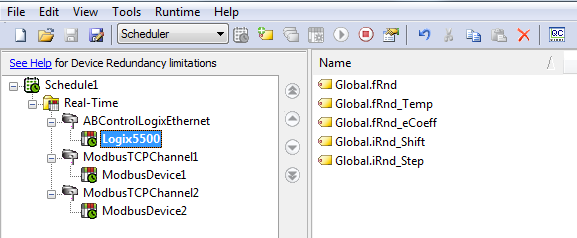
From this point on the Scheduler will poll the devices and configured tags at the specified polling interval. The TOP Server event log can be used to track the execution of the Schedule.

Special considerations
Use with the Media Level Redundancy Plug-In
When using the Scheduler Plug-In with devices that have Media Level Redundancy configured, some additional considerations need to be observed to avoid unintended behavior.
- The secondary device’s Scan Mode must manually be set to Do not scan, demand poll only to prevent communications during fail-over. The Scheduler Plug-In can only override the Scan Mode of the primary device (the device that is added to the schedule) and cannot override that of the secondary device.
- The Media Level Redundancy Plug-In monitored items are read at the configured interval independent of how the tag is scheduled. This means that returning to the primary device after failover may be delayed.
- When communications to the primary device fail during a scheduled poll, all pending reads are attempted with the primary device prior to failing over to the secondary device. To bypass the communication timeout and retry settings, Auto-Demotion should be enabled for the device.
Use with Event Playback
When using the Scheduler Plug-In with devices that support event playback, extra configuration consideration should be observed to insure that data is not lost. Whenever a mix of explicit and event data is being exchanged for a device on a Schedule:
- Configure a schedule with recurrence equal to the rate the client needs to read the event playback.
- Place all event playback tags in the schedule.
- Verify the device’s playback rate is compatible with the desired schedule recurrence read rate.
Further Information
This guide is intended to serve as a quick, step-by-step, guide on adding a polling Schedule using the TOP Server 5 Scheduler Plug-In. It is not intended to be a comprehensive ‘how-to’ regarding the Scheduler Plug, and the TOP Server help file should be referenced for further information.