![SWTB_logo_rgb_color_mode-wPadding-2000x961.png]](https://help.softwaretoolbox.com/hs-fs/hubfs/SWTB_General/Images/Press_Kit/SWTB_logo_rgb_color_mode-wPadding-2000x961.png?height=50&name=SWTB_logo_rgb_color_mode-wPadding-2000x961.png)
Introduction
This document is intended to provide an easy to use reference guide on configuring a connection to a ABB Totalflow device using the TOP Server. It is not intended to be comprehensive, and the help file should be referenced for any additional information – if needed. This document will describe the channel and device setup, give a summary of the settings that will be encountered – and when it is appropriate to change them from the default values.
Channel Setup
- The first step in configuring a connection to a Totalflow device from TOP Server is to create a Channel. A channel represents a communication medium from the PC running TOP server to the device. In the case of the ABB Total driver, the Channel will represent the Serial port that the Server is binding to, or the socket connection over which communications will occur.
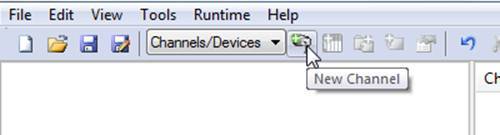
- The Channel name is user configurable, and will be how the Channel appears in the TOP Server tree view – i.e. how clients will reference devices configured under this channel.
- Click next and choose the ABB Totalflow Driver from the Driver drop-down list. This selection determines which protocol will be used to communicate over the channel. The “Enable Diagnostics” checkbox has no impact on communications so can be left unchecked, but statistic tags will be inactive until diagnostics are enabled.
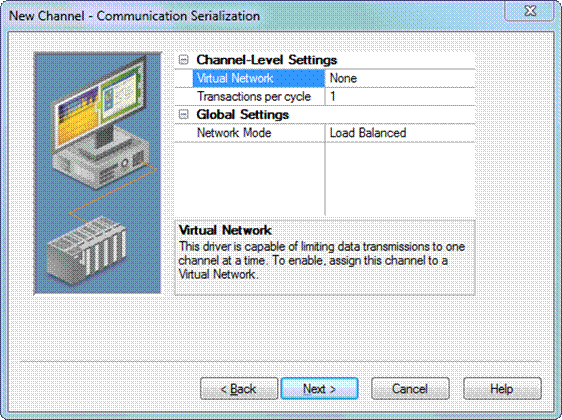
- Click next and choose whether or not this channel should be included in a Virtual Network, and if ‘yes’ which Virtual network the channel should be assigned to.
- The Transactions per cycle specifies the number of single read/write transactions that can occur on the channel. When a channel is given the opportunity to communicate, this number of transactions is attempted.
- The Network Mode is used to control how channel communication is delegated:
- Load Balanced mode – Each channel is given the opportunity to communicate in turn, one at a time.
- Priority mode – Channels are given the opportunity to communicate according to transaction priority:
- Channels with pending writes have the highest priority
- Channels with pending explicit reads (through internal plug-ins or external client interfaces) are prioritized based on the read’s priority.
- Scanned reads and other periodic events (driver specific).
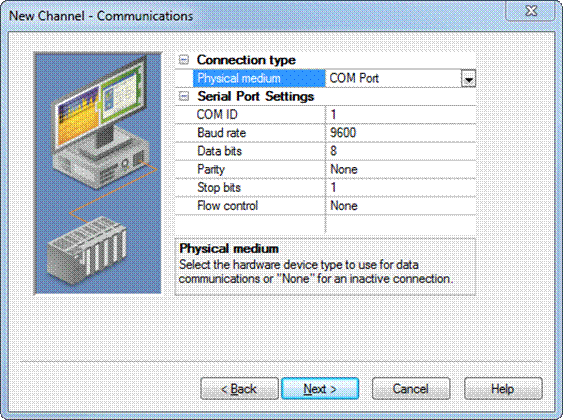
- Select the appropriate connection type for this device. If using a serial connection the Serial port settings must be set to match those of the device. If Ethernet Encapsulating the traffic, specify which network adapter the TOP Server should use for communications.
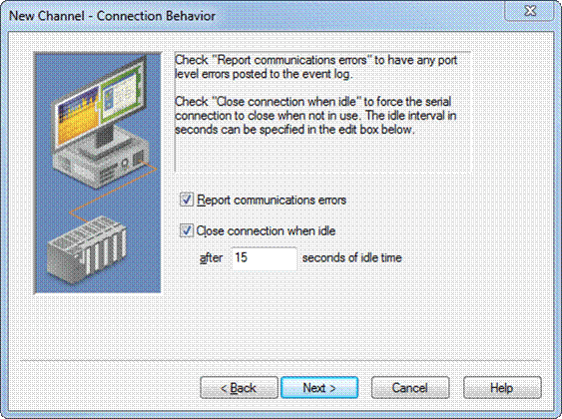
- Click next to configure the connection behavior.
- Report communication errors will log any errors specific to the port we are attempting to communicate with to the TOP Server event log. On serial lines where interference is expected, unchecking this option can prevent the TOP Server event log from flooding with connection related events – this should be done with care, as this will also prevent legitimate connection errors from being logged.
- Close connection when idle will terminate the connection when it is not in use for the specified number of seconds.
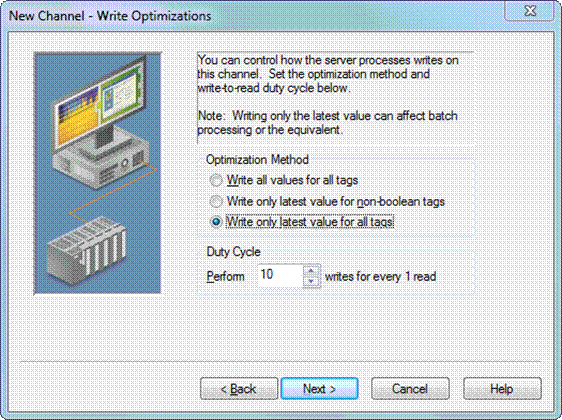
- Click next to review the Write optimization settings for this Channel. These will generally be left at the default value, but can be altered as needed.
- Write all values for all tags will queue all write requests and issue them in the order they were received.
- Write only latest value for non-Boolean tags will not queue all writes, but only write the last value that was received from the client application for any non-Boolean tags.
- Write only latest value for all tags will not queue any writes, and simply write the last value that was received from the client application for any points.
- The Duty Cycle determines how many writes will be processed per 1 read request. Since writes are treated with higher priority this can be used to improve communication rates in write-heavy channels
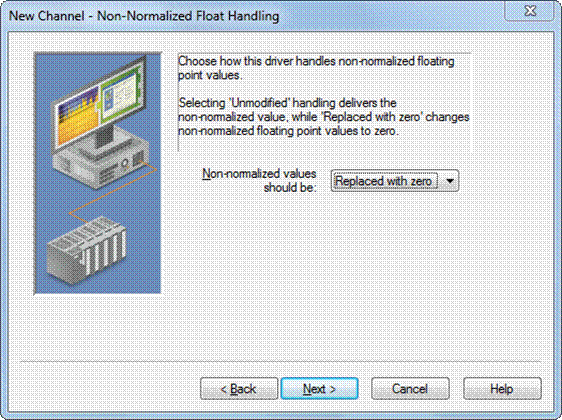
- Click next to review how the driver will handle non-normalized floating point values. This can generally be left at the default value, unless non-normalized values are expected (e.g. Non-A-Number or infinity).
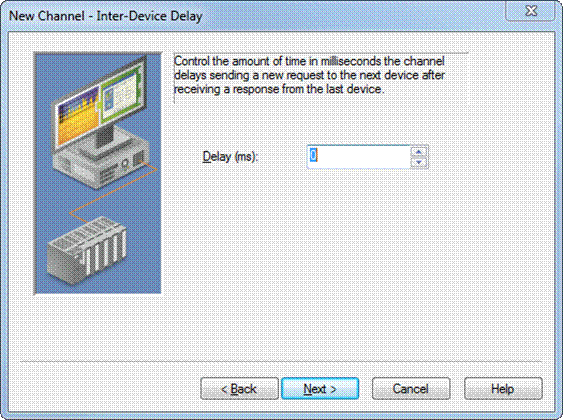
- An inter-device delay can be configured if desired. This setting determines whether the channel will pause after receiving data from a device before switching to the next device on the channel, and will specify how many milliseconds this pause should be. This setting can be particularly useful in telemetry scenarios if the radio requires time between requests.
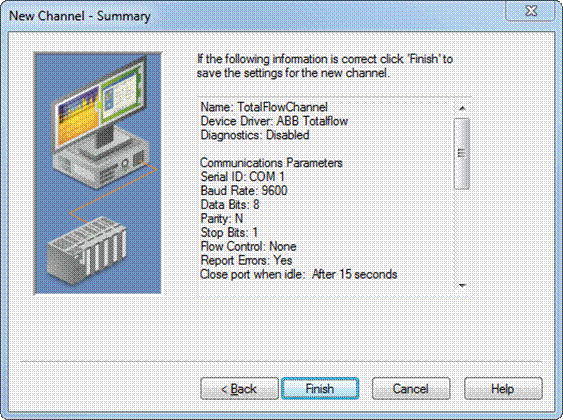
- The last dialog will summarize the selected Channel settings. If all settings are correct, selecting Finish will finalize the configuration and create the Channel.
Device Setup
- Click to add a device to the newly configured Channel
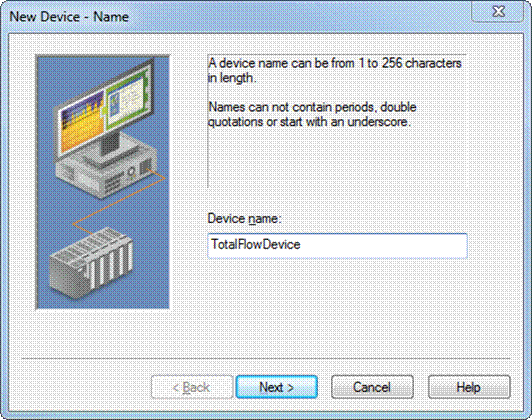
- The Device name is user configurable, and will determine how the device appears in the TOP Server Tree view, and how client applications access the device.
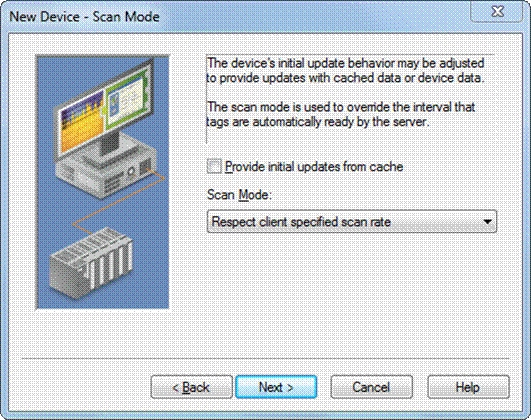
- Specify the devices Scan Mode settings for Subscription based clients. In systems where bandwidth utilization is not a concern, this setting should be left at the default. Other options include:
- Respect client specified scan rate – Will respect the requested scan rate from client applications to determine how often to scan the device
- Request data no faster than… - Will set a ceiling; data will be requested no faster than the specified time value.
- Request all data at… - All data will be requested at the specified timing interval
- Do not scan, demand poll only – there will be no automatic scanning done of the device, unless a plug-in or client application manually triggers the poll (via the _DemandPoll system tag)
- Respect tag specified scan rate – respects the scan rate specified at the tag level
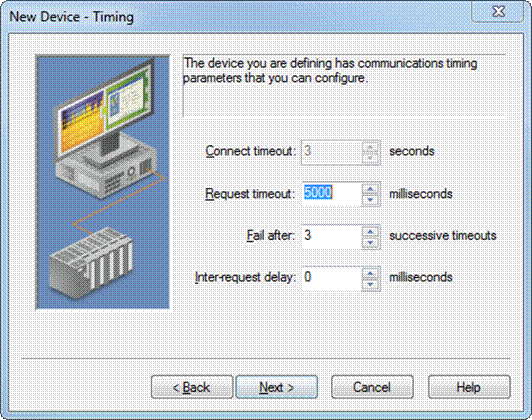
- The timing settings should be set appropriately based on the type of connection, and the level of congestion on the network. These can generally be left at the default, and increased/decreased as needed.
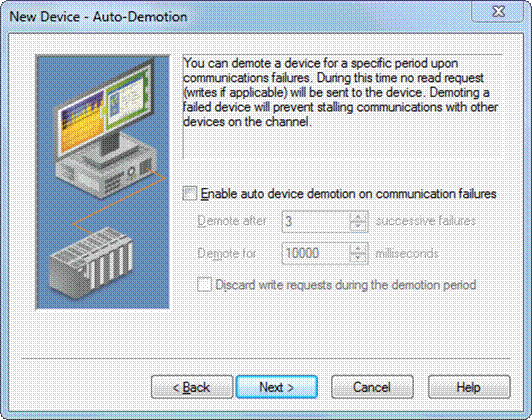
- The Auto-Demotion settings will determine whether unresponsive devices will be taken out of the polling cycle for a specified period of time. In situations where multiple devices are configured under a single channel it is recommended to enable auto-demotion, and discard write requests on devices that are written to frequently. Write requests will overwrite the auto-demotion period, and attempt a connection immediately. Since devices under a channel are treated sequentially, this will prevent a downed device from repeatedly slowing down communications for other devices on the channel.
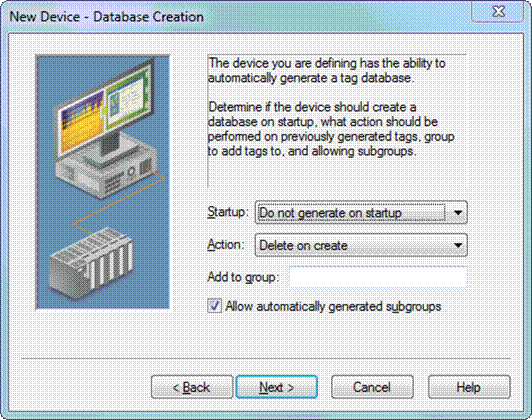
- Click next to specify the Database Creation Settings. The driver can automatically generate a tag database for characteristic items and trend files in the device, as well as tags that indicate the status of a trend upload. Here you can specify if and when the tag database will be created, how previously generated tags will be handled, and if you would like the tags to be included in a specified tag group. This parameter keeps automatically generated tags from mixing with tags that have been entered manually.
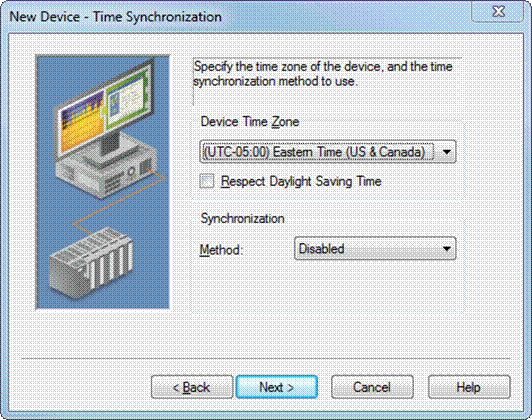
- Specify the time zone that the device resides in, and whether the device time should be synchronized with the system time of the machine that TOP Server is running on. The possible time synchronization settings are:
- Disabled – The timestamp of the device will never be synchronized with the TOP Server system clock
- Absolute – The timestamp of the device will be synchronized with the TOP Server system clock once per day, at the specified time.
- Interval – The timestamp of the device will be synchronized with the TOP Server system clock at the given time interval.
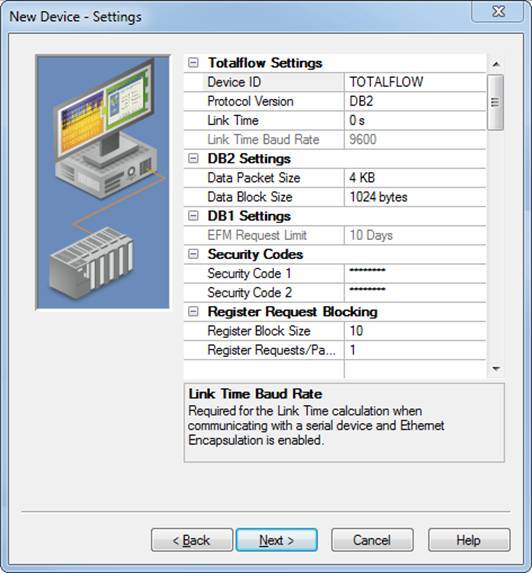
- Specify the advanced communication settings for the driver.
- Totalflow Settings
- Device ID: An ASCII string that will be used to identify the device
- Protocol Version: Specifies whether the DB1 (non packet-based) or the DB2 (packet-based) protocol should be used for communications.
- Link Time: Specifies how long the device will open the receive channel. Will determine how many supervisory frames are sent to the device so that they can be detected.
- Link Time Baud Rate: Will be fixed to the Baud rate of the COM port when using a serial connection. In situation where Ethernet encapsulation is being used the link time baud rate should be set to match that of the serial side baud rate.
- DB2 Settings
- Data Packet Size: Specifies the size of each remote packet to be transmitted. This setting will only impact EFM and Trend uploads and can be changed later to optimize communications.
- Data Block Size: Specifies the size of each transmitted data block that can be CRC checked. This setting will only impact EFM and Trend uploads and can be changed later to optimize communications.
- DB1 Settings
- EFM Request Limit: Limits the amount of EFM Data to be requested to the specified number of days.
- Security Codes
- Security Code 1: Four digit code to be used for read-only access.
- Security Code 2: Four digit code to be used for read/write access
- Register Request Blocking (When using DB2)
- Register Block Size: Specifies the maximum number of registers that can be read in a single request.
- Register Request/Packet: Specifies the maximum number of register blocks that can be read in a single packet.
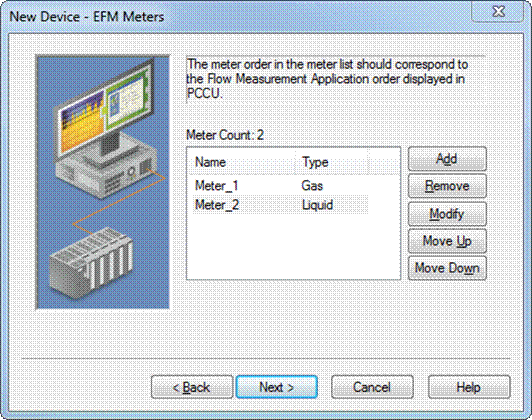
- Totalflow Settings
- Specify what meters exist in the device. This order must match the order of the Flow Applications in ABB’s Portable Configuration and Calibration unit (PCCU) Tool. Specify whether each meter is Gas or Liquid.
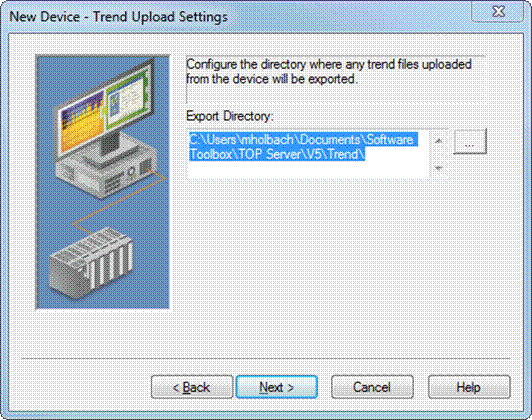
- Specify where the TOP Server should export Trend files uploaded from the device. Trend file upload is only supported when using the DB2 protocol, and will be exported as CSV files.
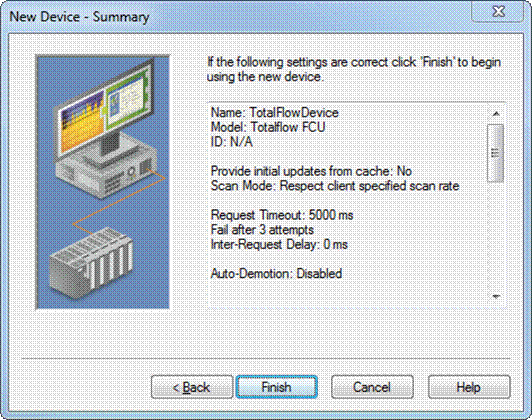
- Review the device configuration and click Finish to create the device in the TOP Server configuration.
- Tags can now be configured statically in the server, or dynamically from the client application. For help with the proper addressing syntax the appropriate driver help file section should be referenced.
Further Information
This guide is intended to serve as a quick, step-by-step, guide on configuring an ABB Totalflow device in TOP Server v5.x. It is not intended to be a comprehensive ‘how-to’ regarding the ABB Totalflow driver, and the TOP Server help file should be referenced for further information.
For more information on how to upload the EFM records from this device and on how to export them refer to the documentation on the TOP Server EFM Exporter Plug-In or contact our support team.