![SWTB_logo_rgb_color_mode-wPadding-2000x961.png]](https://help.softwaretoolbox.com/hs-fs/hubfs/SWTB_General/Images/Press_Kit/SWTB_logo_rgb_color_mode-wPadding-2000x961.png?height=50&name=SWTB_logo_rgb_color_mode-wPadding-2000x961.png)
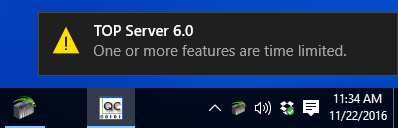
For TOP Server V6 installed on Windows 10, if you're running in trial mode, there are flag notifications from the system tray that appear periodically with a sound.
If you're planning to use trial mode for further testing and would prefer to disable these notifications, this document provides step-by-step details on how to turn off these trial notifications in the Windows OS.
To disable application notifications in Windows 10, please follow the steps below:
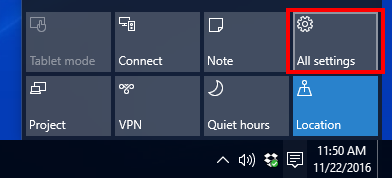
- Click on the Flag icon in the Windows system tray
- Select All Settings
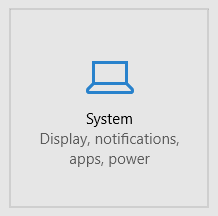
- Select System - Display, notifications, apps, power
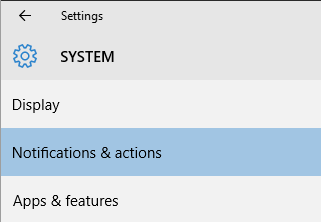
- Select Notifications & actions from the left menu
- Scroll down under Show notifications from these apps until you find Server - Administration in the list

- You can disable all notifications here by simply toggling the setting to Off
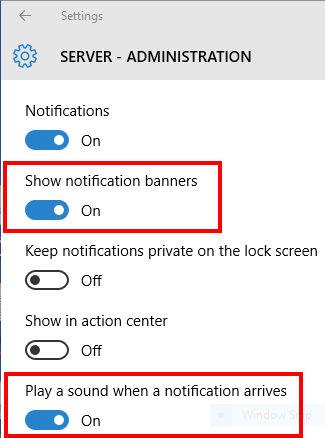
- For more granular notification options, click on Server - Administration
- In the detailed notification settings, you can set Play a sound when a notification arrives to Off if you only want the sound to be disabled, or set Show notification banners to Off if you want the visual flags to stop as well
Make sure you re-enable these notifications upon licensing TOP Server V6. Leaving these settings disabled permanently could potentially result in missing other important warnings or notifications.
For further questions on TOP Server V6, our support team is ready to help: