![SWTB_logo_rgb_color_mode-wPadding-2000x961.png]](https://help.softwaretoolbox.com/hs-fs/hubfs/SWTB_General/Images/Press_Kit/SWTB_logo_rgb_color_mode-wPadding-2000x961.png?height=50&name=SWTB_logo_rgb_color_mode-wPadding-2000x961.png)
TOP Server will work with Windows Terminal Services (MSTS - Remote Desktop is a form of this). TOP Server, by default, installs as a System Service which can be accessed through the configuration user interface and the offline editing feature. Using the offline editing ability, you can modify a configuration in Configuration Mode and load it by connecting to the server runtime service/process running in the background. You will need to be in Runtime Mode to be able to view the Diagnostics. This will let you view the Event Log as well as the Configuration while the Server is running.
See the Administration Settings (shown below) to view the port setting for connecting the Configuration Mode to the Runtime Mode. You can use this setting to determine if you need to open the port in a fire wall or change it as needed.
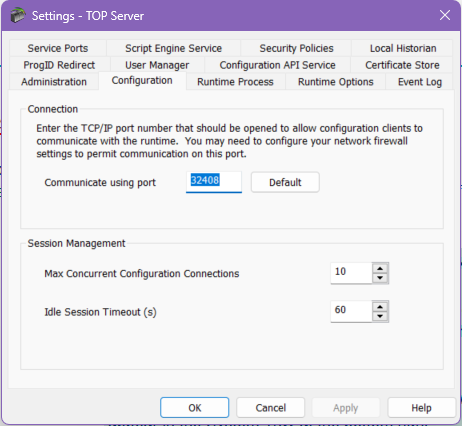
You get to the TOP Server Settings by Right Clicking on the Administration Icon  in the System Tray and choosing Settings from the pop up menu. If you don’t see the Administration Icon, go to the desktop Start Menu ⇒ All Programs ⇒ Software Toolbox ⇒ TOP Server 6 ⇒ TOP Server 6 Administration. The Administration Icon shown will then appear in the System Tray at the bottom right.