![SWTB_logo_rgb_color_mode-wPadding-2000x961.png]](https://help.softwaretoolbox.com/hs-fs/hubfs/SWTB_General/Images/Press_Kit/SWTB_logo_rgb_color_mode-wPadding-2000x961.png?height=50&name=SWTB_logo_rgb_color_mode-wPadding-2000x961.png)
Introduction
Overview
The purpose of this guide is to demonstrate how to make a basic SuiteLink connection to the TOP Server V6 with Wonderware's InTouch 10 (or any version 7.0 or later). The TOP Server in this example will use the Simulator driver and the pre-configured simdemo.opf. The same basic steps can be used to make a SuiteLink connection using any of the 70+ drivers available for the TOP Server. If you do not already have TOP Server installed, the free two-hour demonstration version can be downloaded at https://softwaretoolbox.com/top-server/free-trial. This version functions the same as a fully licensed version within the two hour demo mode. This demo timer is repeatable for an unlimited number of times.
This guide will also demonstrate how to connect InTouch tags to TOP Server tags and thus to points on your controller. TOP Server does not have to have a tag database for InTouch to communicate with devices using TOP Server. You can directly address the points on the controller to reduce the number of locations that you must create a tag database. However, there are cases where you should create the TOP Server tag database first.
The information provided here is not a substitute for your InTouch documentation. This procedure is being demonstrated in order to show a complete connection, not to provide comprehensive training on how to build InTouch projects.
Intended Audience
This guide is intended for Wonderware InTouch users who are new to TOP Server. The document makes the assumption that you have some familiarity with InTouch and have configured a TOP Server project (For assistance, please refer to TOP Server V6 Getting Started Guide).
Required Software
For FastDDE/SuiteLink Connections, you need Software Toolbox TOP Server Version 6.0 or higher and Wonderware InTouch 7.0 or above. For older versions of InTouch, we support DDE connections. (For V5, please refer to: Using InTouch with TOP Server V5 via FastDDE and SuiteLink Connections)
See Also: Topic named "FastDDE and SuiteLink Options" in the main TOP Server help file, which is accessible by clicking Help from the TOP Server application itself and selecting Server Help. This Topic is located under Server Help ⇒ Configuration ⇒ Project Preferences - FastDDE/SuiteLink.
Basic Connection between lnTouch and TOP Server
Installing Wonderware Common Components
In order for the server to allow FastDDE/SuiteLink connections, Wonderware components must be installed. In many existing InTouch installations, the necessary files will be present already. If TOP Server is not running on an InTouch node or if within TOP Server under Edit ⇒ Properties you do NOT see the option tab for FastDDE/SuiteLink, then you will need to install these components. The common components can be installed from the Wonderware Device Integration CD.
Run the setup.exe located under \DIFolders\WW\Suitelink\2.0 SP3\Suitelink
Since the size of this install is large we will not be including this in our setup. Please note that the server will not function properly if these components are not installed. The FastDDE/SuiteLink tab under the Project Properties window will be shown or hidden based on proper installation of these Wonderware components.
After installing the Wonderware common components, rerun the TOP Server installer and verify that the FastDDE/SuiteLink Native Client interface was installed on the feature selection page. The feature selection page can be seen in Figure 1 below.
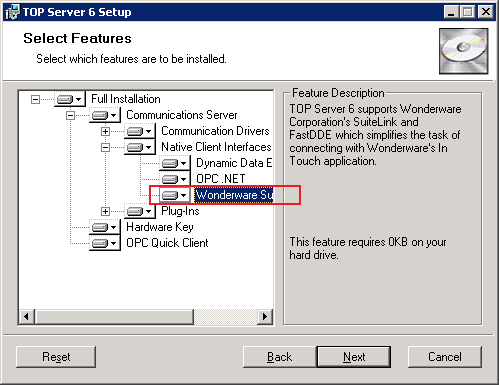
Figure 1: TOP Server 6 Setup - Select Features
Enable FastDDE/SuiteLink in TOP Server
When you run the TOP Server you will need to enable FastDDE/SuiteLink Communications by clicking on File ⇒ Project Properties. Go to the tab labeled FastDDE/SuiteLink and check the box as shown below. If you do not see this tab or it is disabled then you did NOT properly complete the install of the common components or you did not install the SuiteLink Native Interface when installing the TOP Server.
The Client update interval controls how often TOP Server updates lnTouch with new data and has no impact on the polling rate. This should not be change unless recommended by the support team. See the Alias map section on information on how to control the device polling rate.
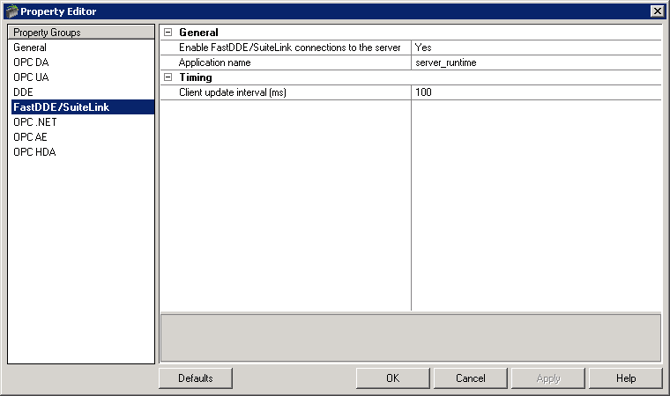
Figure 2: Project Properties for FastDDE/SuiteLink with Application Name
Configure an Alias in the TOP Server
Each time you add a channel, device, or group TOP Server generates a basic Alias for you. You may also create your own alias mapped to a channel, device or group. Aliases are necessary in the TOP Server since Wonderware does not recognize the "ChannelName.DeviceName" syntax in the Topic Name. This is because of the dot "." characters in the hierarchical structure when you set up the lnTouch Access Name.
If you are familiar with setting up Topic Names in other DOE servers, setting up an Alias name in the TOP Server is our equivalent of that step in the setup process. To do this in the TOP Server, click on Aliases in the tree view. If Aliases is not present in the tree view, then select the View tab and check Aliases. The Alias Map will appear as seen in Figure 3 and will usually have topics made for you automatically that correspond to your channel names, device names, and group names each separated by underscores.
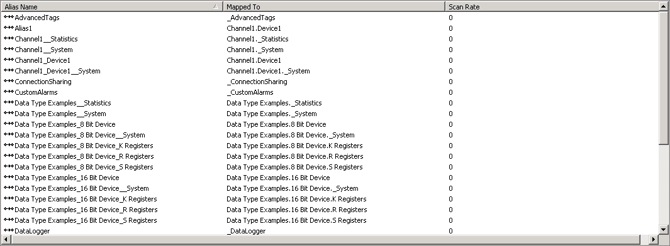
Figure 3: Alias Map
Right-click on Aliases to toggle between showing the auto-generated aliases. All you will see initially are aliases you have entered or it will be blank if you have created none. If you plan to use only aliases that you create, it is recommended that you leave "Show auto-generated aliases" unchecked for simplicity and ease of finding your aliases for editing.
The default scan rate of "0" will result in a 100ms scan rate. If you want a slower or fast scan rate then this can be changed. The rate is in milliseconds so 1000 will result in 1 second updates.
To create your own alias, click on the Icon in the upper left corner of the Alias Map dialog and add an alias in the dialog shown below that maps your ChannelName.DeviceName to a single word topic name WITHOUT any spaces or punctuation. This Alias name will be used as the TOPIC NAME when configuring the InTouch Access Name. In the example below we created an alias named "TestTopic" that maps to "Channel1.Device1" in the TOP Server.
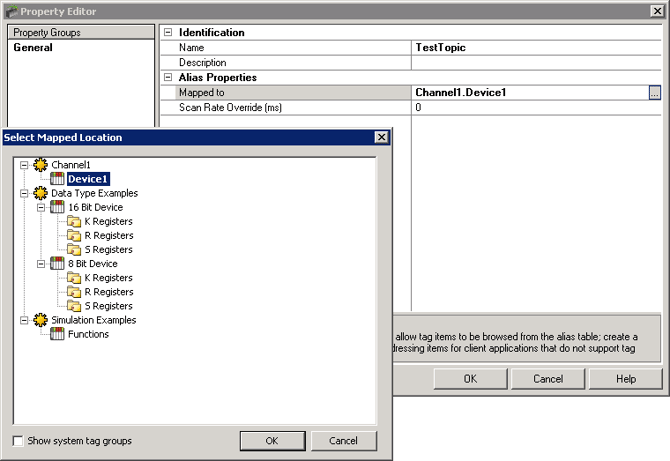
Figure 4: Mapping Locations for New Alias
Note that you can create as many aliases (also known as topic names in lnTouch), as you like that point to the same or different combinations of a Channel, Device, and Group name.
Configuring lnTouch
Configure the lnTouch Access Name
When you configure the InTouch Access Name you will need the Application Name, Topic Name, and Item Name. The steps below apply whether you are using FastDDE or SuiteLink.
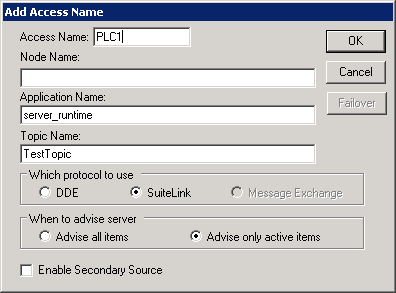
Figure 5: Add Access Name in InTouch
- The Application Name is always "server_runtime" when using SuiteLink in TOP Server Version 6.
- The topic name is the ALIAS name in the TOP Server that you defined above ("TestTopic" in this example).
- The protocol to use is discretionary but it is recommended that you use SuiteLink as it is far more efficient than DDE.
Server Help ⇒ Administration ⇒ Settings ⇒ Settings - Runtime Process
- We recommend that you set "When to advise server" to "Advise only active items" as this will reduce the load on the server and the network.
Configure the InTouch Tagname
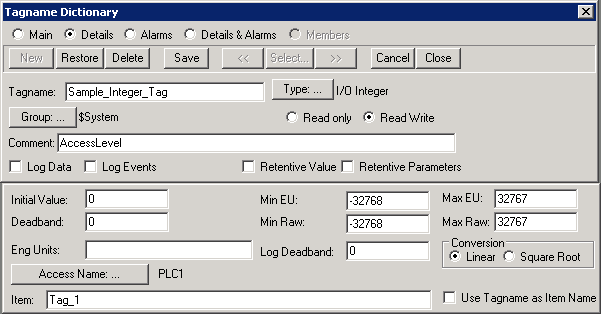
Figure 6: Tagname Dictionary
When configuring the Tagname in the InTouch Tagname Dictionary the item name is either of:
- An actual tag name configured in the TOP Server (shown above) or
- A PLC address is passed down in the Item name in the format of
DeviceAddress@DataType. The DataType is optional - if not specified the default data type for the device address specified will be used. This format is used if you do not create a tag database in TOP Server.
For more information on Device Addressing and valid data types for a device address see the driver specific help file for the driver you are using. Please see our application note on TOP Server System Tags for information on system tags you can use to check for communication errors and other key information.
Summary
This guide has demonstrated the basic steps for configuring a SuiteLink connection from InTouch to the TOP Server. This guide is also applicable in configuring SuiteLink connections from InTouch to all of TOP Server's other 70+ available device drivers.
If you do not have TOP Server but would like to evaluate what TOP Server can offer in terms of robust, reliable device data acquisition, you can download a free two hour demonstration of TOP Server at https://softwaretoolbox.com/top-server/free-trial. This demonstration version is fully functional, only requiring that you restart it at the end of the two hour demonstration period.
TOP Server also fully supports OPC and DDE client connections in addition to SuiteLink. For tutorials demonstrating connecting System Platform or lnSQL to TOP Server please refer to our Wonderware Users Resources by clicking HERE.
If you have further questions or need assistance, our experienced staff is here to assist you. We can be contacted in the methods outlined below.
Contact Us
If you have any questions or are seeking further information and help: