![SWTB_logo_rgb_color_mode-wPadding-2000x961.png]](https://help.softwaretoolbox.com/hs-fs/hubfs/SWTB_General/Images/Press_Kit/SWTB_logo_rgb_color_mode-wPadding-2000x961.png?height=50&name=SWTB_logo_rgb_color_mode-wPadding-2000x961.png)
Introduction
Overview
The purpose of this guide is to demonstrate how to make a basic OPC UA connection to the TOP Server from Inductive Automation’s Ignition SCADA. This document will cover how to enable and configure the OPC UA interface in TOP Server, and then how to connect Ignition’s OPC UA Client connector to that OPC UA endpoint. The information provided here is in no way a substitute for the Ignition documentation provided by Inductive Automation, nor for the TOP Server help file. For comprehensive information on the settings described in this guide please reference the appropriate help file.
Intended Audience
This guide is intended for Ignition users who are new to TOP Server. The document makes the assumption that the user has some familiarity with Ignition and has configured a TOP Server project (for assistance read Introduction to TOP Server).
Required Software
- TOP Server v5.x or above. If TOP Server is not already installed, the free two-hour demonstration version can be downloaded here. This version is fully functional but limited to two hours of runtime at a time. This demo timer is can be restarted for an additional 2 hours
- Ignition
Configuring OPC UA in TOP Server
To connect any OPC UA client to the TOP Server, the OPC UA Server interface must be enabled, and the OPC UA Endpoint must be configured.
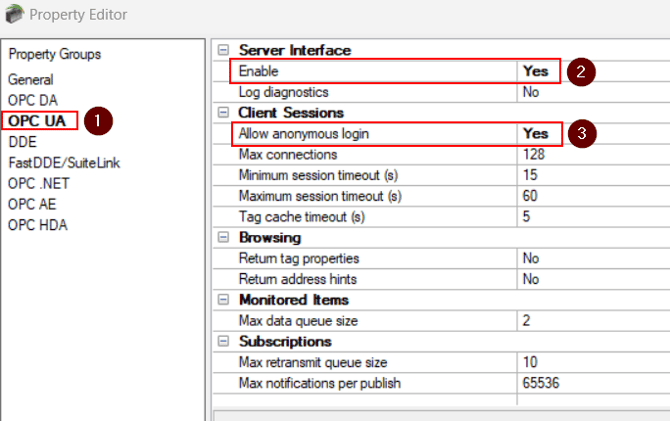
- Open the TOP Server project properties. Within the OPC UA tab (1) verify that the OPC UA Interface is enabled (2), and whether the interface support anonymous user authentication (3). If the Allow anonymous login setting is set to No, all OPC UA Clients that connect to the TOP Server must provide a username and password in order to connect. (This username and password can be found in the TOP Server User manager – accessible through the Administrative settings icon in the system tray) Press apply and okay.
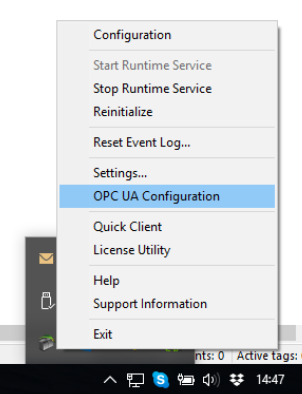
- Launch the TOP Server’s OPC UA Configuration utility. This can be launched by right clicking on the TOP Server Administrative Icon in the system tray, or by searching the start menu for “OPC UA Configuration”.
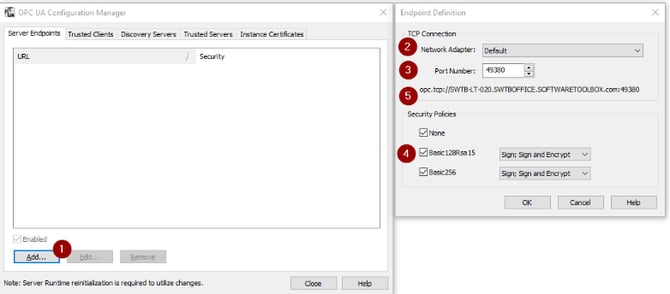
- On the Server Endpoints tab: Add a new endpoint (1) and specify the appropriate network adapter (2) and desired port (3) on which the endpoint should be created. The supported security policies can also be configured here:
- None – No endpoint authentication, message signing, or encryption will be used.
- Basic128Rsa15Sign – Both endpoints will authenticate the connection using certificate exchange. Signing will occur using the algorithms provided in the Basic128Rsa15 security suite.
- Basic128Rsa15 Sign and Encrypt – Both endpoints will authenticate the connection using certificate exchange, and any messages exchanged over this connection will be encrypted. Signing and encryption will occur using the algorithms provided in the Basic128Rsa15 security suite.
- Basic256 Sign – Both endpoints will authenticate the connection using certificate exchange. Signing will occur using the algorithms provided in the Basic256 security suite.
- Basic256 Sign and Encrypt – Both endpoints will authenticate the connection using certificate exchange, and any messages exchanged over this connection will be encrypted. Signing and encryption will occur using the algorithms provided in the Basic256 security suite. Note which security policies the endpoint supports, and which policy the UA Client should use to connect.
- Make a note of the OPC UA Server endpoint (5) – this URI will be needed when connecting OPC UA Clients to the TOP Server
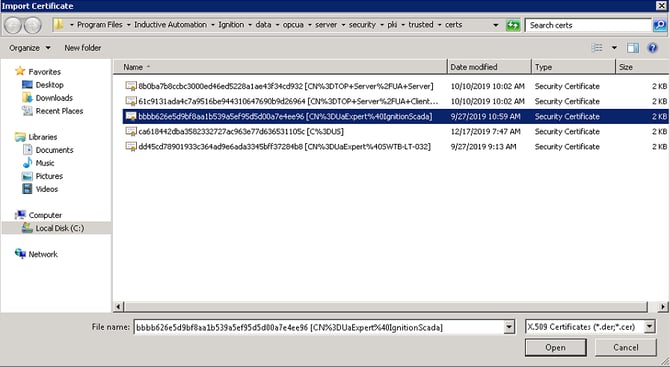
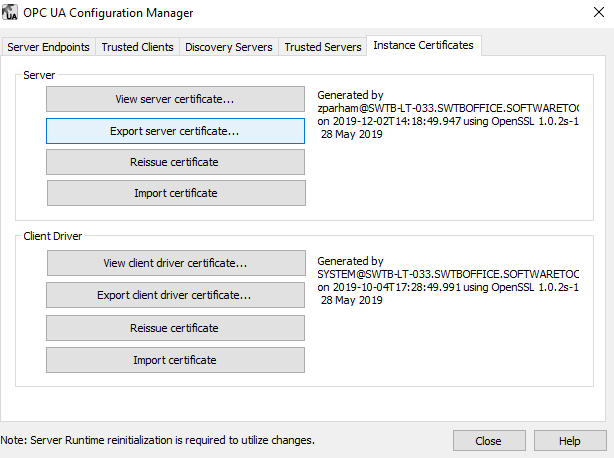
- If using security on the UA endpoint, navigate to the Trusted Clients tab in the OPC UA Configuration Manager. Use the Import Button to import Ignition’s OPC UA Certificate into the trusted clients certificate store. We will cover where to find this certificate in the Ignition section later in this document.
- If using endpoint security on the OPC UA endpoint, export the TOP Server’s OPC UA Server certificate while here. Importing this into Ignition will be covered later in the document.
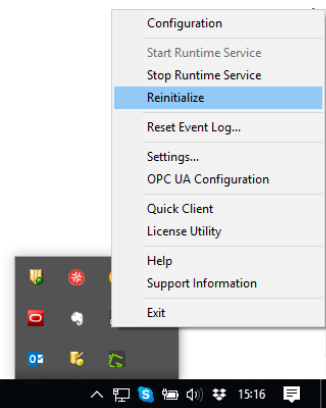
- Re-initialize the server. Either by opening the TOP Server configuration and navigating to Runtime ⇒ Reinitialize, or by selecting Reinitialize after right-clicking the Administrative icon in the system tray. Changes to the OPC UA endpoints will not take effect until after this re-initialization is complete.
Configuring Ignition
Connection Configuration
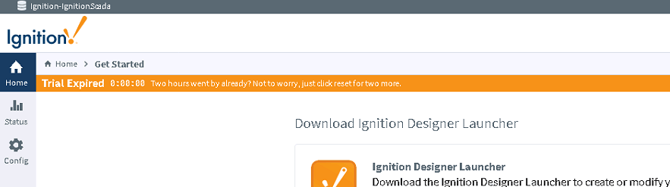
- Open a browser and navigate to the Ignition configuration gateway (http://localhost:8088 by default). Log in using an Ignition account with configuration permissions. On the left side of the page, click the gear icon labeled Config.
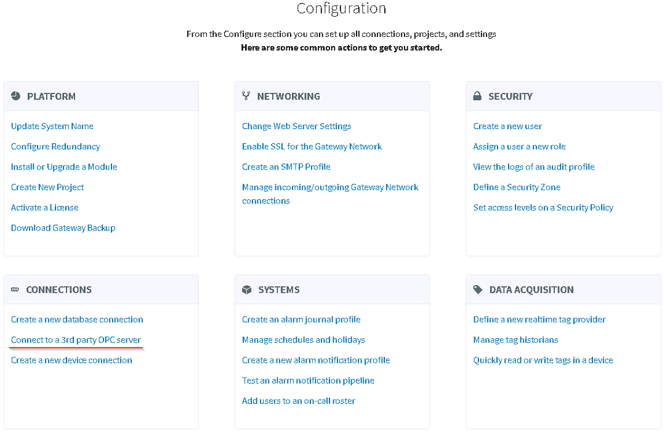
- Select "connect to a 3rd party OPC server” under Connections.
- Choose “Create new OPC Connection”
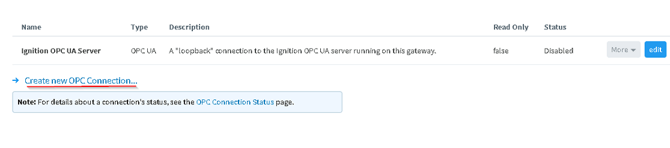
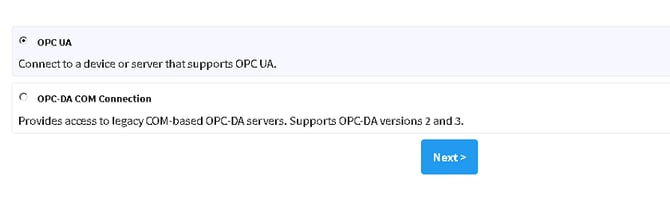
- Choose OPC UA, then click Next
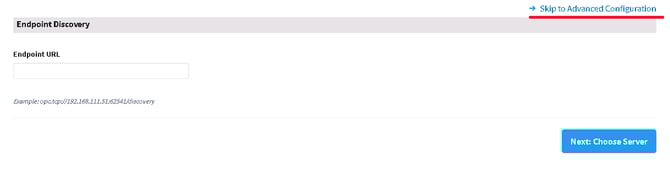
- Skip to advanced configuration.
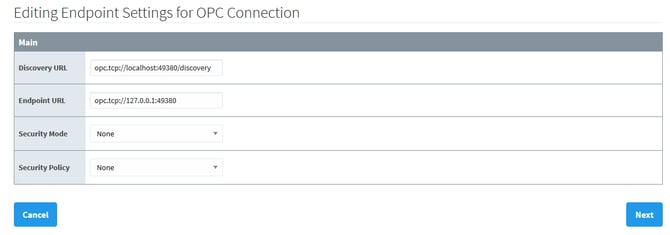
- Enter the discovery URL and server endpoint URL created in steps 4-5 of the TOP Server configuration. Choose the security mode and policy. Ensure this aligns with what was configured in the OPC UA Configuration, then click next.
- Enter a relevant name and description. This will be shown in Ignition’s list of OPC UA connections. Click “create new OPC Connection.”
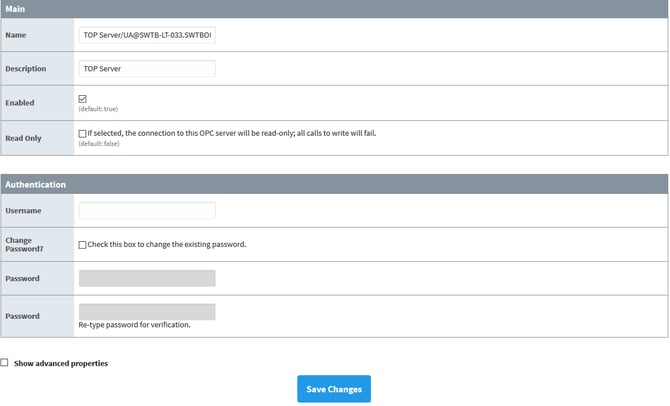
- If using OPC UA Security, the connection may initially appear as Faulted. This is expected because TOP Server is – by default – denying access to the Ignition OPC-UA Client, and the Ignition UA Client certificate must first be trusted.
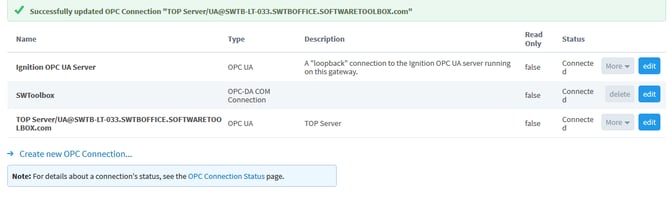 Return to the TOP Server OPC UA Configuration manager, and on the Trusted Clients tab, click on Ignition OPC-UA Client certificate. Click the Trust button to install/trust the Ignition Client certificate. The Ignition OPC Server Connections page will now show the Status of the TOP Server to be Connected.
Troubleshooting
- The Ignition OPC UA Connection page shows the status of all OPC UA Server connections. If the TOP Server connection is listed as disabled or faulted make sure that any configuration changes have been saved and are running.
- If the connection is still showing that it is Faulted, open the OPC Connection Status page and click on the Faulted status.
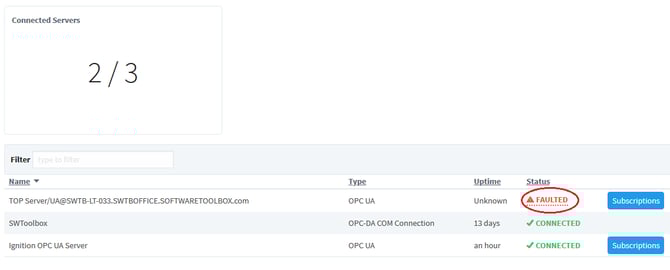
- This will show the specific error code and associated explanation that can be used for further connection troubleshooting.
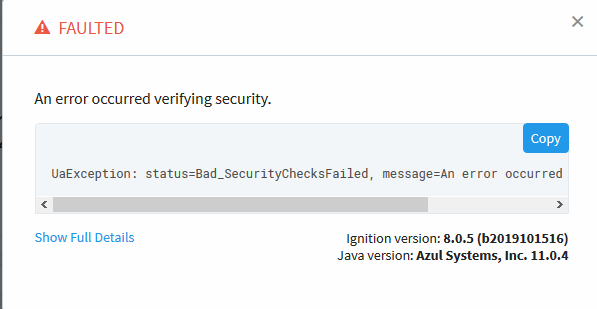
Information regarding OPC UA error codes can be found here.
For certificate issues, please reference the TOP Server OPC UA Certificate Exchange FAQ.
It is recommended to use the Unified Automation UAExpert as a free and versatile OPC UA test client, that can be used to troubleshoot OPC UA connection issues.
Conclusion
Summary
This guide has demonstrated the basic steps for configuring an OPC UA connection from TOP Server to Ignition.
To evaluate what TOP Server can offer in terms of robust, reliable device data acquisition, download a free two hour demonstration of TOP Server here. This demonstration version is fully functional, only requiring a restart at the end of the two-hour demonstration period.
For further questions the Software Toolbox Support Team is available to help: