![SWTB_logo_rgb_color_mode-wPadding-2000x961.png]](https://help.softwaretoolbox.com/hs-fs/hubfs/SWTB_General/Images/Press_Kit/SWTB_logo_rgb_color_mode-wPadding-2000x961.png?height=50&name=SWTB_logo_rgb_color_mode-wPadding-2000x961.png)
The OmniServer Hardware Key must have the correct drivers installed to be properly identified and detected by the Operating System for OmniServer to use.
When the hardware key is plugged into the machine, the OS will attempt to read the key and then install the appropriate drivers. However, if the drivers cannot be installed for whatever reason, the Device Manager will show something like this:
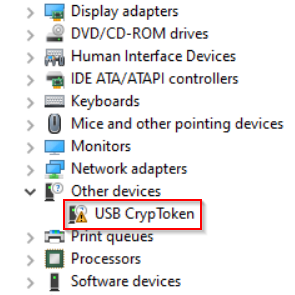
The hardware key drivers will need to be manually installed if this ever happens.
- From a machine with Internet access, use this link to download the driver: OmniServer Hardware Key Driver Download (This is the latest version of the driver as of April 2024).
- Move the downloaded zipped folder to the OmniServer machine.
- Extract or unzip the contents and run CBUSetup.exe (You must have Administrator rights to install this).
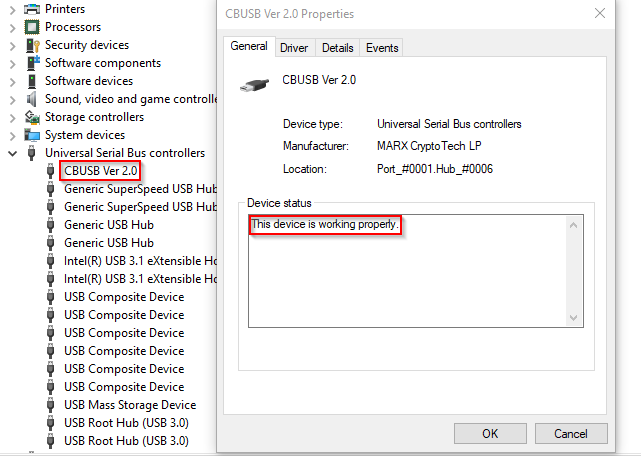
- Once the installation completes, the hardware key should be properly detected by OmniServer and the Device Manager should now show the below:
If OmniServer is still not licensed by the hardware key, then it is possible that your existing software license needs to be transferred to the hardware key. Click here to see our Guide on Converting an OmniServer Software License to Hardware Key Dongle
If you have any further issues, please email support@softwaretoolbox.com or submit a support ticket.