![SWTB_logo_rgb_color_mode-wPadding-2000x961.png]](https://help.softwaretoolbox.com/hs-fs/hubfs/SWTB_General/Images/Press_Kit/SWTB_logo_rgb_color_mode-wPadding-2000x961.png?height=50&name=SWTB_logo_rgb_color_mode-wPadding-2000x961.png)
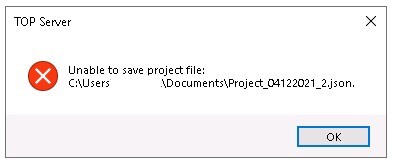
There are several possible causes, including users may have already checked, and others less obvious.
If after reading this FAQ and taking actions, you are still having problems, please open a case, but be sure you tell us what version of TOP Server you are running, supply an activation ID from the License Utility, and tell us what operating system you are running on, and any relevant errors from the TOP Server Event log at the time you attempted the file save.
Simple possible causes
- Disk space at the target destination - JSON export files can be 4 to 10 times larger than an OPF file that has compression in it where a JSON file is a text file.
- Write permissions in the target destination? If somewhere on your local machine this is probably not the case, but if trying to save to a network share, do you have permissions?
- Filename + Path too long - yes even Windows has limits! Unlikely but we've seen some long paths.
- Have you tried saving to a different location and filename?
More complex possible causes:
- Corruption in the project file - this is highly unlikely if you can open the OPF file in TOP Server. If you can, open it, save as a different filename to get a clean save in OPF format.
- Usage of features in the OPF project file for which drivers and plug-ins are not present on the machine where you are saving the project as JSON. See below for how to resolve this cause.
How to Identify and Resolve Drivers & Plug-Ins not present on saving machine but used in an OPF file
If the OPF file was created on Machine A, and it had every driver and plug-in installed, and the user who made it configured things perhaps just to try things, and now you have the OPF file on Machine B.
But Machine B does not have every driver and plug-in offered in TOP Server installed.
The project will load on Machine B, but there will be errors in the TOP Server Event log with the names of the drivers or plug-ins that are used by the OPF file but not present listed:
Data Logger Plug-in was not found or could not be loaded.
SNMP Agent Plug-in was not found or could not be loaded.
If you encounter this, the TOP Server needs to access information in those driver or plug-in DLLs in order to perform the JSON export. You may not even see the plug-ins listed in the TOP Server configuration user interface if they are not installed, but the information is in the OPF file and if you are not planning to use it, you need to remove those parts of the configuration.
If you plan to use those features, then you must get those drivers and/or plug-ins added to Machine B as mentioned in Step 2 below.
You have 2 choices if you need to remove the references.
- Go back to Machine A and remove any references in the project to plug-ins or drivers that are not going to be used on Machine B
- On Machine B, re-run the TOP server installer and add the missing drivers and/or plug-ins. This won't affect your license just to have them there. You can then remove the references, re-run the installer, and remove the unused drivers/plug-ins. This will then let you save the project as JSON, because the TOP Server needs to access information in those driver or plug-in DLLs in order to perform the JSON export.
Finding the references to plug-ins and drivers
This does depend on you having the OPF open on a machine with all referenced drivers and plug-ins installed. When in doubt, install everything, it just takes disk space and doesn't hurt your license.
For plug-ins, in TOP Server V6, you can hide plug-ins by clicking on View on the main menu to expose the plug-ins. If the list of plug-ins is not completely empty as shown below with only the "hints" for how to configure showing, then you have something configured that may need to be removed. If you keep the configuration of the plug-in, then you have to keep that plug-in installed on Machine B
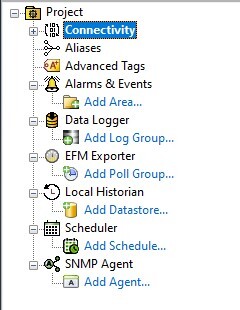
For drivers, if you click on Project-Connectivity in the tree view, on the right side, you will see a list of all channels and what drivers they use. You can click on the Driver column heading to sort by driver name, and find the channels using the driver not present. From there you can decide if you want to keep that channel or not. If you keep the channel you MUST keep the driver present on Machine B!

With these steps you should be able to resolve the issue if this is the cause.
If you are still having problems, please open a case, but be sure you tell us what version of TOP Server you are running, supply an activation ID from the License Utility, and tell us what operating system you are running on, any relevant errors from the TOP Server Event log at the time you attempted the file save and any relevant information.