![SWTB_logo_rgb_color_mode-wPadding-2000x961.png]](https://help.softwaretoolbox.com/hs-fs/hubfs/SWTB_General/Images/Press_Kit/SWTB_logo_rgb_color_mode-wPadding-2000x961.png?height=50&name=SWTB_logo_rgb_color_mode-wPadding-2000x961.png)
All Version 3.x upgrades require a new activation code when upgrading from versions 1.x or 2.x and you MUST review this entire upgrade guide below BEFORE you install V3!
Licensing
As stated above, with the release of LGH File Inspector V3, the licensing scheme was updated, so a V2 license will not be carried over to a V3 installation. A NEW V3 LICENSE ID WILL NEED TO BE ISSUED AND ACTIVATED.
- If your V2 license has an active SMA (Support and Maintenance Agreement - click for details), you will be able to obtain a free V3 upgrade.
- If your V2 license does not have an active SMA, our team will send you a quote for renewing the SMA and upgrading your license to V3.
Please fill out the LGH File Inspector Upgrade Eligibility Request Form with your license details. Our team will review the current status of your license's SMA and either send you a new V3 License, or a quote for a renewal/upgrade.
Once you have obtained your V3 compatible license, you can install LGH File Inspector V3 and proceed with your license activation.
Configuration
There is no main configuration file that users need to worry about with LGH File Inspector. However, there are 2 things that are worth some consideration/awareness:
- Query Files (.lghq) - These are saved files with the purpose of executing a query on a particular set of tags you query often. They are saved somewhere on your local PC (but NOT in the same folder as the LGH Data Directory containing .lgh files) and will not be affected during the upgrade.
- LGHFilePlaces.json - As the name suggests, this is a JSON file that stores the different LGH File Data Directories that contain .lgh files. This file is saved to C:\Users\username\AppData\Roaming\WorkSmart Automation\LGHFileInspector and will not be affected during the upgrade.
Installation
The LGH File Inspector installer must ALWAYS be installed by running as administrator (Right-click -> Run as administrator)
Do NOT attempt to install V3 until you have your V3 license in hand and ready to activate. Installing V3 without a license will have the software revert to evaluation mode and you will not be able to execute your normal queries until a license is applied.
The V3 Installer does not handle the removal of V2. If V2 is present on the PC, the V3 installer will throw the following error:
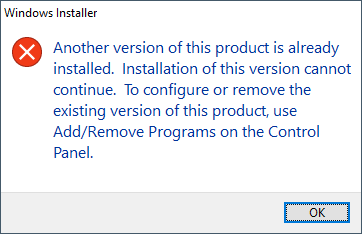
The user must first go to 'Add or remove programs' and uninstall LGH File Inspector V2. Then, LGH File Inspector V3 can be installed on the PC.