![SWTB_logo_rgb_color_mode-wPadding-2000x961.png]](https://help.softwaretoolbox.com/hs-fs/hubfs/SWTB_General/Images/Press_Kit/SWTB_logo_rgb_color_mode-wPadding-2000x961.png?height=50&name=SWTB_logo_rgb_color_mode-wPadding-2000x961.png)
Due to several changes in LGH File Inspector 3.5, all users should read this carefully BEFORE installing the upgrade.
If you are upgrading from v1 or v2, there are additional precautions that will need to be taken, which are outlined in our Upgrading to LGH File Inspector v3 FAQ.
It is important to note when upgrading from a previous version of LGH File Inspector to version v3.5 of LGH File Inspector that the application name and installation location has changed.
- Because of this, the versions will be installed side-by-side.
- Your license will be maintained in the transition from 3.0 to 3.5, provided of course you have an active support & maintenance agreement and are eligible for the free upgrade.
Therefore, there are specific steps you will need to take in order to upgrade without issue. Please review before following the steps at the bottom of this FAQ.
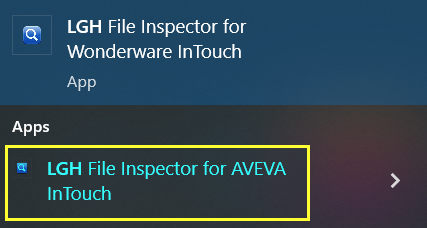
Before v3.5, the application name was “LGH File Inspector for Wonderware InTouch.” This has been changed to “LGH File Inspector for AVEVA InTouch.”
Previously, the file location for the application was C:\Program Files (x86)\WorkSmart Automation\LGHFileInspector
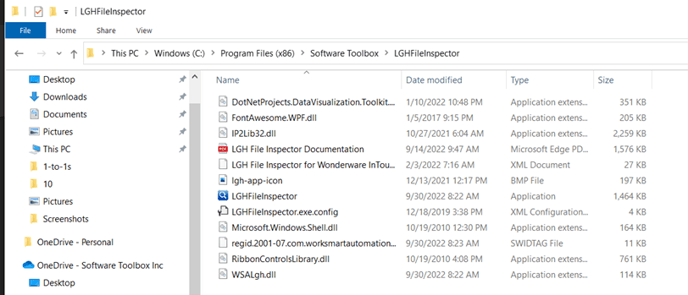
As of v3.5, the file location is C:\Program Files (x86)\Software Toolbox\LGHFileInspector
Steps for Upgrading:
- Install v3.5
The LGH File Inspector installer must ALWAYS be installed by running as administrator (Right-click -> Run as administrator)
- Confirm that the license was retained by opening v3.5
- Close v3.5, then copy over the LGHFilePlaces.json file from:
C:\Users\username\AppData\Roaming\WorkSmart Automation\LGHFileInspector
and place this in:
C:\Users\username\AppData\Roaming\Software Toolbox\LGHFileInspector
-
-
The user will get a message stating "The LGH Data Directory path doesn't exist." Select OK, and the LGH File directories will now show under "LGH File Places" and can be selected
-
- The user must then go to 'Add or remove programs' and uninstall LGH File Inspector v3