![SWTB_logo_rgb_color_mode-wPadding-2000x961.png]](https://help.softwaretoolbox.com/hs-fs/hubfs/SWTB_General/Images/Press_Kit/SWTB_logo_rgb_color_mode-wPadding-2000x961.png?height=50&name=SWTB_logo_rgb_color_mode-wPadding-2000x961.png)
In order to obtain an unlock code to license your OPC Server Remote Configuration Client, please provide us with your Serial Number and Computer ID.
- Your serial number will be provided in the product delivery email sent by our orders team upon purchase
- To locate your Computer ID, you must have the OPC Server Remote Configuration Client already installed
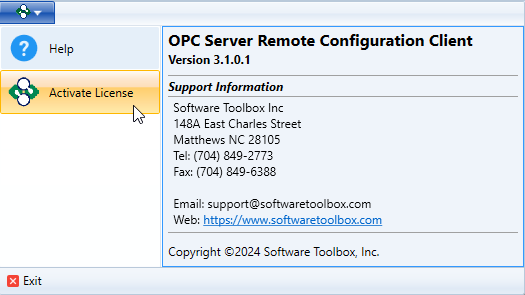
- Once installed, launch the tool and click the Software Toolbox logo at the top left of the screen and select "Activate License"
- You will then see a box labeled "Computer ID" containing the numeric string that will need to be provided
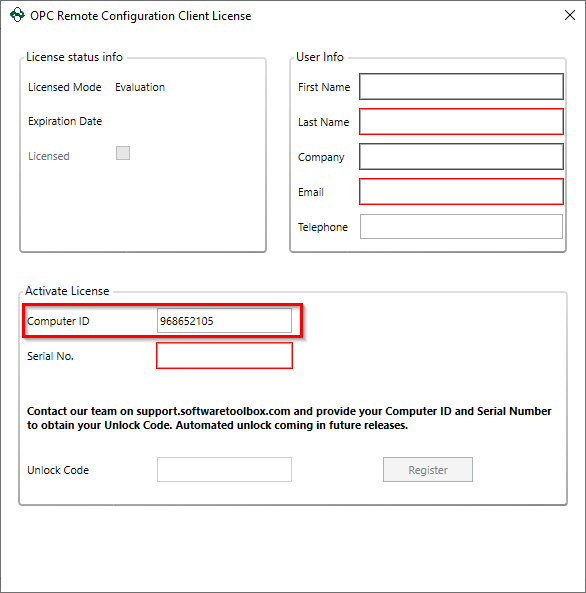
- Note: This is also the window where you will enter your provided serial number and your unlock code once provided by our team
- Once installed, launch the tool and click the Software Toolbox logo at the top left of the screen and select "Activate License"
- Provide your serial number and Computer ID to our support team either by opening a support ticket or emailing support@softwaretoolbox.com
- You will then receive your unlock code from our team that can be entered to license your OPC Server Remote Configuration Client back in the "Activate License" window
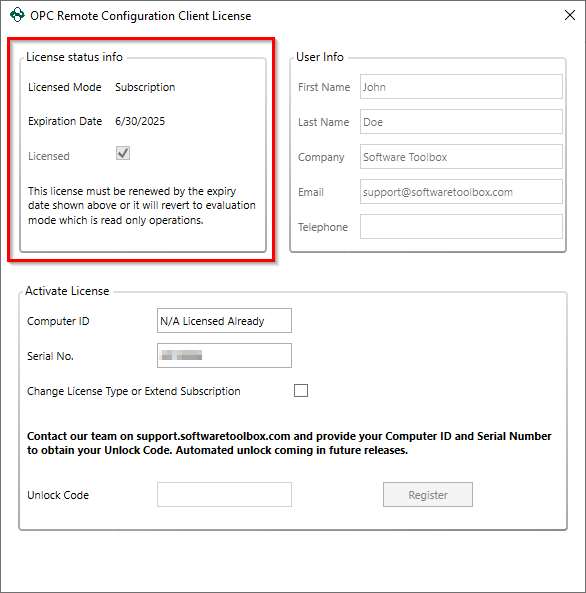
- After a successful registration and relaunching the application, in the "Activate License" window you should see the "Licensed" box checked as well as your license mode and expiration date matching what was purchased