![SWTB_logo_rgb_color_mode-wPadding-2000x961.png]](https://help.softwaretoolbox.com/hs-fs/hubfs/SWTB_General/Images/Press_Kit/SWTB_logo_rgb_color_mode-wPadding-2000x961.png?height=50&name=SWTB_logo_rgb_color_mode-wPadding-2000x961.png)
Note: Usage of the audit trail feature requires SQL Server or SQL Express, preferably 2016 or higher.
Minimum rights:
-
SQL Login that can create the required logging table if you want to have our utility make it
-
SQL Login that can execute a supplied script to create a table and stored procedure that the application needs.
-
For ongoing operation, a SQL login that has insert permissions on the created table.
The audit trail configuration is set up outside of the main OPC Server Remote Configuration Client application. It will be configured using the Configurator application (SWTB.OPCServerRemoteConfig.Configurator.exe) located in the install directory: C:\Program Files (x86)\Software Toolbox\OPC Server Remote Config Client
Note: The Configurator application requires administrator access to launch.
There are 2 options for the audit trail table creation that users can follow.
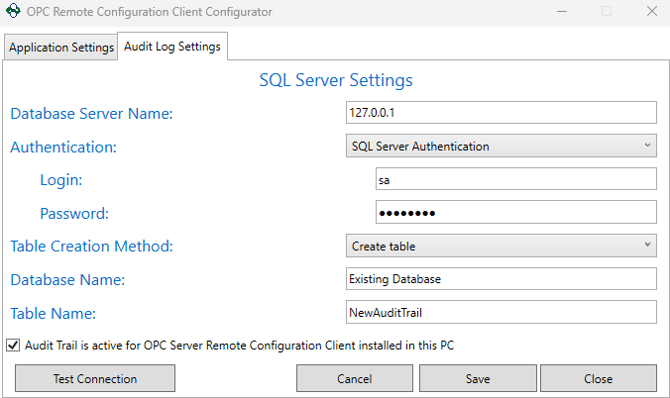
Option 1: Connect to an existing database in the SQL Server and create the audit trail table automatically.
That process is as follows:
-
Launch the Configurator application named above
-
Input database server name, authentication information, and existing database name
-
Enter a table name that is applicable such as "AuditLog" and click "Save"
-
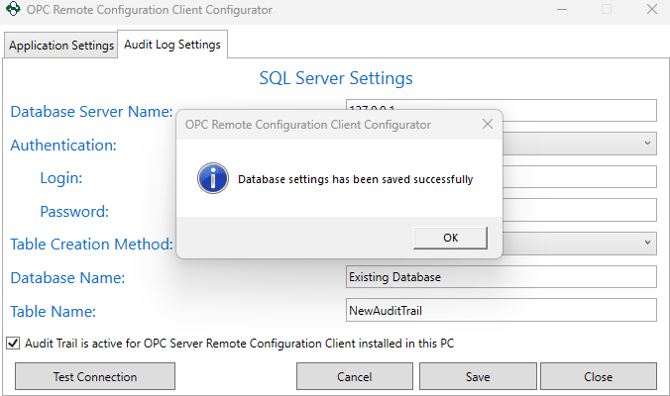
You should then be prompted with either a successful save message or a failure
-
If there is a failure, the most likely scenarios are:
-
SQL Server is unreachable
-
Database name provided does not exist
-
Syntax of the table name entered is not valid
-
-
Option 2: Executing the supplied script to create the database, table, and stored procedure required for the audit trail.
Note: With this option, you will need SQL Server Management Studio to run the script provided.
This process is as follows:
-
Navigate to the install directory (C:\Program Files (x86)\Software Toolbox\OPC Server Remote Config Client)
-
You will see 2 different "OPCRemoteConfigClientDBScript" SQL Query files
-
Use file ending in 2016 for SQL Server 2016
-
Use file ending in 2019 for SQL Server 2019 and up
-
-
Run the appropriate query in SQL Server Management Studio. This will create the "OPCRemoteConfigClientDB" database and "AuditLogs" table that we will now reference.
-
Launch the Configurator application (SWTB.OPCServerRemoteConfig.Configurator.exe)
-
Input database server name and authentication information
-
Set the table creation method to "Use existing table"
-
Input "OPCRemoteConfigClientDB" as the database name and "AuditLogs" as the table name and click "Save"
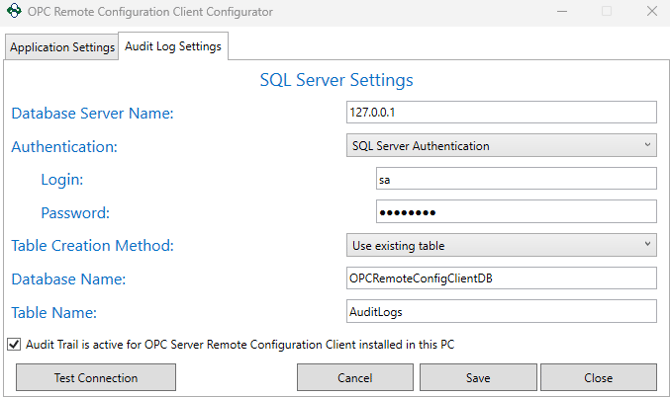
- You should then be prompted with either a successful save message or a failure
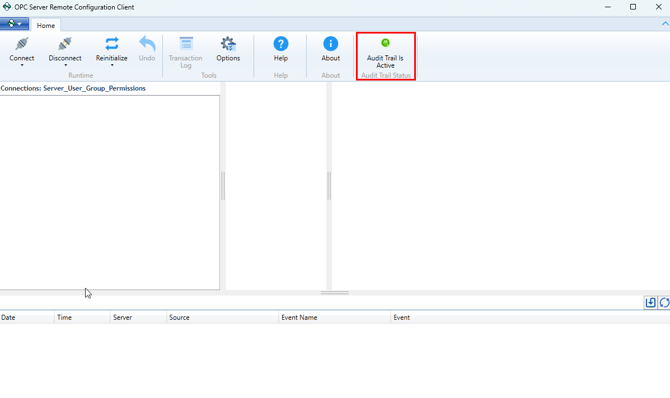
After setup, launch the OPC Server Remote Configuration Client standard application and ensure that the audit trail is active as indicated by a green light on the taskbar. If you see a grey dot then the audit trail has not yet been configured, and a red dot will indicate it is in an error state currently.
If you require any assistance with the audit trail setup, please email support@softwaretoolbox.com