![SWTB_logo_rgb_color_mode-wPadding-2000x961.png]](https://help.softwaretoolbox.com/hs-fs/hubfs/SWTB_General/Images/Press_Kit/SWTB_logo_rgb_color_mode-wPadding-2000x961.png?height=50&name=SWTB_logo_rgb_color_mode-wPadding-2000x961.png)
Via Form
NOTE: This is the suggested way to create a support ticket, as it ensures that we gather initial context and gives you an immediate answer in your browser instead of via an email.
- Submit a ticket via https://jonjon.softwaretoolbox.com/
- You will be asked to include details such as what product you are using, what changed, your email address, and any files that you can share.
- Once you have done so, you will see a loading screen.
- Remain on this screen.
- You will get an answer to your question with the context you provided, typically within a matter of seconds.
- Need more assistance? Select Continue in jonjon.
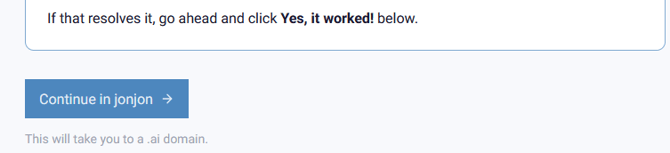
- You may need to scroll down to find the button.
- If you are not logged into jonjon.ai, this button will take you to the login page.
- jonjon will open to the ticket automatically.
- Select "Yes, it worked!" if the provided solution resolved your support need, or continue the conversation directly within jonjon.ai.
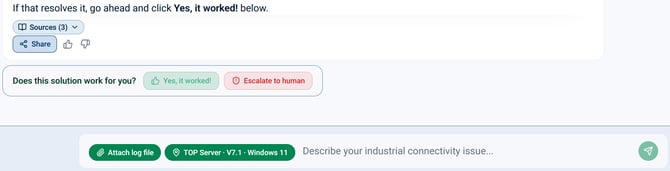
- If at any point you need to speak with a member of our support team directly, select "Escalate to a Human"

- The ticket will now show as escalated on the left-hand side under "Active Tickets"
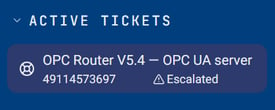
- The ticket will now show as escalated on the left-hand side under "Active Tickets"
Via Email
NOTE: We will be retiring the support email address for ticket intake in the future. This is to ensure that all support tickets are opened with the proper context to ensure that we can assist you swiftly. You will still receive emails from support@softwaretoolbox.com.
- Email support@softwaretoolbox.com
- Receive an automatic response from jonjon.ai with an immediate answer or request for additional context
- Select the continue button

- Doing so will open the ticket in jonjon.ai, where you can continue the conversation
- Select "Yes, it worked!" if the provided solution resolved your support need
- If at any point you need to speak with a member of our support team directly, select "Escalate to a Human
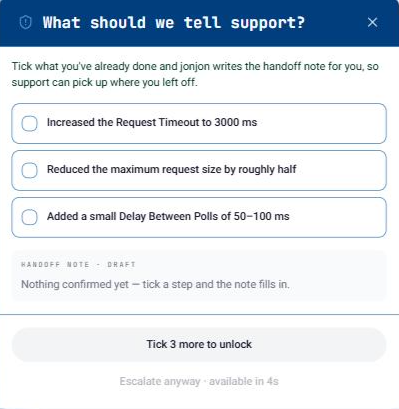
- Next, confirm you have tried the steps that jonjon has suggested. Because jonjon is trained on our knowledge base, the initial information can either provide the answer, or rule out possibilities. This allows our team to expedite you to a solution.
- The ticket will now show as escalated on the left-hand side under "Active Tickets"
- Next, confirm you have tried the steps that jonjon has suggested. Because jonjon is trained on our knowledge base, the initial information can either provide the answer, or rule out possibilities. This allows our team to expedite you to a solution.