![SWTB_logo_rgb_color_mode-wPadding-2000x961.png]](https://help.softwaretoolbox.com/hs-fs/hubfs/SWTB_General/Images/Press_Kit/SWTB_logo_rgb_color_mode-wPadding-2000x961.png?height=50&name=SWTB_logo_rgb_color_mode-wPadding-2000x961.png)
Table of Contents
- Introduction
- Information Needed
- Licensing TOP Server
- Licensing Steps and Detailed Instructions
Introduction
The following document outlines the proper procedure for registering and activating TOP Server with or without internet access. Included is a discussion of the information required for registration and a step-by-step explanation of how to register your new TOP Server.
Information Needed
In order to successfully complete any of the procedures outlined in this document, you will need several pieces of information. This section discusses what information you will need and where to find it.
All Support
- Serial Number: A unique number that never changes. You can use it to find your Activation ID and Emergency ID from the registration site. It can also be used to find your Activation ID if it is lost and to determine the expiration of your maintenance period. Keep it in a safe place.
Software Licensing/Registration
- License Key: Provided to you in the product delivery email from Software Toolbox upon ordering TOP Server. This key will be needed during the activation process.
- Activation Request File (.txt): Generated from the TOP Server License Utility on the machine where TOP Server will be installed. This file is required to complete the online activation process.
- Activation Response File (.txt): Available for download after online activation is completed. This file is then imported back into the License Utility to complete the licensing process. It will also be emailed to you automatically upon successful activation.
Licensing TOP Server
The activation process follows these four steps:
Select Product → User Info → Product Details → Confirmation
Visit the activation portal at: https://activation.softwaretoolbox.com
Licensing Steps and Detailed Instructions
Note: Ensure you have your TOP Server License Key before continuing. If you need to obtain a license, please Contact Us to purchase.
Step 1 – Install TOP Server
Install TOP Server from the download file or installation media.
Skip this step if TOP Server is already installed.
Step 2 – Open the License Utility and Generate an Activation Request File
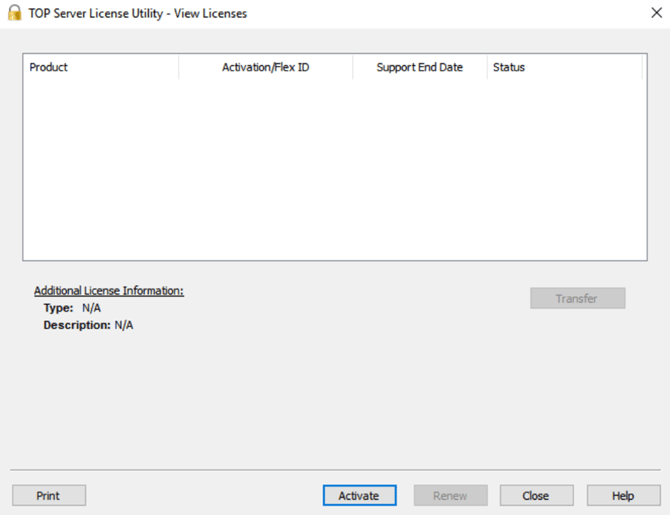
- Go to Start > Software Toolbox > TOP Server 7 > License Utility
- Alternatively, use Windows Search to find "License Utility"
- Click Activate
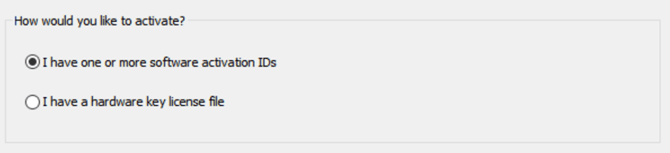
- Choose I have one or more software activation IDs
- Enter your Activation ID (one per line if you have multiple)
- You may notice that your machine name auto-populates. We recommend you do not make changes to the machine name as this helps us verify your machine in case of a hardware malfunction or failure.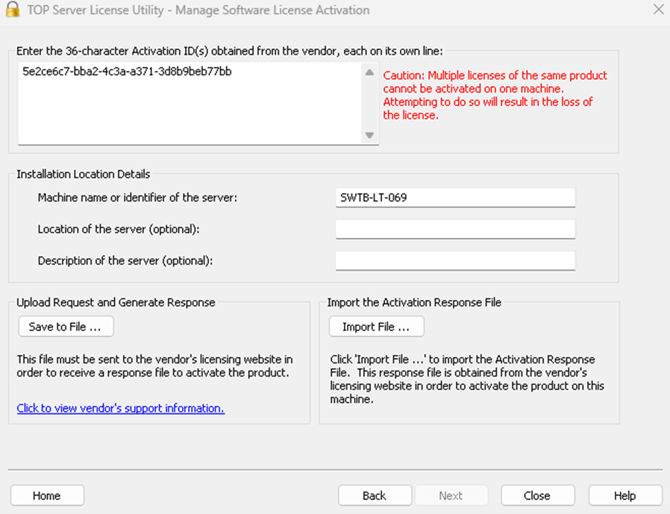
- Click Save to File
Save the file in a memorable location — you will need it in Step 4. By default it saves as activation_request.txt.
Keep the License Utility open.
No Internet Access? If the TOP Server machine does not have internet access, zip the activation_request.txt file and copy it to a USB drive. You can then complete the remaining steps on a computer that does have internet access. Note that the activation request file must be generated from the machine where TOP Server will be running.
Step 3 – Navigate to the Software Toolbox Product Activation Center
Open a web browser and go to: https://activation.softwaretoolbox.com
Ensure that you are logged in and see your initials in the top-right corner.
The home page displays three options: Activate, Transfer, and Recover. You will also need the following ready:
- Your License Key (found in your product delivery email)
- Your Contact Information (company name, email address, and phone number)
- System Information (details about the machine where TOP Server will be installed, if required)
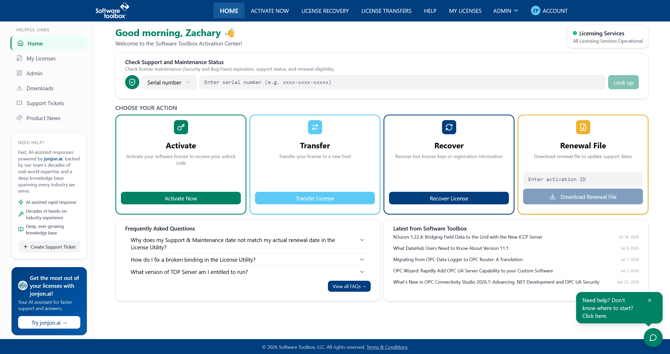
Click Activate Now to begin.
Step 4 – Select Your Product
The activation wizard will open at Step 1: Select Product.
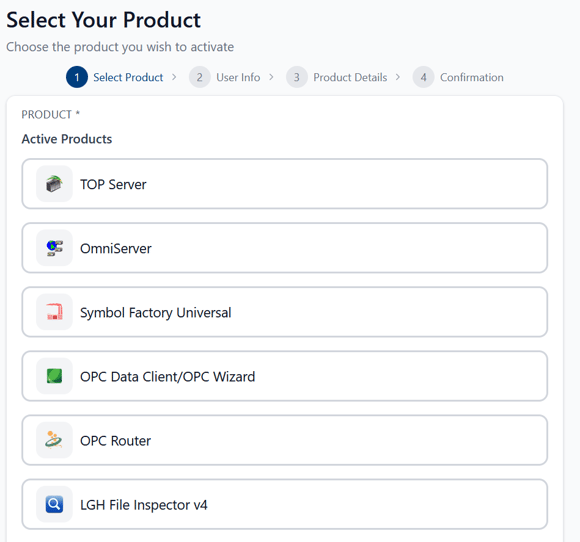

From the Active Products list, select TOP Server. The selected product will be highlighted with a blue border and a checkmark.

Click Continue.
Step 5 – Identify the End User

On the User Info screen, indicate whether you are the end user of this product or registering it on behalf of someone else:
- I am the End User – Select this if you will be using the product yourself
- Registering for Someone Else – Select this if you are activating on behalf of another person or organization
Make your selection and the wizard will proceed automatically.
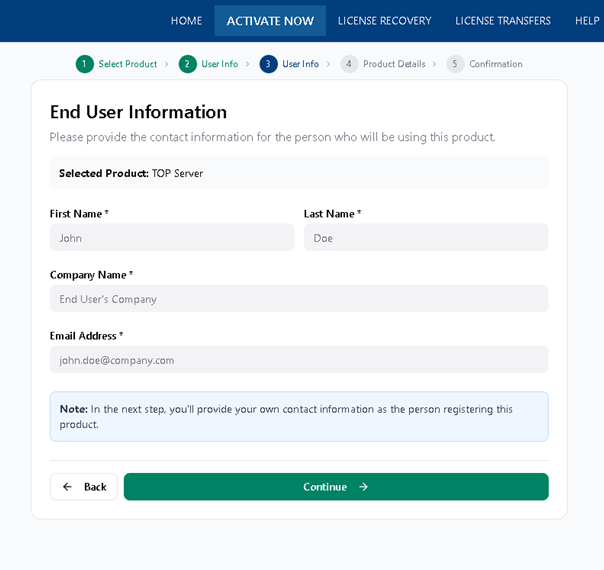
If you selected Registering for Someone Else, you will need to enter the end user’s information on the following screen, then click Continue.
Step 6 – Provide Product Details
On the Product Details screen, complete the following fields:
- TOP Server Version – Select the TOP Server version in use from the dropdown menu
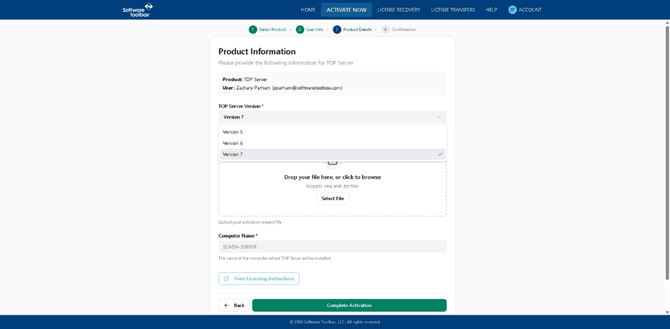
- Activation Request File – Upload the activation_request.txt file generated in Step 2 by dragging and dropping it into the upload area or clicking Select File. The file accepts .req and .txt formats.
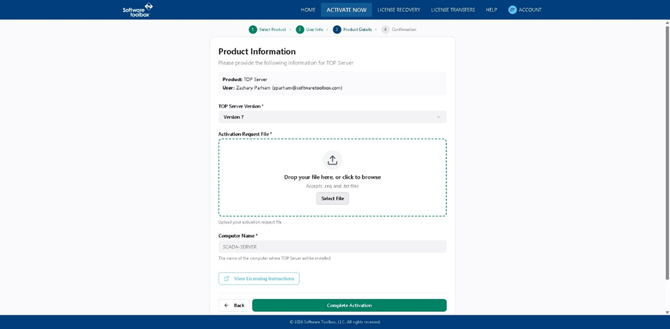
- Computer Name – Verify that the computer name is correct. This auto-populates from your activation request file.
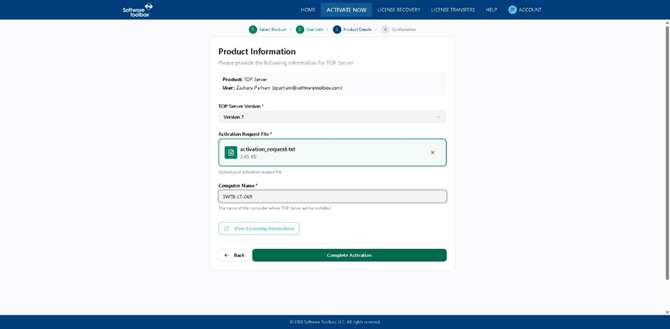
Once all fields are complete, click Complete Activation.
Step 7 – Download the Activation Response File
Upon successful activation, you will reach Step 4: Confirmation displaying "Activation Successful!"
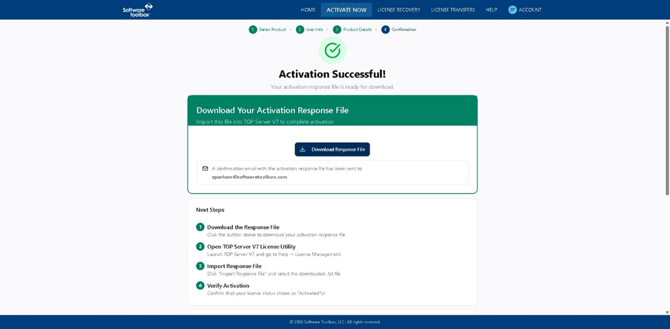
- Click Download Response File to save the activation response file to your computer
- A confirmation email with the response file attached will also be sent to the email address on your account
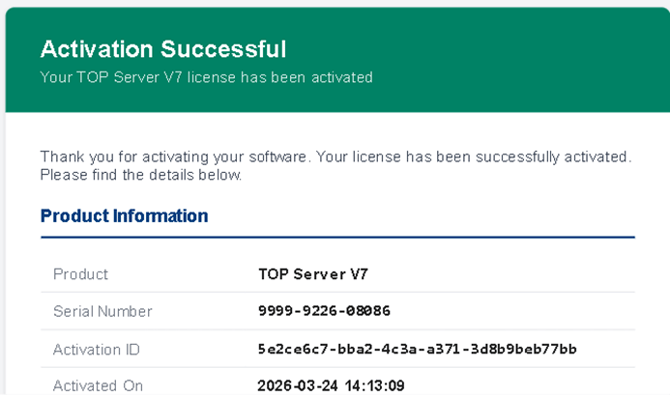
No Internet Access? If you are working on a machine without internet access, save the downloaded response file to a USB drive and bring it back to the TOP Server machine.
Step 8 – Import the Response File into TOP Server
Return to the TOP Server License Utility:
- Click Import File
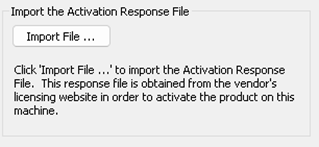
- Browse to and select the downloaded activation response file
- Once the file is imported, registration is complete
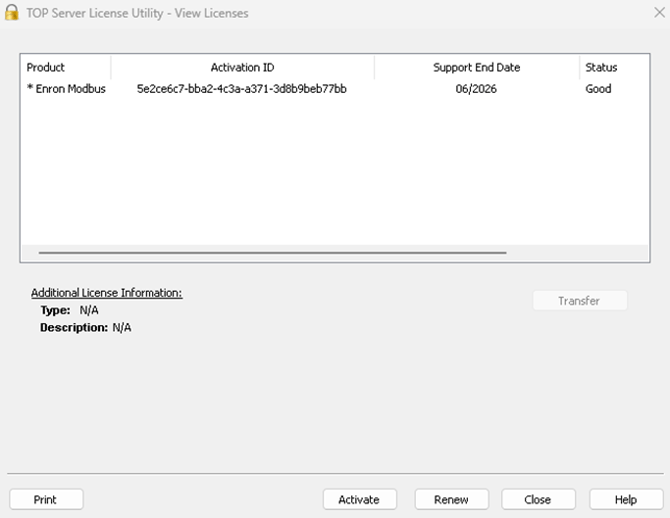
- Verify Activation – Confirm that your license status shows as "Good"