![SWTB_logo_rgb_color_mode-wPadding-2000x961.png]](https://help.softwaretoolbox.com/hs-fs/hubfs/SWTB_General/Images/Press_Kit/SWTB_logo_rgb_color_mode-wPadding-2000x961.png?height=50&name=SWTB_logo_rgb_color_mode-wPadding-2000x961.png)
OPC Quick Client is an OPC DA test client that installs with TOP Server by default. It can be used to connect to compliant OPC DA servers, browse available OPC items or tags, read values, create subscriptions, and perform writes where the server and item permissions allow writes.
In TOP Server environments, OPC Quick Client is most commonly used to quickly test whether TOP Server is exposing data correctly through OPC DA. It is intended for testing, validation, and troubleshooting only. It should not be used as a production client, HMI, SCADA, historian, or long-term data collection application.
Does OPC Quick Client support OPC UA?
No. OPC Quick Client is an OPC DA only test client. It is used for OPC Classic / OPC DA testing and is not an OPC UA client. For OPC UA testing, use an OPC UA client instead.
What can OPC Quick Client be used to test?
- OPC DA server connectivity
- Browsing of available OPC DA items or tags
- Real-time reads of item values, qualities, and timestamps
- OPC DA subscriptions
- Write access to writable items
- Basic validation that TOP Server is exposing expected channels, devices, plugins, system tags, and statistics
When should OPC Quick Client be used?
Use OPC Quick Client when you need a quick way to confirm that an OPC DA server is available, browse its address space, verify live values, test subscriptions, or confirm whether writes are successful. It is useful during commissioning, troubleshooting, support investigations, and configuration validation.
Important: OPC Quick Client should not be relied on for production operations. It is not intended to replace a production OPC client, HMI, SCADA system, historian, MES, database interface, or other production application.
How do I launch OPC Quick Client from the TOP Server toolbar?
As of TOP Server version 7.1, OPC Quick Client is available from the top toolbar in the TOP Server configuration window. Launching OPC Quick Client from the toolbar opens a blank Quick Client session. No connection is created automatically when using this method.

How do I launch OPC Quick Client from Project Properties?
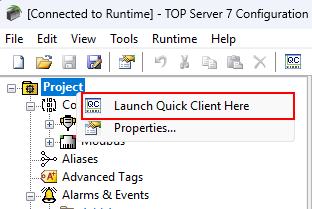
In the TOP Server configuration, you can right-click the Project Properties folder and launch OPC Quick Client from there. This automatically creates a connection to the TOP Server instance and subscribes to all available channels, devices, plugins, system tags, and statistics.
Performance warning: This launch method can create a large subscription against TOP Server. Users with large projects should avoid launching OPC Quick Client from Project Properties unless they specifically need to test the full server namespace. Subscribing to all available items can consume TOP Server resources and may impact performance.
How do I launch OPC Quick Client for a specific channel or device?
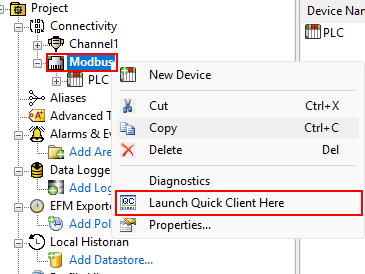
You can right-click a specific channel or device in the TOP Server project and launch OPC Quick Client from there. When launched from a channel, OPC Quick Client automatically creates a connection and subscription for the devices and related tags under that selected channel. When launched from a specific device, it creates a connection and subscription for that selected device and its related tags.
This is usually a better testing option than launching from Project Properties when you only need to validate one channel, one device, or a smaller section of the project.
How do I launch OPC Quick Client from the TOP Server Administration system tray icon?
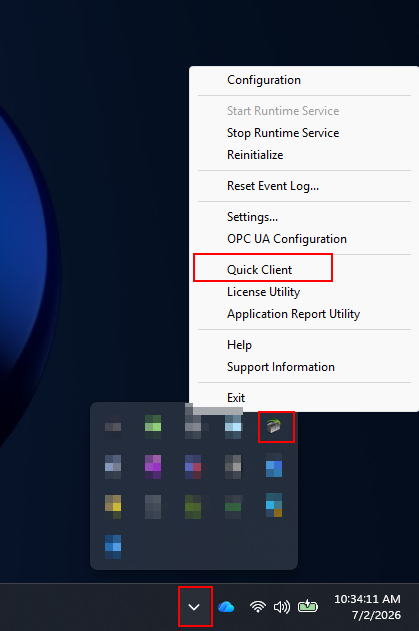
OPC Quick Client can also be launched from the TOP Server Administration icon in the Windows system tray. Right-click the TOP Server Administration icon and choose Quick Client. This opens a new blank Quick Client session without automatically creating a connection.
Which launch method should I use?
Why should large projects avoid launching OPC Quick Client from Project Properties?
Launching OPC Quick Client from Project Properties can subscribe to every available item exposed by the TOP Server project, including channels, devices, plugins, system tags, and statistics. In large projects, this can create a significant number of OPC DA items and subscriptions. That additional load may consume server resources and impact TOP Server performance.
For large projects, launch OPC Quick Client from the specific channel or device you need to test. This limits the subscription scope and reduces the potential resource impact.
Can OPC Quick Client write values?
Yes. OPC Quick Client can be used to write to writable OPC DA items when the server, item, and user permissions allow write operations.
Use caution when writing values, especially when connected to live equipment. A successful write may change a value in a PLC, device, or control system depending on the TOP Server configuration and the connected driver.
Is OPC Quick Client safe to use on a production TOP Server?
OPC Quick Client can be used for limited testing against a production TOP Server, but it should be used carefully. Avoid broad subscriptions against large production projects, avoid unnecessary writes, and close Quick Client when testing is complete.
It should not be left running as a production client.
What are best practices when using OPC Quick Client?
- Use OPC Quick Client only for testing and troubleshooting.
- Launch from a specific channel or device when possible to limit the subscription scope.
- Avoid launching from Project Properties in large projects unless you need to test the full namespace.
- Be careful when writing values to live devices or control systems.
- Close OPC Quick Client when testing is complete.
- Use a production-grade OPC client, HMI, SCADA, historian, or application for production data collection and operations.
Summary
OPC Quick Client is a convenient OPC DA test client included with TOP Server. It is useful for confirming connectivity, browsing tags, reading values, testing subscriptions, and validating writes. It can be launched in several ways, including from the TOP Server toolbar, Project Properties folder, specific channels or devices, and the TOP Server Administration system tray icon.
For most troubleshooting tasks, launching from the specific channel or device being tested is preferred because it limits the subscription scope and reduces the potential impact on TOP Server performance.