![SWTB_logo_rgb_color_mode-wPadding-2000x961.png]](https://help.softwaretoolbox.com/hs-fs/hubfs/SWTB_General/Images/Press_Kit/SWTB_logo_rgb_color_mode-wPadding-2000x961.png?height=50&name=SWTB_logo_rgb_color_mode-wPadding-2000x961.png)
Introduction
There are many ways to transfer data from point A to point B in operation in the field today. When dealing with accessing data from remote sites one method is to use dial-up modems. TOP Server will allow you to acquire data from remote sites by modem. This document will show you how to configure your TOP Server project for use with a dial-up modem. TOP Server is a product of Software Toolbox, Inc.
In this example we are using USRobotics 56K external modems connecting to an Omron Sysmac CQM1 through a phone line simulator. We have made several assumptions in the creation of this document. First we assume that there is a valid installation of the latest version of TOP Server and a modem (either internal or external though external is recommended) installed on the PC. We also assume a basic knowledge of modem communication and that you have configured your modem to the specifications of the driver help file of the driver you are using in TOP Server.
Please note that we recommend the use of external modems on the sending and receiving side. Also, most off the shelf modems today are designed for internet access and will not honor a configuration stored in NVRAM. Therefore we do not recommend these for industrial use. The industrial modems from Sixnet and Z Modems from MultiTech work well.
Intended Audience
This document is intended for new users of TOP Server although experienced users may gain value from reviewing the following information. This is by no means a comprehensive guide, nor a troubleshooting guide to modem communications. What this will provide the reader is a quick start guide to configuring a TOP Server project for use with a modem.
Getting Started
If you do not have an existing project, you will want to open a new file. Within your project we can create Channels and Devices. Before enabling your modem, it is highly recommended that you create your project and test a direct serial connection to the device using the TOP Server and OPC Quick Client. This will help verify that the communications parameters are correct between the device and TOP Server. This will also verify that the direct serial cable is good.
Creating the Channel
First you will click the icon in the left pane “Click to add a channel.”
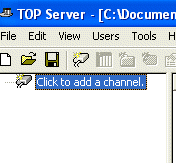
Figure 1
This will display you Channel Identification Dialogue. Name the channel anything you like, but something meaningful to the project is generally recommended.
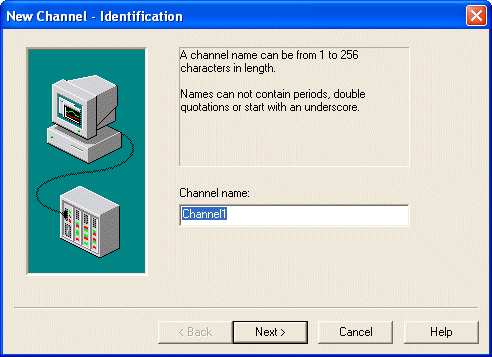
Figure 2
After clicking “Next”, you will be given the Device Driver selection dialogue. Choose the appropriate driver from the drop down menu. In this case we will use the Omron Host Link driver.
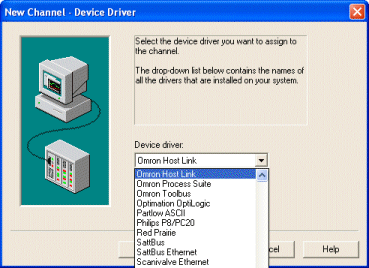
Figure 3
After clicking “Next” you will see the Communications configuration dialogue. Configure the parameters for your device. Do not check the “Use Modem” checkbox yet.
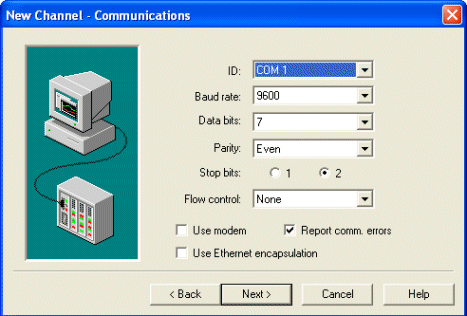
Figure 4
After clicking OK, you will see the write optimization dialogue. It is recommended you accept the default and click next.
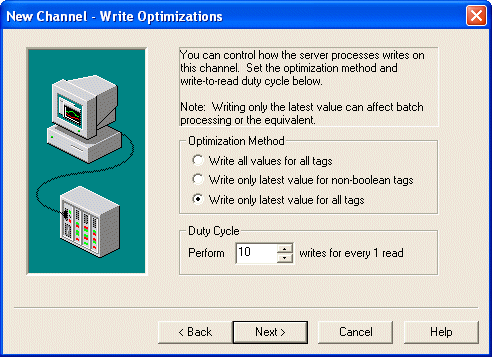
Figure 5
This will show you the channel summary dialogue. Click Finish to complete creation of your channel.
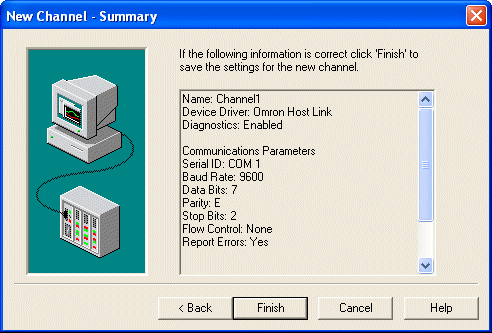
Figure 6
Device Setup and Testing
You will need to create a device for the channel you just created and test connection to the physical device using the OPC Quick Client. For more information on device creation and modem hardware configuration please see the driver help file in TOP Server for the driver you selected during your channel creation. For a general overview of TOP Server setup, please watch the TOP Server Quick Start Guide video.
For a comprehensive guide to using and testing with the Quick Client, please use the OPC Quick Client Getting Started Guide.
You will also find general information on modems with TOP Server in the Server Help File under Server Features ⇒ Modem Support.
Defining the Modem
After properly configuring and testing the direct serial connection to the device, we can now configure the modem for use with TOP Server. Remember that the modem must first be installed on your computer or the modem option will not be available in TOP Server.
Enable the Modem
To enable the modem, right click on your channel and click Properties.
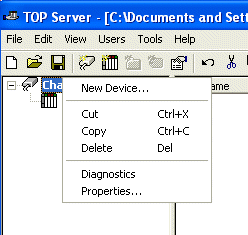
Figure 7
This will take you to the Channel Properties dialogue. Click “Use Modem”. This will deactivate all communications parameters. All will be grey as below. Click Apply and then click the Modem tab.
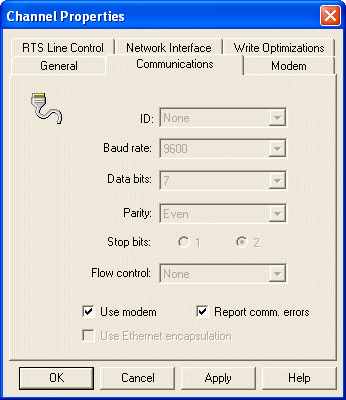
Figure 8
This will take you to the Modem selection interface. Here you can select and configure the dialing modem.
Configuring The Modem
First, highlight the modem that you want to configure. In this case, we only have one modem to choose. Click “Dialing” to open the Phone and Modem Options dialogue.
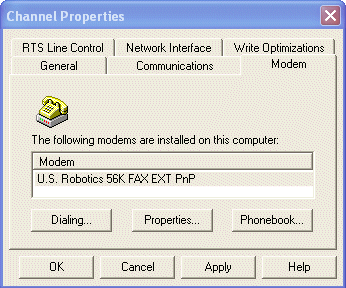
Figure 9
Click New to add your dialing location. This allows you to set the dialing rules you will use.
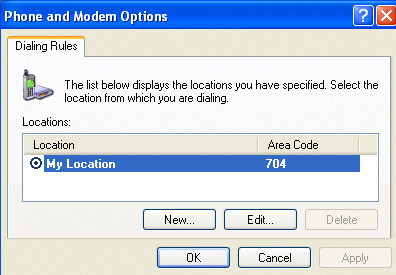
Figure 10
These options (the dialogue itself) are standard Windows modem options and allow you to specify how your modem dials. Click OK when done.
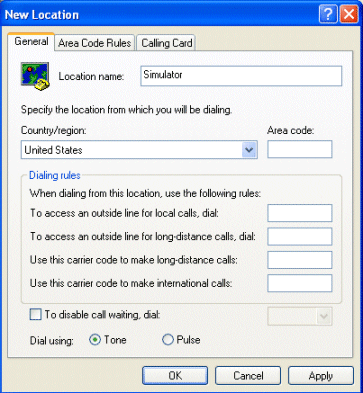
Figure 11
You will see your new location in the Window. Click OK.
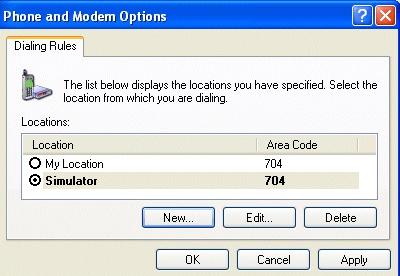
Figure 12
Now, click “Properties” in your Modem Selection Dialogue (see Figure 9). This will allow you to configure your modem communication properties. You will notice the General tab and Advanced. These settings should match your local port as well as the device you are connecting to. Once these are configured, click OK.
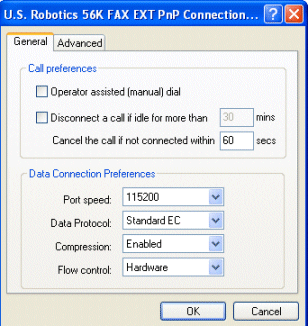
Figure 13
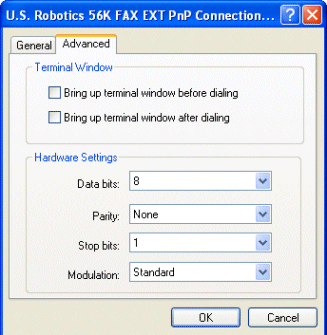
Figure 14
The Phonebook
Instead of specifying a telephone number by directly writing to the PhoneNumber tag, a phonebook tag can be used. A phonebook tag can be created on the channel, along with the other modem system tags previously described. The data associated with a Phonebook tag is a phone number that can be assigned when the tag is created and/or later modified when the server has an active client connection. The phone number stored in a phonebook tag can be used to dial by simply writing anything to the tag. The act of writing will cause the selected phonebook tag to dial.
To add a new phonebook tag, simply click on the Phonebook button (see Figure 9) to display the Phonebook dialogue as below.
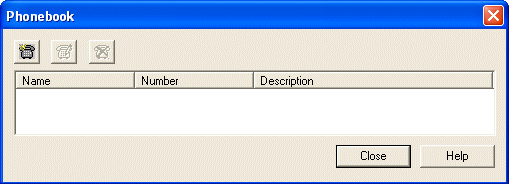
Figure 15
Then click the New Phonebook Entry icon to show the Phone Number dialogue. Give this a meaningful name and enter the dial number and optional description. Click OK.
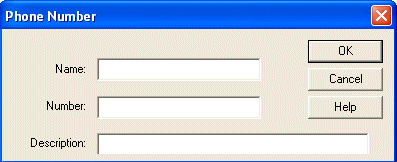
Figure 16
You will see your entry in the Phonebook dialogue as below. Click Close and then click OK on the Modem Selection Dialogue (see Figure 9).
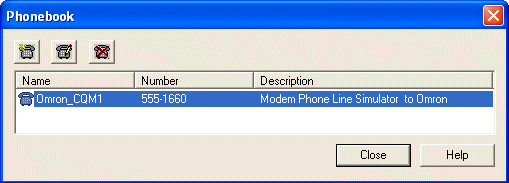
Figure 17
Dialing with Quick Client
To test your modem connection you will want to use the OPC Quick Client included with the TOP Server before connecting your HMI or client application. In addition, this will allow you to see all of the system generated modem tags in TOP Server and their related syntax for access from you client application.
To open the Quick Client click the icon in the toolbar that has the hammer and “OPC”.
Figure 18
The Quick Client will load and auto-generate the tags and groups resident in TOP Server.
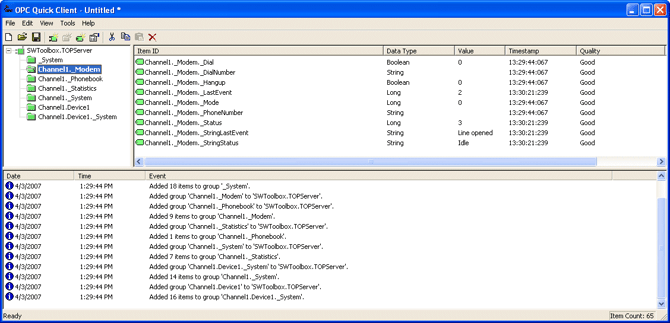
Figure 19
Modem and Phonebook Tags
In Figure 19 above, you will notice several tag groups generated by the TOP Server. For the purposes of our topic, we are interested in the Channel1._Modem and Channel1._Phonebook groups. Please note that if you have not configured any entries in the phonebook (see The Phonebook) you will not see the Channel1._ Phonebook group.
Modem Tags
For a full discussion of the modem tags please see the server help file Help ⇒ Contents ⇒ Server Help ⇒ Modem Support and you will see an entire list of tags and a description of each. For this discussion we will only use the tags necessary to dial a number.

Figure 20
Important Tags:
- _Status: This should equal 3 when line is open and ready to dial;
- _StringStatus: This needs to show Idle before dialing. This is a textual representation of the _Status tag.
- _PhoneNumber: When not using phonebook entries, you must write the phone number you are dialing to this tag.
- _Dial: Write a 1 to this tag to dial when ready to dial
- _Hangup: Write a 1 to this tag if you want to manually disconnect.
For more information on writing to tags in Quick Client please see the OPC Quick Client Getting Started Guide.
Phonebook Tags
If you have defined entries in your phonebook, then you can use these tags to dial instead of the modem tags. In our project you will see one tag for the one entry we defined in the phonebook. The tag name is the same as the name we defined for the entry in the phonebook.

Figure 21
If you write any value to the Phonebook tag, then it causes the associated number to be dialed by TOP Server. Right click on the entry and select Synchronous Write.
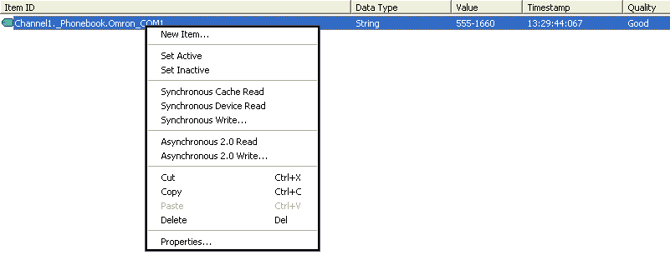
Figure 22
This will bring up the Synchronous Write dialogue. Click in the window under Write Value and enter any value you would like to dial this number. Click Apply, then OK. If you look back to your modem group (see Figure 20), you will see the phone number associated with your entry populate the _PhoneNumber and _DialNumber tags in your _Modem group.

Figure 23
Contact Information
If you have any questions, or seek further information and help: