![SWTB_logo_rgb_color_mode-wPadding-2000x961.png]](https://help.softwaretoolbox.com/hs-fs/hubfs/SWTB_General/Images/Press_Kit/SWTB_logo_rgb_color_mode-wPadding-2000x961.png?height=50&name=SWTB_logo_rgb_color_mode-wPadding-2000x961.png)
Introduction
The following is a case study of how Brad Bright of Unifi used the OPC Data Logger to solve his data logging needs.
Intended Audience
This document is intended for people who need to log OPC data to a database, plain and simple.
This document assumes no prior database experience.
Purpose of this document
This document is intended to provoke design decisions prior to implementation.
This document is intended to help facilitate the easiest possible OPC Data Logger configuration, while leveraging maximum database efficiency which will result in:
- Less data being logged
- More accurate data being logged
- Maximum reporting capabilities.
This document will outline a simple data logging scenario along with step-by-step instructions that will accomplish a solution.
Data Logging Scenario
Brad had a need to log data to an ORACLE database for later analysis. Brad outlined the following requirements:
- Approx. 30 devices required their data to be logged.
- Each device has approx. 30 items that needed to be logged.
- All data, from all devices needed to be collected 4 times per day.
- The logged data can be analyzed later (not in real time)
- Would like to see the data in a tabular report, i.e. showing the data between time-frames.
- Ability to see & exclude any questionable/bad data during a specific time-frame.
Data Design
Brad realized that his needs were such that he could end-up with large and complex configuration settings that could be confusing to other users, so Brad started out by designing his database applying widely adopted database principles and best practices including data-normalization and the use of Stored Procedures to maximize his data efficiency as well as maximizing his Oracle database performance.
Data Normalization - Separating Data into Multiple Tables
The first step is to identify and normalize the data.[1]
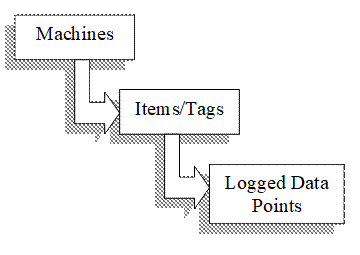
In this case, Brad separated the data into 3 respective areas:
- Machines – to store information about each machines whose data is being logged
- The Items/Tags – which will be related to the Machines
- The logged data points – and we will relate them to the Items
Data Table Design
In this simple design, Brad opted to separate the logged values from the underlying items themselves. Here is a look at these simple tables:
|
|
|
||||||||||||||||||||||||||||||||||||||||||
In this design, the values could be logged to the MACHINE_VALUES table without having to log the name of the item for each value logged, which would save space in the database. Furthermore, because of the direct relationship between the value and the item, much more efficient database queries will be possible.
How will data be stored?
First, the machines and items tables had to be pre-populated. The machine table stores information about the machines:
| MACHINE_TABLE | |
| Id | Item_Name |
| 1 | Machine 1 |
| 2 | Machine 2 |
| 3 | Machine 3 |
Also, the ITEM_TABLE had to be populated before we begin logging. For example:
| ITEM_TABLE | |
| Id | Item_Name |
| 1 | Channel1.Device1.Tag1 |
| 2 | Channel1.Device1.Tag2 |
| 3 | Channel1.Device1.Tag3 |
Once the MACHINE_TABLE and ITEM_TABLE database tables contained the data, the OPC Data Logger could now log the values into the MACHINE_VALUES as follows:
| MACHINE_VALUES | ||||
| Id | Item_Id | Item_Value | Item_Quality | Item_Timestamp |
| 1 | 1 | 10 | 192 | 1/1/2008 12:01:01 |
| 2 | 1 | 20 | 192 | 1/1/2008 12:01:01 |
| 3 | 2 | 30 | 192 | 1/1/2008 12:01:01 |
| 4 | 1 | 40 | 192 | 1/1/2008 12:01:01 |
| 5 | 1 | 50 | 192 | 1/1/2008 12:01:01 |
| 6 | 3 | 60 | 192 | 1/1/2008 12:01:01 |
Note: This time the name of the item is NOT being logged (yellow column) but its index within the other/related table is being logged instead.
Configuring the OPC Data Logger
Configuration Process
Before configuring the OPC Data Logger, Brad already configured the database with the previously documented tables, and the MACHINE_TABLE and ITEM_TABLE were pre-populated with the data.
Because Brad already had the names of the items configured within his TOP Server OPC Server, he simply exported them to a *.CSV file and then opened file within Excel. Brad then modified the data so as to be able to import the items straight into the database, for example:
| item_name | machine_id |
| Channel1.Device1.Tag1 | 1 |
| Channel1.Device1.Tag2 | 1 |
| Channel1.Device1.Tag3 | 1 |
| Channel1.Device1.Tag4 | 2 |
| Channel1.Device1.Tag5 | 2 |
| Channel1.Device1.Tag6 | 2 |
| Channel1.Device1.Tag7 | 3 |
| Channel1.Device1.Tag8 | 3 |
| Channel1.Device1.Tag9 | 3 |
Brad then further configured the data such that he was able to import this *.CSV file straight into the OPC Data Logger, eliminating the need for him having to manually configure the items.
Modifying the items data within Excel
Next, Brad modified the items table within Excel that were previously used to import into database.
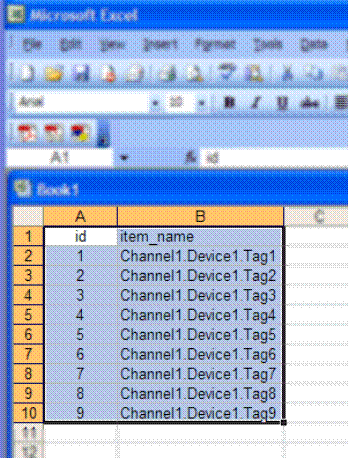
In order to import this data into the OPC Data Logger, Brad needed to modify the data by first adding the extra columns needed. Also, in order to tie the relationship between the data being logged and the items table within the database, Brad opted to store the Machine_Id inside the Item Description column for each item.
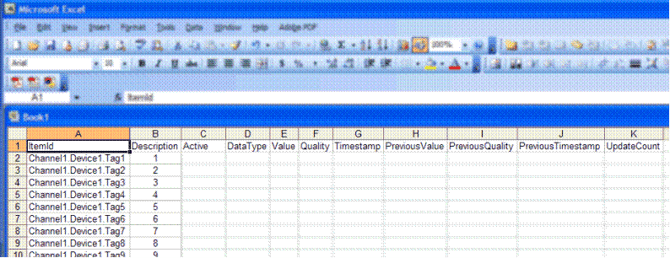
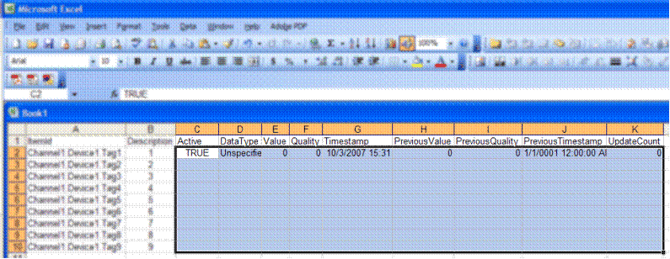
Next, Brad had to fill-in the empty cell values for the first row:
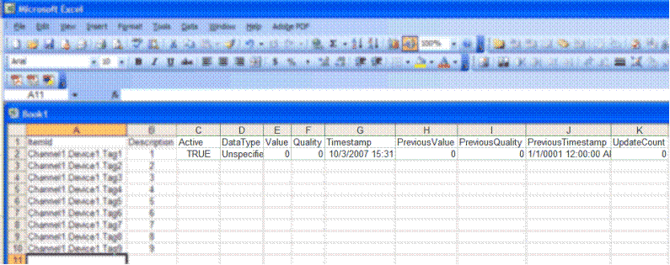
Once the first row contained some default values, the remaining empty rows needed to be configured also. This was done quickly and easily by using the Fill-down option within Excel. The first key was to select the entire range of data that was added, in this example cell C2 to K2. But, also to expand this range so that it covers the blank cells beneath this range as shown below:
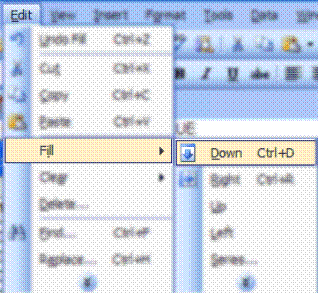
Next, Brad chose the Fill > Down option:
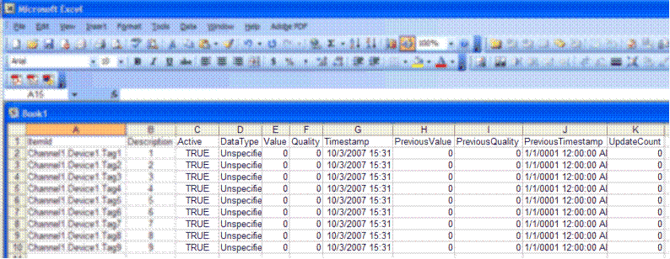
The values were then copied onto each row as shown here:
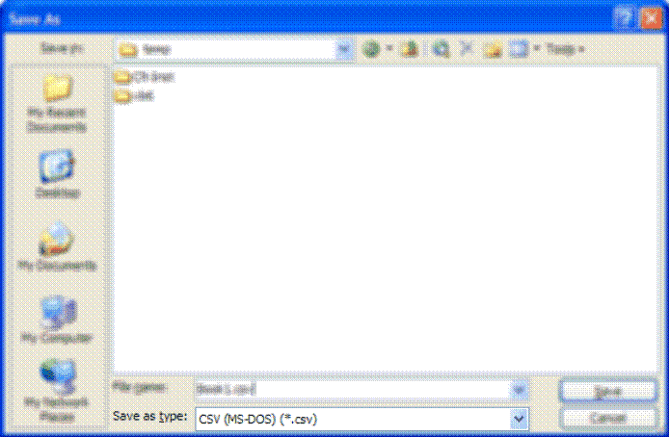
Brad then saved this sheet as a *.CSV file by simply choosing FILE -> SAVE AS and then picking *.CSV as shown here:
Importing the items into the OPC Data Logger
Once the items were defined within the *.CSV file, Brad then used the Item Import feature to add these items to the OPC Data Logger configuration:
- Opened the OPC Data Logger, then opened the Project containing the group being modified.
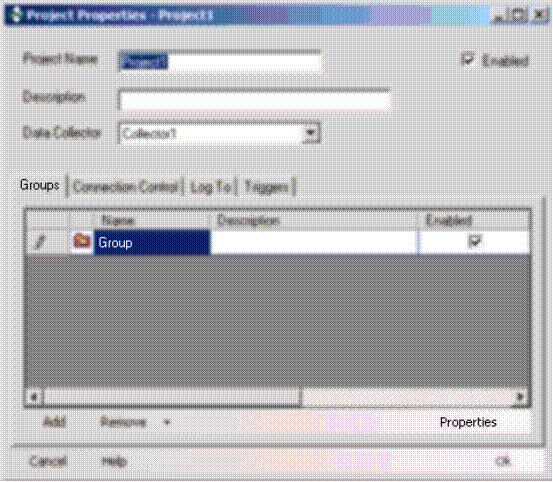
- Highlight (or add) the group, and then open its Properties.
- Clicked on the Items tab and then opened the Import option at the bottom of the window, choosing the Import From File sub-menu finally clicking on the DataLogger (*.CSV) option:
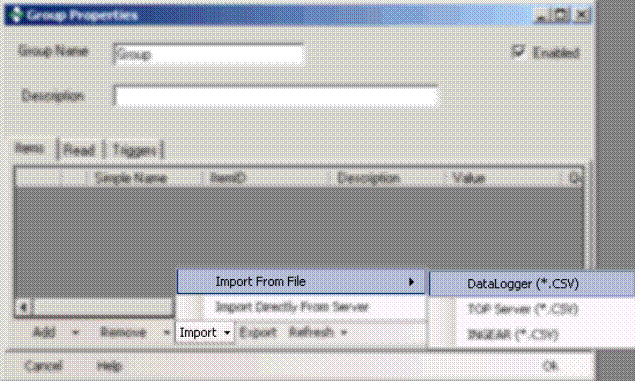
- A dialog prompted for the file to import:
- The items were then imported:
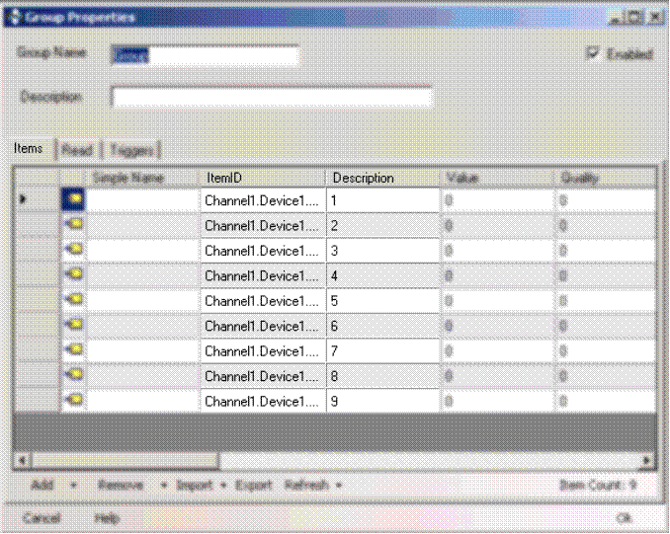
Note That Item’s id in the database is stored within the Description column.
Configuring a Detail mode presentation formatter
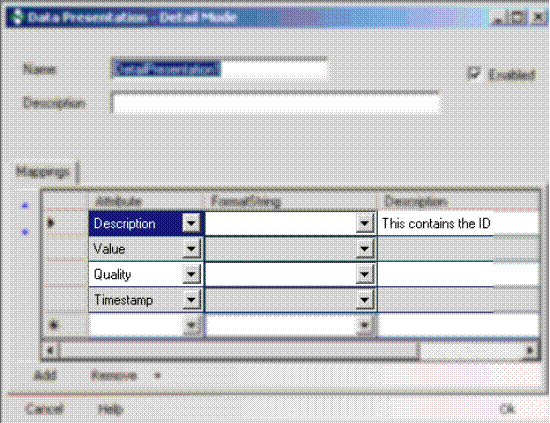
Brad then configured just one detail mode formatter needed to correctly log the items (including the reference to the Item ID).
- Created a new Detail mode presentation by simply right-clicking on the Detail Mode icon in the main application tree-view:
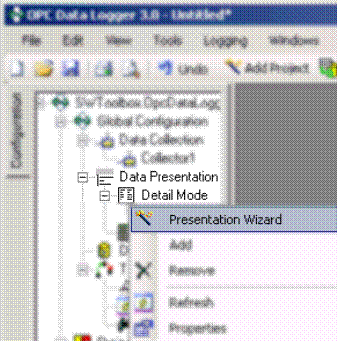
- Configured the detail mode to resemble the following:
- Clicked OK to save and close this window.
Connecting to the Database
Now, the database had been configured, the items had been imported into the database and OPC Data Logger, and defined the Detail mode presentation. Brad was able to complete the configuration process by binding the detail-mode formatter to the database table. Once this was done, data can be logged.
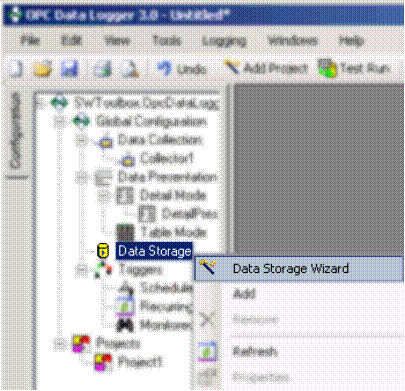
- Right-click on the Data Storage node within the treeview and choose the Data Storage Wizard:
- The wizard will begin. Press Next to bypass the welcome screen.
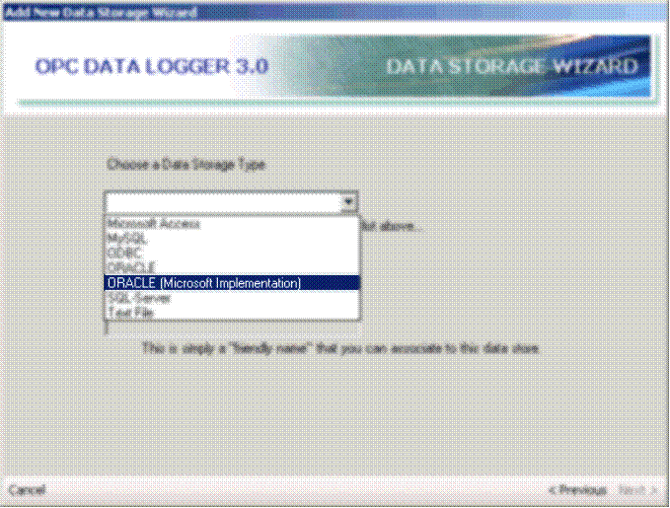
- Next, the ORACLE database type was chosen from the list.
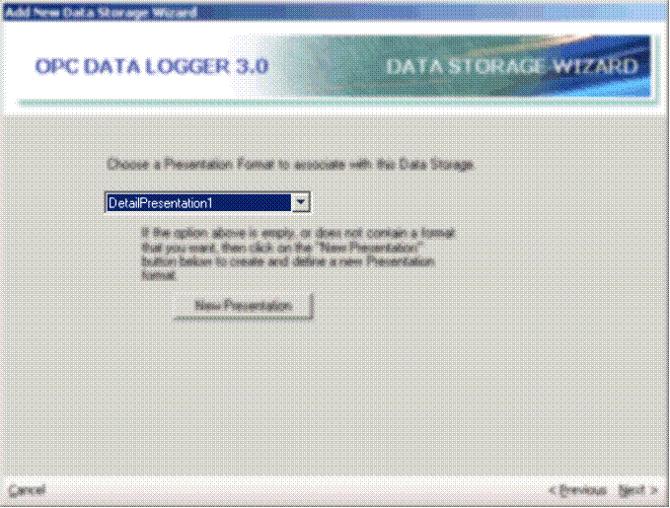
Then click the Next button. - Pick the Detail presentation that was previously created:
 Then click the Next button.
 - In the case of connecting to an ORACLE database, the following window will be displayed requiring the entry of a valid Service Name.
(This does not apply to any other type of database.)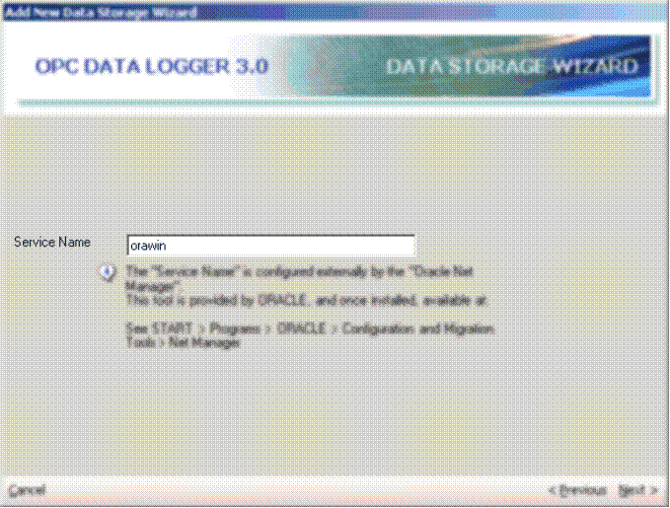
Simply click the Next button to proceed. - Specify how to log into the database.
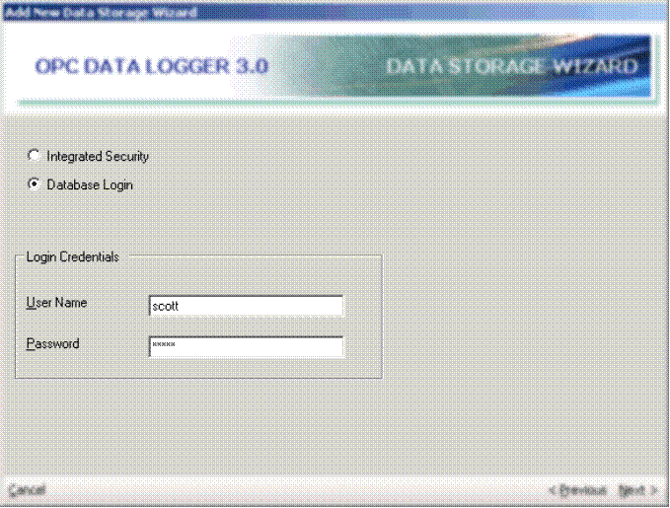
In this case we will be using the scott\tiger default account installed by Oracle.
Click the NEXT - Test your database configuration:
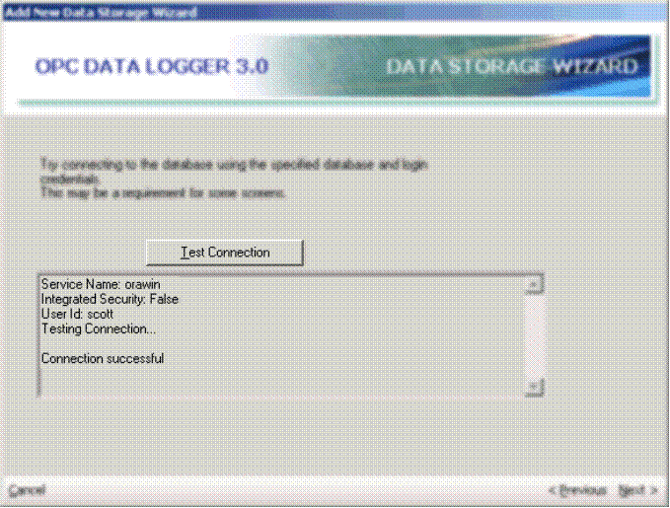
It is important that the test is successful for the wizard to proceed.
Click the Next button to continue. - Now to pick MACHINE_VALUES table from the list of available tables, because this is the table where data will be logged:
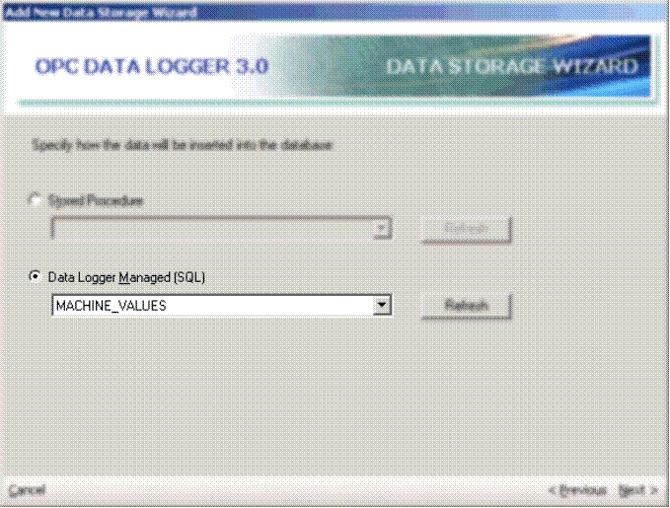 Click the Next button to continue.
 - Now to configure the bindings, that is, the relationship between the item values within the OPC Data Logger and the fields within the selected table.
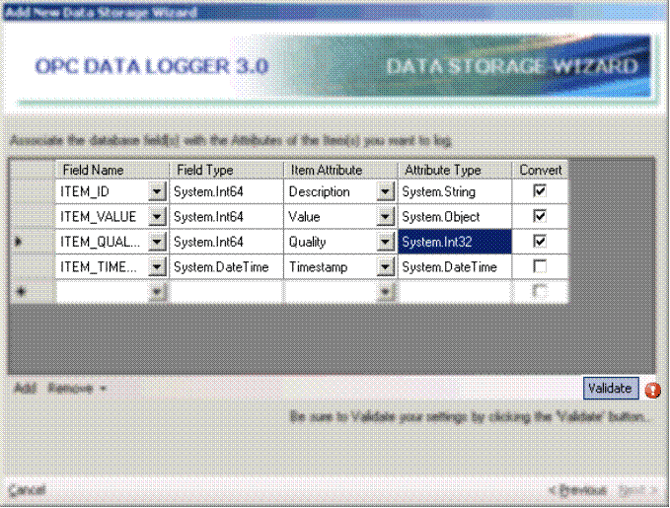
You must click the Validate button to verify that your configuration is valid. Press the Next button to proceed.
 - The wizard will summarize what you have just done, simply click the Finish button and then save your OPC Data Logger configuration.
Collecting the data 4 times a day
The OPC Data Logger required 2 configuration steps in order to log data 4 times a day:
- Setting up Triggers
- Configuring the group to read based on the triggers
Step 1 Configuring the Triggers
Brad needed to log data 4 times a day, at specific times of the day. The other choice could have been to log every 6 hours. Because strict times were going to be used, a Scheduled Trigger was created for each time of the day a reading needed to be made. Here’s an example of a scheduled trigger scheduled to execute at 3:30 pm.
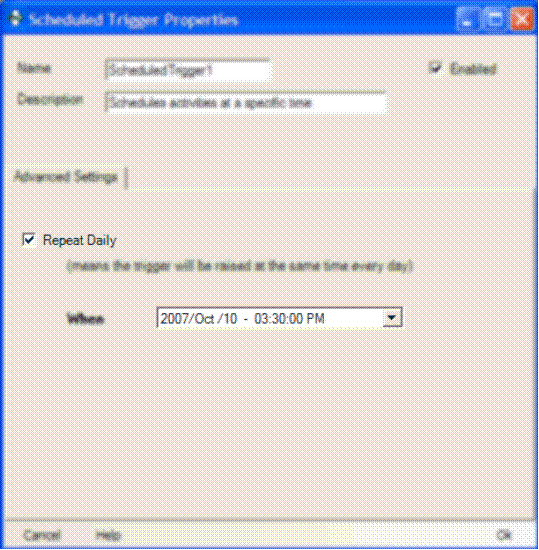
3 other triggers were created, 1 for each of the other times of the day.
Step 2 Configuring the Group to use the Triggers
Now that the triggers had been setup, the next step was to configure the GROUP to use them. This also was a 2-step configuration:
- Specify that triggers initiate when to read the items.
- Specify which triggers will cause the reading to take place.
Step 1 – Specifying the reading to take place when a trigger is raised.
Open the group properties and click on the Read tab. Click the Triggered Reads option:
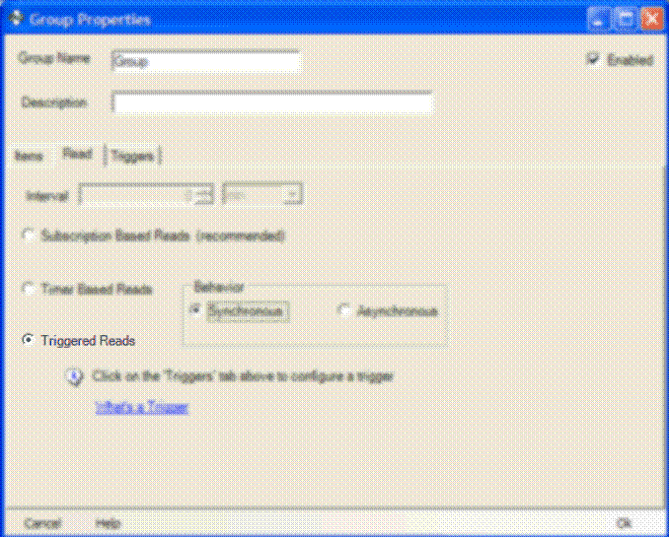
Step 2 – Specifying which triggers to observe
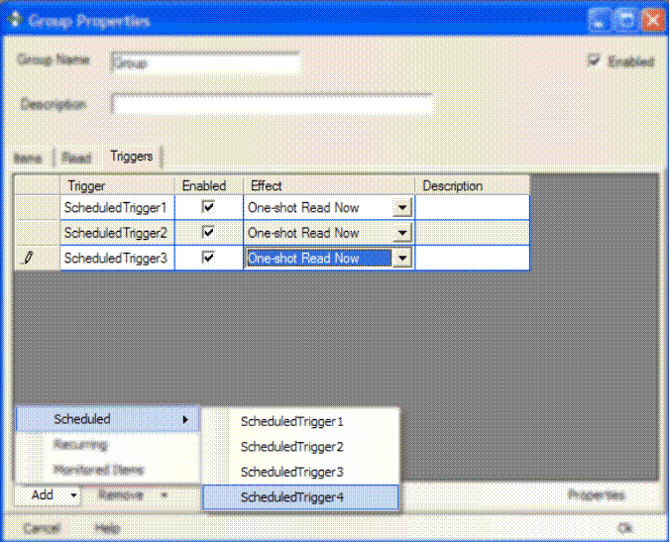
Within the Group property pages, click the Triggers tab and then add the scheduled triggers previously defined. Each trigger was specified to execute the One-shot Read Now within the Effect column:
Last Step – Connecting the Data Collection to the Data Storage
Now that the data collection has been defined, the items added, presentation format defined, and the database connection defined, the last step is to bring it all together.
- Open or create a new Project under the Projects node in the OPC Data Logger tree-view:

TIP: Whenever you are creating a new project, use the Project Wizard as it dramatically simplifies the configuration process and ensures the configuration is valid and correct. - Open the Project properties window and click on the Log To tab.
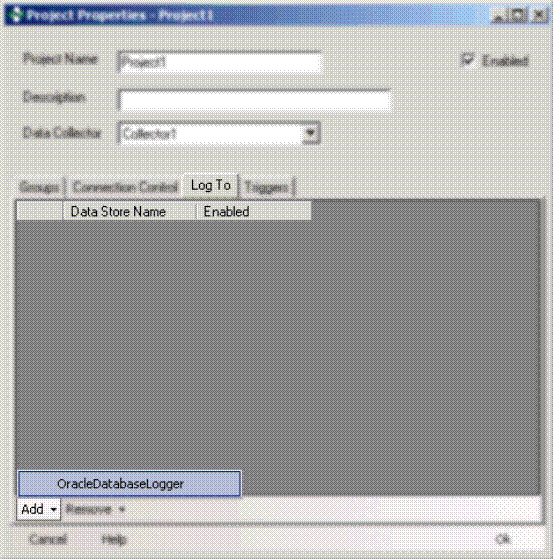
At the bottom of the window click on the Add button, and you will see the available data stores available, in this case we have our only Oracle database storage component called OracleDatabaseLogger.
Click OK to save and close the screen.
That’s it! Brad was now ready to log data.
Further Optimization – Stored Procedures vs SQL Injection
So far, Brad used direct SQL injection to log the data to the MACHINE_VALUES table See step 8 . This is not optimal. Brad knew that this is a slower method of logging data because it meant the OPC Data Logger was sending SQL statement to the database, which then must be parsed and validated by the database server prior to compilation and final execution. This would happen every time data would be sent to the database.
The obvious step was to avoid the parsing/compilation needed by the database server each time data was being logged. This can was accomplished by creating a Stored Procedure.
Stored Procedure
A stored procedure is a module that is compiled and run within the database engine itself.
The stored procedure (sproc) was created using the Wizard tool within the Oracle Enterprise Manager:
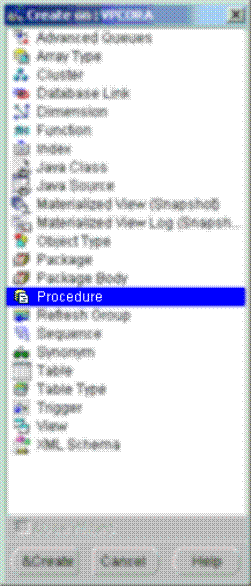
Selecting the Procedure option and then hitting the &Create button opened a dialog where you could specify a name for the sproc and the actual SQL statement itself, as in:
Name: Insert_Machine_Values
SQL:
( |
Note: The [bolded text] represents the arguments that are required by this sproc.
Example Reports
To complete this case-study, we will take a look at some example SQL Queries that could be used for reporting.
NOTE: The following examples are purely for educational purposes and do not reflect those used by Brad or Unifi.
NOTE: The following SQL queries were creating against an ORACLE 10i database server; consequently, the exact syntax may not be compatible with other database engines.
Retrieving values logged for an item between a date-range
select |
This produces the following output:
TAGNAME ITEM_VALUE ITEM_QUALITY ITEM_TIME |
Retrieving a count of logged values for all items between a date-range
select |
This produces the following output:
TAGNAME ITEM_TIME COUNT(*) |
[1]: Database normalization is not in the scope of this document.