![SWTB_logo_rgb_color_mode-wPadding-2000x961.png]](https://help.softwaretoolbox.com/hs-fs/hubfs/SWTB_General/Images/Press_Kit/SWTB_logo_rgb_color_mode-wPadding-2000x961.png?height=50&name=SWTB_logo_rgb_color_mode-wPadding-2000x961.png)
Introduction
Intended Audience
This document is meant for users who want to start and stop logging based on the value of a tag with an OPC Server.
Purpose of this document
This document is meant to show how to take an existing project configuration and have it start and stop logging based on the value of a tag from an OPC Server.
Assumptions
This example assumes the following:
- You have at least one Data Collector.
- You have at least one Data Presentation.
- You have at least one Data Storage Component.
- You have at least one Group of items.
- You have at least one Project.
- If you were to do a Test Run data would be successfully logged.
Triggers
Configuring the Start Logging Trigger
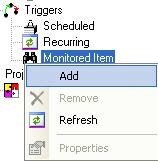
- Right click on the Monitored Item icon in the tree view and select Add. This will create MonitoredTrigger1 in the tree view.
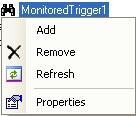
- Right click on the MonitoredTrigger1 in the tree view and select Properties.
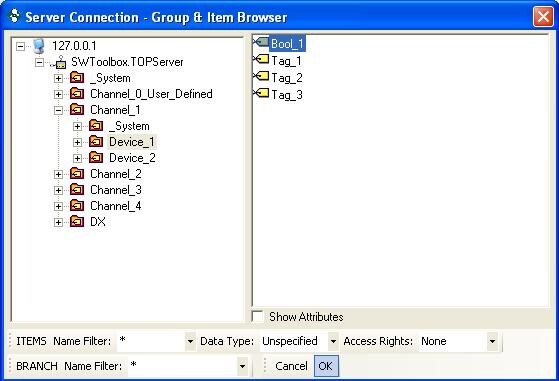
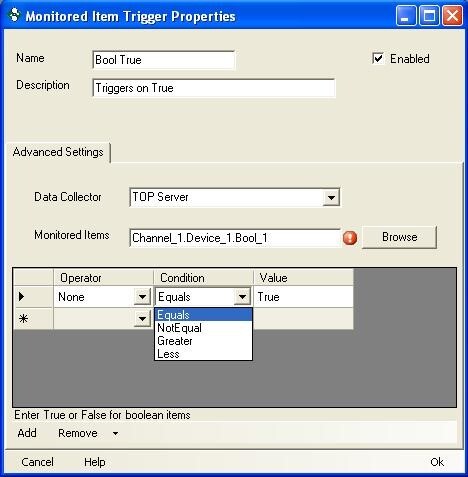
- Give your trigger a meaningful name and description. Select the Data Collector where the item is located and click Browse. This will display the Item Browser.

- Browse for the item you are going to monitor, once the item is highlighted click OK. For this example we are going to monitor a Boolean item called Bool_1.
- Now you must specify a condition and a value. We want the trigger to fire when the value of Bool_1 is equal to True. After specifying a condition and value click OK. We have just added and configured the first Monitored Item Trigger.
Configuring the Stop Logging Trigger
- Right click on the Monitored Item icon in the tree view and select Add. This will create MonitoredTrigger1 in the tree view.
- Right click on the MonitoredTrigger1 in the tree view and select Properties.
- Give your trigger a meaningful name and description. Select the Data Collector where the item is located and click Browse. This will display the Item Browser.
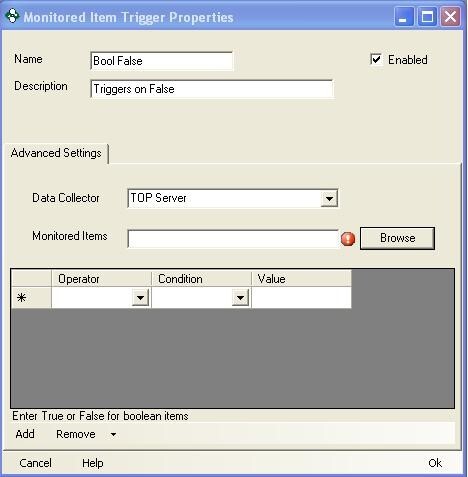
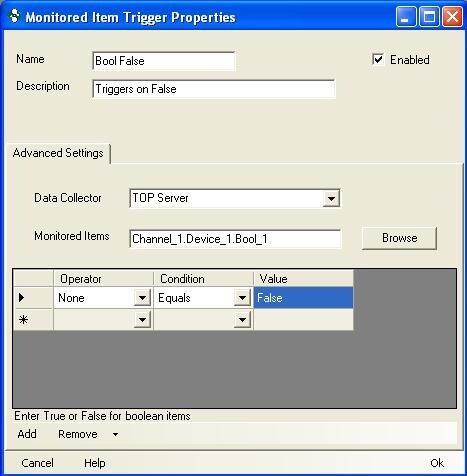
- Browse for the item you are going to monitor, once the item is highlighted click OK. We are going to choose the Bool_1 item again.
- Now you must specify a condition and a value. We want this trigger to fire when the value of Bool_1 is equal to False. After specifying a condition and value click OK. We have just added and configured the second Monitored Item Trigger.
Adding the Triggers to the Project
- Now we must add the triggers to our project. Right click on your project in the tree view and select properties.

- Click on the Triggers tab. Click Add and select the two triggers that were created above. Choose the effect for each of the triggers. The Bool True trigger will start logging and the Bool False trigger will stop logging.
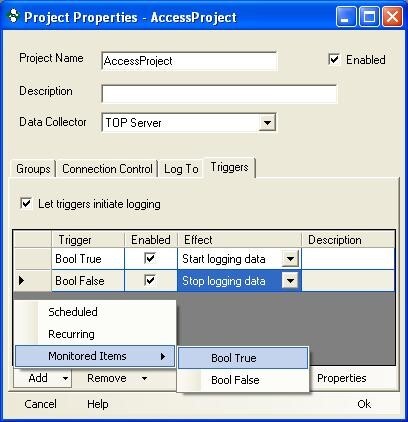
For this example we have enabled Let triggers initiate logging. With this option enabled once Start Logging is selected the project will only start logging data when the Bool True trigger fires. With this option disabled the project will start logging data as soon as Start Logging is selected.
Start the Logging
We must now start the logging.
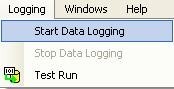
- You must then go to the main menu and select Logging ⇒ Start Data Logging. This will start the Data Logging Service. Data Logging must be started for these triggers to be noticed. Data will be logged when the first 9am occurs.