![SWTB_logo_rgb_color_mode-wPadding-2000x961.png]](https://help.softwaretoolbox.com/hs-fs/hubfs/SWTB_General/Images/Press_Kit/SWTB_logo_rgb_color_mode-wPadding-2000x961.png?height=50&name=SWTB_logo_rgb_color_mode-wPadding-2000x961.png)
Introduction
Intended Audience
This document is intended for users who need to log a single row of data on demand.
Purpose of this Document
This document will describe how to set up your project to write a group of tags a single time based on a trigger. This can be useful if you need to log a group of items when a Boolean value goes high or at a specific time, such as a shift change. This example will cover the use case of a Boolean value going high.
Assumptions
This example assumes you have created at least one of each necessary component to log data. These components include:
- Data Collector
- Data Storage
- Data Presentation
- Project with at least one Group of items.
Group Configuration
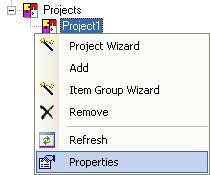
- Right click on your project and select properties.
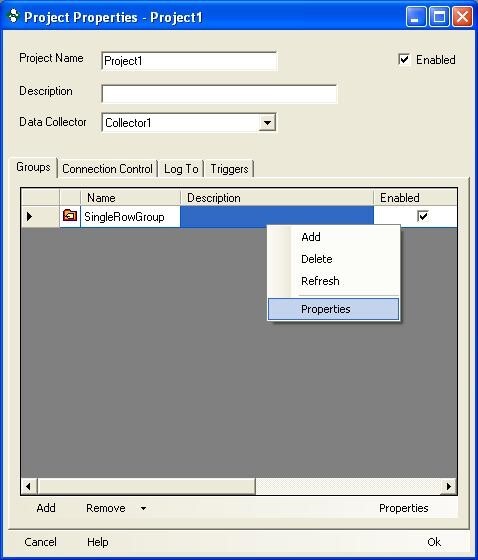
- In the Groups tab of the project properties right click the group and select properties.
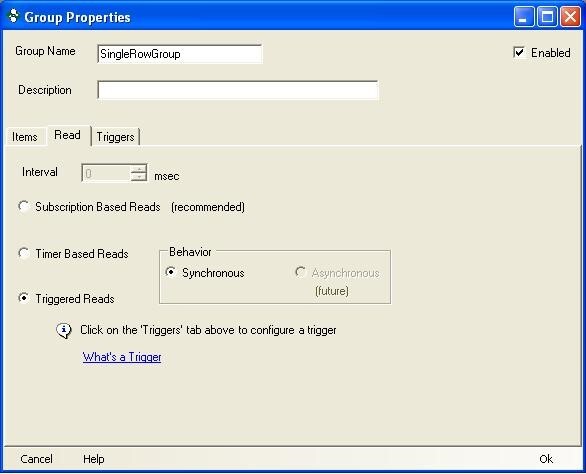
- Go to the Read tab of the group properties and change the read method to Triggered Reads. You must also choose Synchronous or Asynchronous reads. Now we have specified we want to do triggered reads we must set up a trigger that will be used. Keep this screen open we will come back to it for step 11.
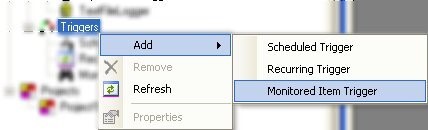
- For this example we are going to be using a Monitored Item Trigger. To add a monitored item trigger right click on the Triggers icon in the tree view and select Add ⇒ Monitored Item Trigger.
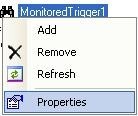
- A monitored item trigger should have appeared in the tree view. Right click on MonitoredTrigger1 and select properties.
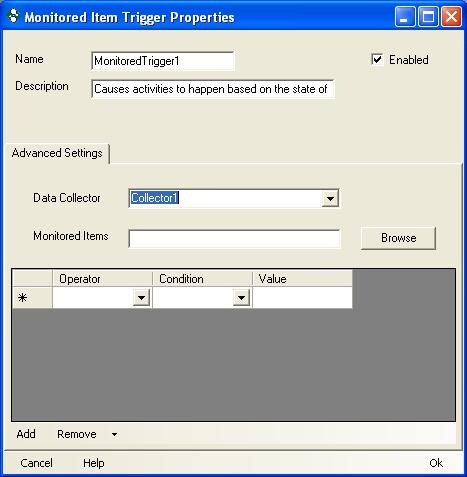
- Be sure to choose the Data Collector where the item you would like to monitor is located. Then click Browse.
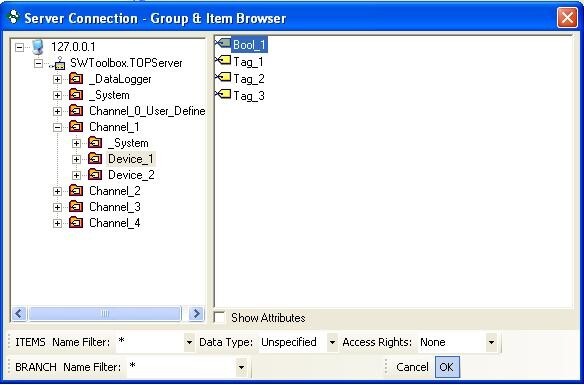
- You should now be able to browse all the items from the selected Data Collector. Browse to the item you would like to monitor and select Ok. For this example we are going to monitor a Boolean value.
- For this example when the tag Bool_1 equals true.
NOTE: When monitoring Boolean values you must use the string representations of the value you want to monitor.
- Use True instead of 1.
- Use False instead of 0.
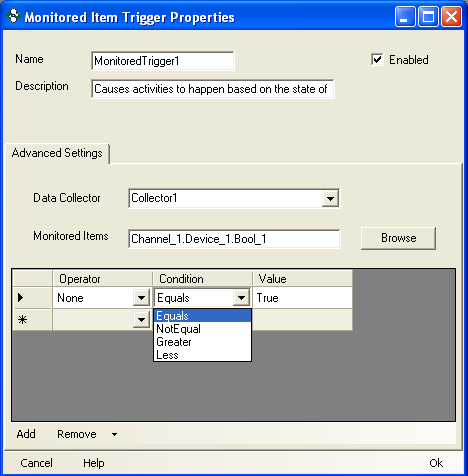
- (Optional) If you would like to monitor the item when the value goes true or false your configuration would look the same as the figure below. Once you have configured the conditions of the item you are monitoring click Ok.

Adding the Trigger to the Group
- Go back to the properties for the group from step 3. Click the Triggers tab. Click the add button at the bottom and select the trigger you just created.
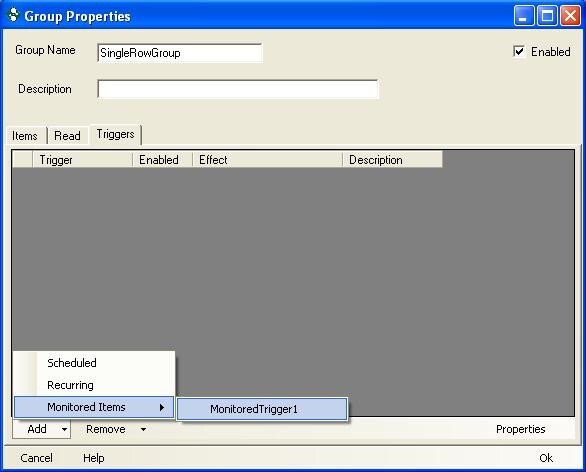
- Now you must set the Effect the trigger will have. We want to set the effect to One-shot Read Now. Also make sure the enabled box is checked. You can now click Ok on the group properties and then select Ok on the project properties.
