![SWTB_logo_rgb_color_mode-wPadding-2000x961.png]](https://help.softwaretoolbox.com/hs-fs/hubfs/SWTB_General/Images/Press_Kit/SWTB_logo_rgb_color_mode-wPadding-2000x961.png?height=50&name=SWTB_logo_rgb_color_mode-wPadding-2000x961.png)
Before uploading the program from a PLC, take into consideration what you want to do with it. Primarily, if you want to save the program to your PC or other storage device, you must create a project to save the program to. See this FAQ for instructions on how to do that.
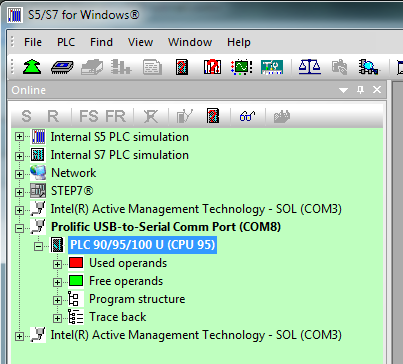
- Connect to the PLC that you want to upload from. You should see the controller in the on-line tree view on the left side of the development window. Connected PLCs will be identified with bold text as shown in the diagram below.
- In the View menu, select "On line - block list". You should now see a tab for the PLC block list at the bottom of the search results window.

- Make sure the PLC Block tab is selected to view the existing blocks present in the PLC.
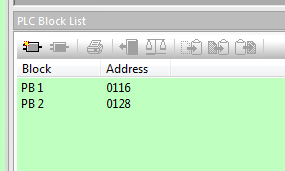
At this point, you have several choices...
Right-clicking in the PLC Block List window presents a menu, allowing you to upload all blocks to PC, or you may select individual blocks and upload them separately.
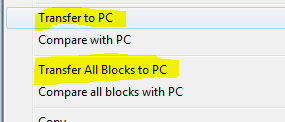
Once the blocks are transferred to the PC, you may save your off-line project, enabling you to view the blocks without having to be connected to the PLC.
This menu also gives you many other block operation options such as copy, delete, create new, etc.