![SWTB_logo_rgb_color_mode-wPadding-2000x961.png]](https://help.softwaretoolbox.com/hs-fs/hubfs/SWTB_General/Images/Press_Kit/SWTB_logo_rgb_color_mode-wPadding-2000x961.png?height=50&name=SWTB_logo_rgb_color_mode-wPadding-2000x961.png)
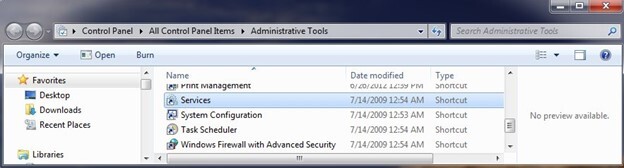
- Launch the services manager by browsing to Start ⇒ Control Panel ⇒ Administrative Tools ⇒ Services. Double click on the Services icon to open the Services dialog.
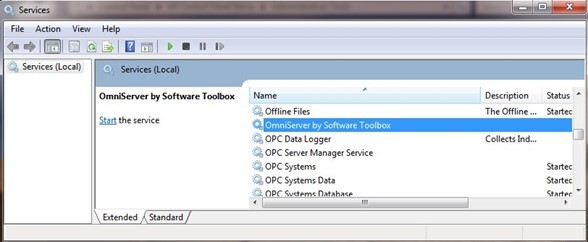
- Sort by name and locate OmniServer in the list. It should show up as “ OmniServer by Software Toolbox”
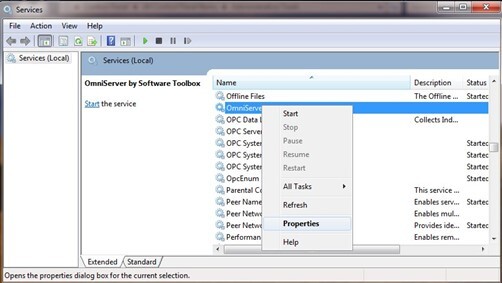
- Right click on the service name and select Properties
- Click on the Recovery Tab
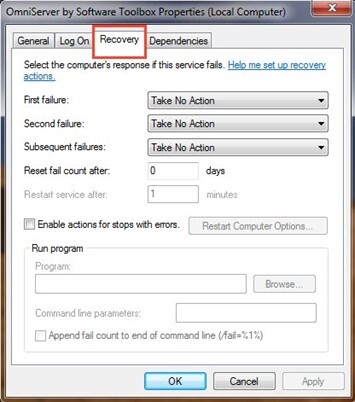
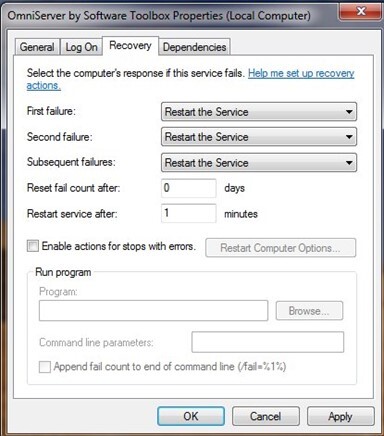
- Set the following properties:
- First Failure: Restart the Service
- Second Failure: Restart the Service
- Subsequent Failures: Restart the Service
- Reset fail count after: 0 days
- Restart Service after: 1 minute
The tab should look like the screenshot below.
- Click the Apply button. Then click OK.