![SWTB_logo_rgb_color_mode-wPadding-2000x961.png]](https://help.softwaretoolbox.com/hs-fs/hubfs/SWTB_General/Images/Press_Kit/SWTB_logo_rgb_color_mode-wPadding-2000x961.png?height=50&name=SWTB_logo_rgb_color_mode-wPadding-2000x961.png)
TOP Server may run in time-limited mode when the installed license does not fully authorize the version, feature, driver, or plug-in currently being used. This can also happen if the machine clock is incorrect or if the license status is no longer Good.
Use the checks below to identify the most common causes.
1. Check Whether Your TOP Server Version Is Covered by Your Support End Date
A TOP Server license can only run versions released on or before the support and maintenance end date shown for that license.
To check this:
- Open the TOP Server License Utility.
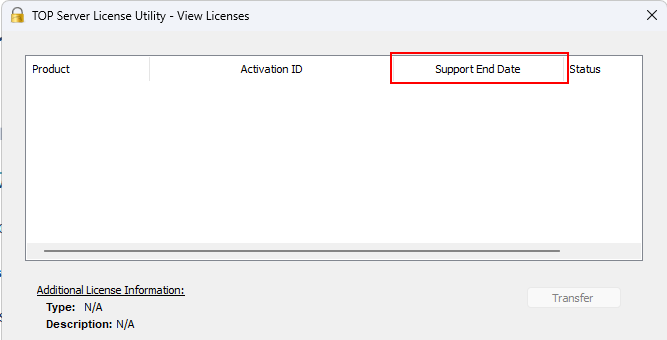
- Review each Activation ID's Support End Date
- Check the version of TOP Server from Help > Support Information
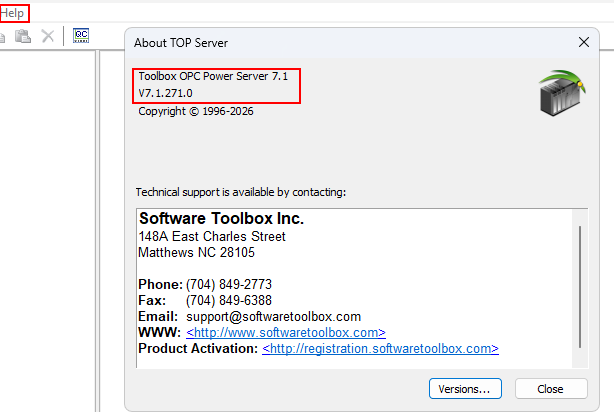
For example, if your support end date is in August 2021 and you install a TOP Server version released after that date, the license may still show as applied and in good status, but TOP Server will continue to run in time-limited mode because that version is not covered by the license’s support date. Please review TOP Server Operating System Support & Installers to find release dates and downloads.
How to resolve this:
- If your support and maintenance is expired, contact Software Toolbox sales to renew it.
- If you have already renewed support, verify whether the machine has the latest support renewal file applied.
Because TOP Server licensing is fully offline, the License Utility will not automatically know that your support date has been renewed.
To verify the latest support date:
- Go to Activation.SoftwareToolbox.com.
- Enter your serial number or activation ID on the homepage.

- Compare the support end date shown on the website to the date shown in the TOP Server License Utility.
If the website shows a newer support date than the License Utility, download the latest support renewal file:
- Go to the Renewal section of the activation website.
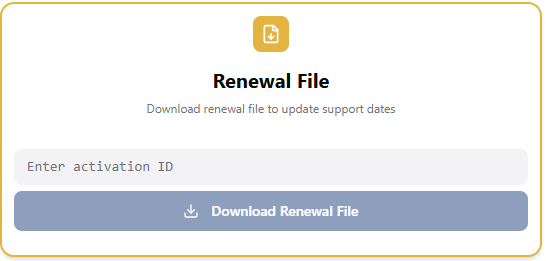
- Enter your activation ID.
- Download the renewal file. This file ends in
.lic. - Open the TOP Server License Utility.
- Select Renew.
- Browse to and apply the
.licrenewal file.
After the renewal file is applied, the support end date in the License Utility should update. Restart is required on TOP Sever V5, but not for V6 & V7
2. Verify the Machine’s System Clock
An incorrect system clock can cause TOP Server licensing to fail validation. Even a valid license may behave as time-limited if the computer’s date, time, or time zone is wrong.
Check that:
- The date and time are correct.
- The time zone is correct.
- The machine is syncing with a reliable time source.
- The clock is not drifting due to a CMOS battery, VM time sync issue, or domain time sync issue.
If the clock was incorrect, correct it and then reopen the TOP Server License Utility to confirm the license status.
3. Check the License Status
In the TOP Server License Utility, confirm that the license status is Good.
If the status shows anything other than Good, such as Broken Binding, Broken, or Cannot Be Accessed, TOP Server may fall back into demo or time-limited behavior.
Broken Binding commonly occurs when the machine identity changes enough that the license no longer trusts the system. This can happen after hardware changes, VM changes, restoring snapshots, cloning a VM, or other changes to the trusted storage.
For more information, see:
- TOP Server License Status showing Broken Binding
- What can cause a Broken TOP Server License?
- TOP Server License Status Showing Broken or Cannot be Accessed
Broken licenses must be recovered before TOP Server can run normally again.
4. Check Whether Your Project Uses an Unlicensed Driver or Plug-In
TOP Server is licensed by feature, driver, or suite of features. If your project uses a driver or plug-in that is not covered by your installed license, TOP Server may show time-limited feature messages for that unlicensed item.
For example, if you have a Modbus license but create and use a BACnet channel and device, the BACnet driver will run in demo mode. If a client is connected and actively using that BACnet driver, TOP Server may display time-limited feature pop-ups.
This does not necessarily mean your entire TOP Server license is invalid. It may mean that one driver or feature in the project is not licensed.
5. Use Quick Client System Tags to Identify Licensed and Time-Limited Features
TOP Server includes system tags that can help identify which features are licensed and which are running in time-limited mode.
To view them:
- Open Quick Client.
- Connect to TOP Server.
- Expand the
_Systemfolder. - Review the licensing-related system tags.
Useful tags include:
_LicensedFeatures
Shows the drivers or features currently in use that are correctly licensed._TimeLimitedFeatures
Shows active drivers or features in the project that are running in demo/time-limited mode. These features run for two hours at a time before the TOP Server Runtime service must be restarted._ExpiredFeatures
Shows drivers or features that have already reached the two-hour demo limit. To continue using those features without interruption, a valid perpetual license for those features must be applied. Otherwise, the TOP Server Runtime service must be restarted to begin another two-hour demo period.
Summary
TOP Server time-limited behavior is usually caused by one of these conditions:
- The installed TOP Server version was released after the license’s support end date.
- The latest support renewal file has not been applied to the machine.
- The machine clock is incorrect.
- The license status is not
Good. - The project is using a driver, plug-in, or feature not covered by the installed license.
If you are unsure which condition applies, collect screenshots of the License Utility, the support end date, the license status, TOP Server version, and the _System licensing tags in Quick Client before submitting a ticket.